
How can I fulfill an order?
How can I fulfill an order?
To see the list of orders on your account, go to the Orders tab in the Mirakl panel. You will find orders categorized by all statuses that indicate their stage of fulfillment, as well as orders with ongoing or completed incidents.
When an order is placed by a Buyer and enters the Mirakl system, you will receive an email notification and can proceed with its fulfillment.
To narrow down your search to a specific order, use the Filter section on the left side of the panel. Select fields like Order ID or Customer Name and fill them with the desired values.
Important!
Remember to update the status, ship the order, and add the tracking number within 48 hours of placing the order on working days. If the order was placed on a weekend or holiday, it should be fulfilled promptly on the next working day.
Accepting an Order
The first step in fulfilling an order is to accept or reject it. To do this:
Go to the
Orderssection and click on the order ID with the statusPending acceptance- each new order receives this status.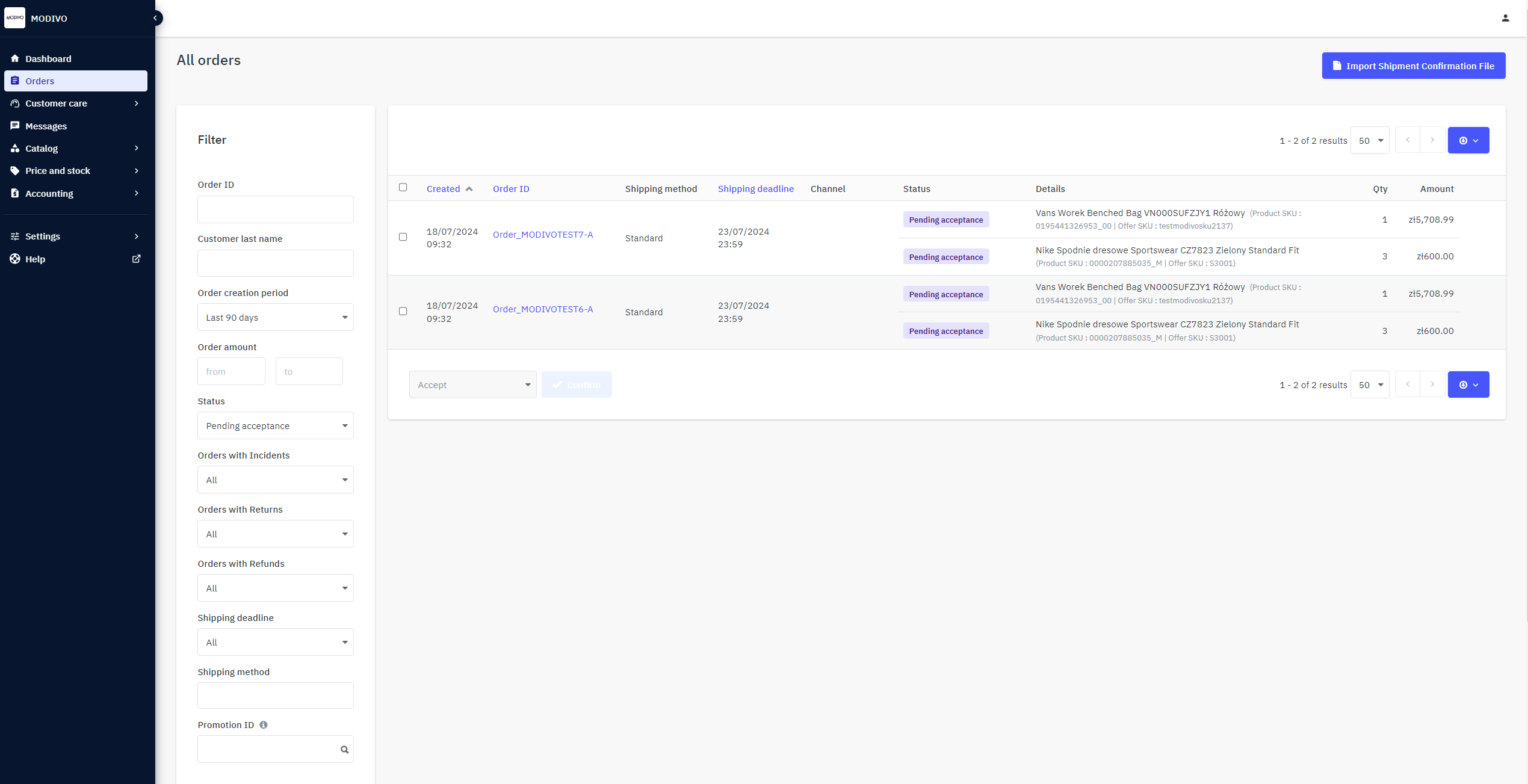
For every order you review, check the accuracy of the price, delivery method, and time, and ensure you have the product in your stock.
Then, in the
Itemssection, click theAcceptbutton; this will finalize the contract between you and the Buyer, and the Buyer will receive an automatic notification that the order has been accepted for fulfillment.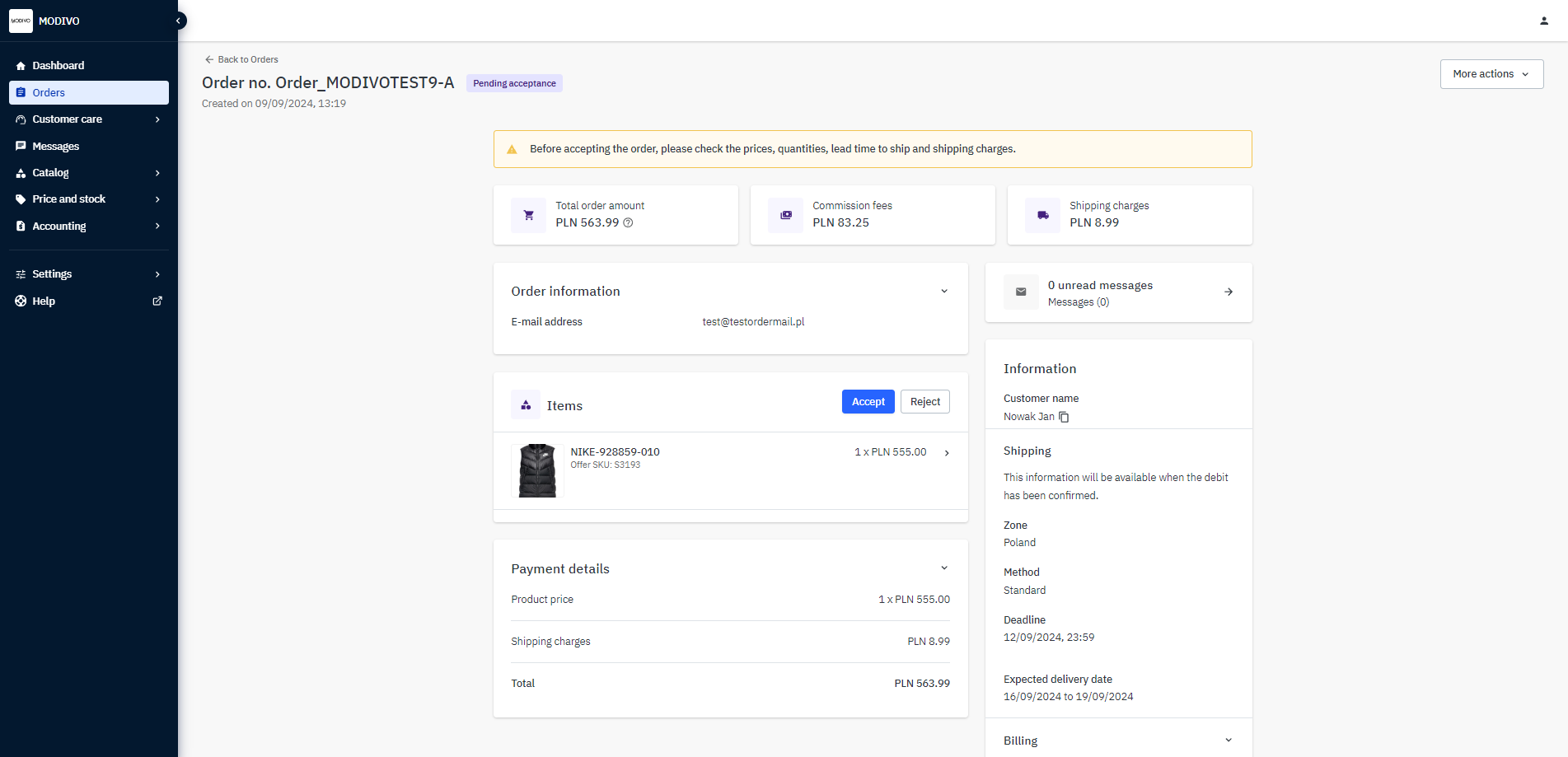
After acceptance, the order status will change to
Debit in progress. This means we are verifying with the payment provider that the funds for the order have been correctly collected. If the payment is not completed, after 72 hours, the order status will change toCancelled.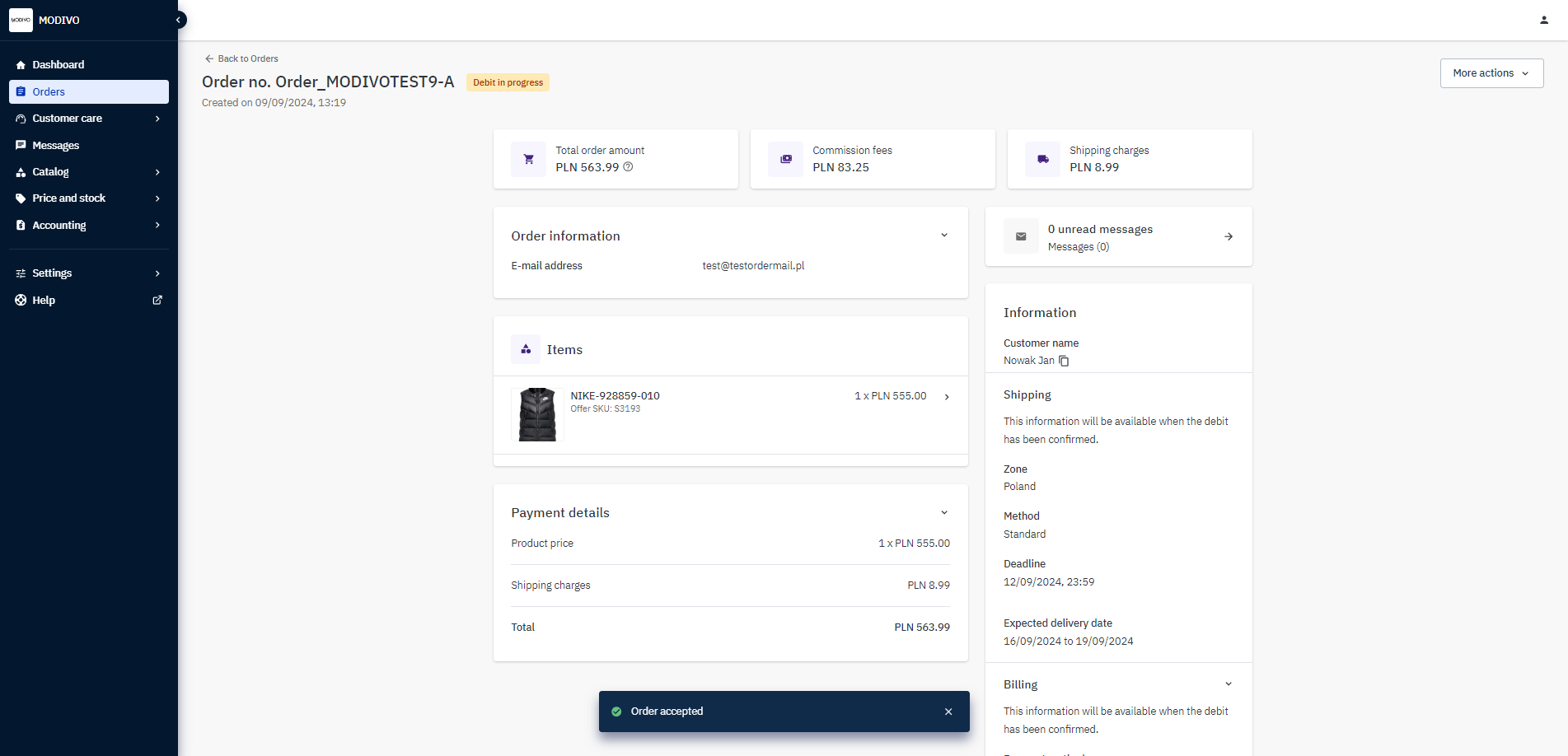
Important
Remember the order acceptance rate should be at 97%. You may reject an order by clicking the
Rejectbutton in theItemssection, but if the rate of rejected orders exceeds the set threshold, your Store may be suspended, and you will lose the ability to sell on the MODIVO platform.Once we receive the payment for the order, its status will automatically change to
Awaiting shipment. This means that the payment operator has received the funds from the Buyer.
Shipping the Order
If the order status is Awaiting shipment, you can begin packing the order and providing the shipping information. To enter the tracking number and confirm the shipment:
In the
Shippingsection, click theMark as Shippedbutton.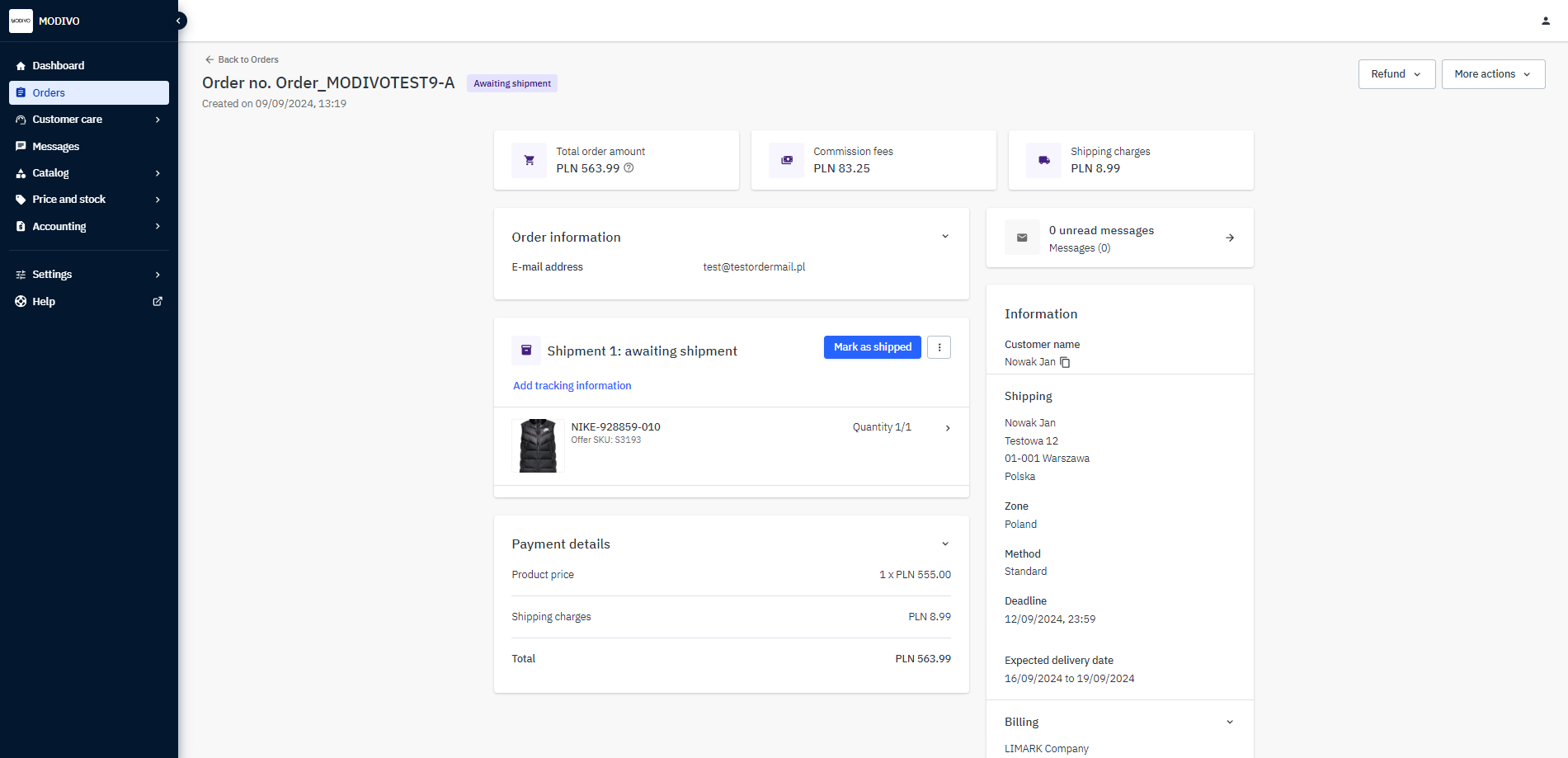
Click
Add Tracking Informationand from theCarrierdropdown list, select the method you are using to send the package. Then enter the tracking number.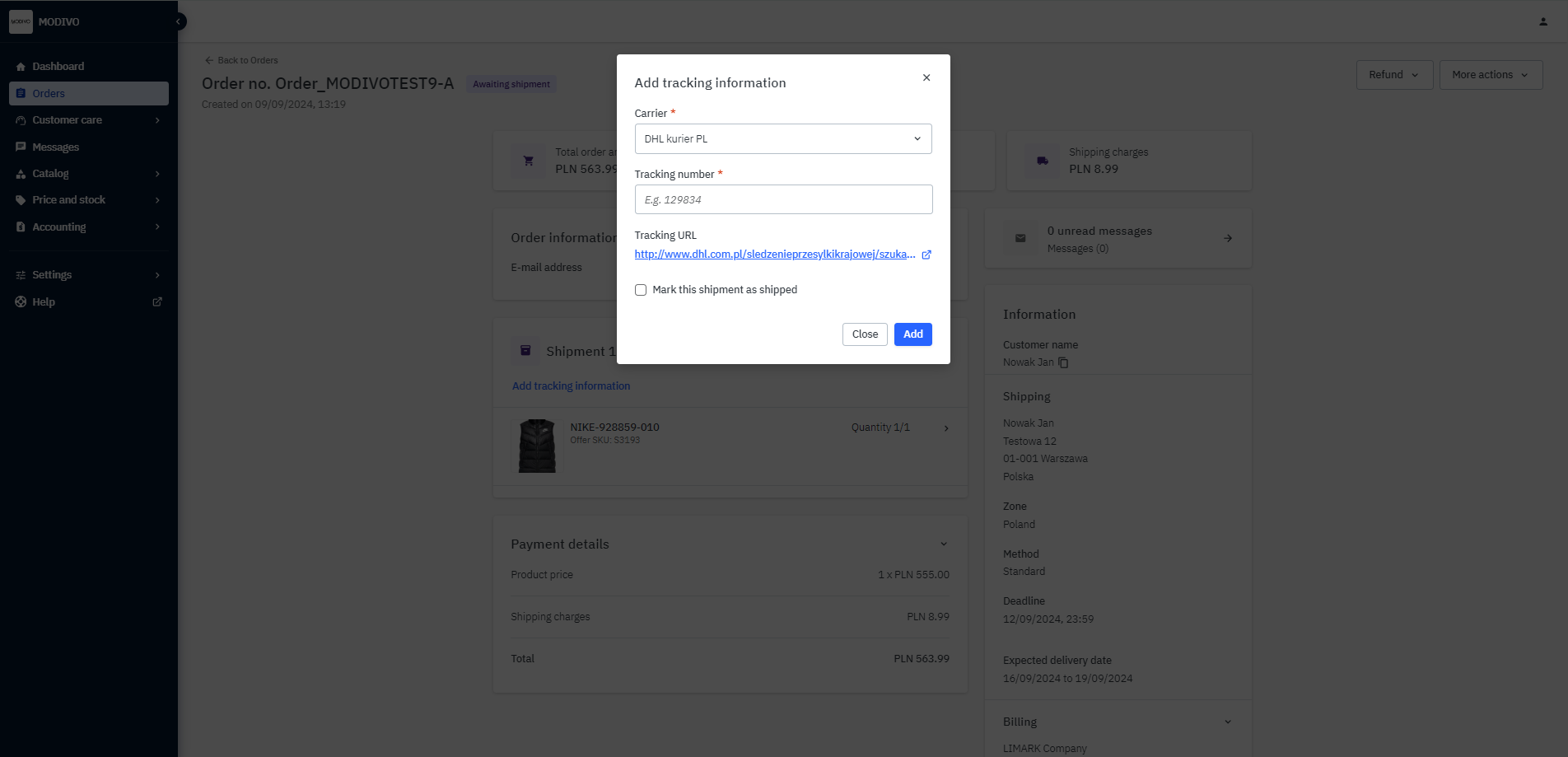
Once all the details are filled out and the order status changes to
Shipped, the buyer will receive an email notification with a link to track the shipment.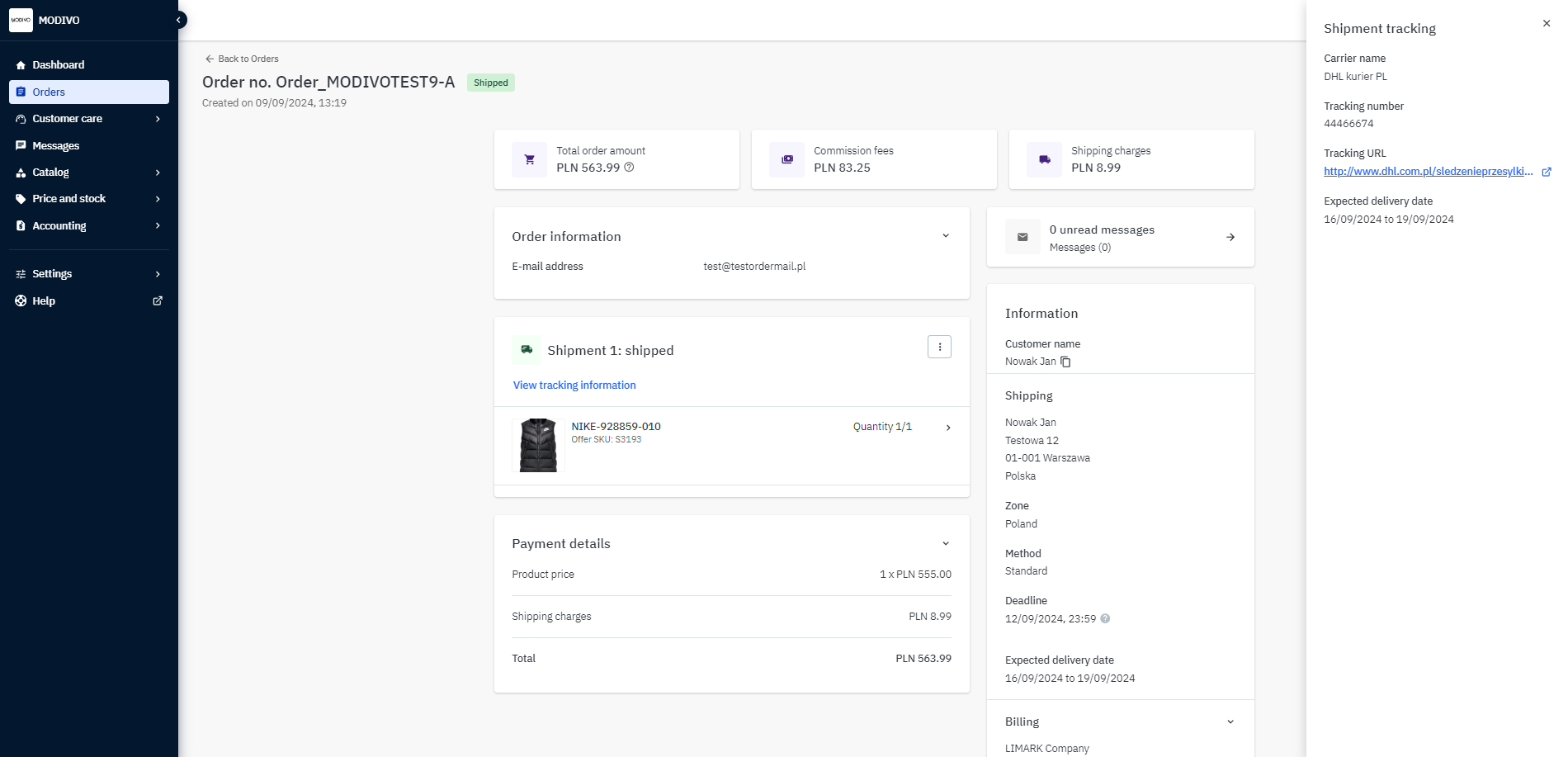
Every order automatically changes status from Shipped to Received 5 days after being marked as shipped, regardless of whether the order has actually been received.
Remember!
An order placed on a working day should be shipped within 48 hours of the order being placed. An order placed on a weekend or holiday should be fulfilled promptly on the next working day.
Can I Change the Shipping Time?
Unfortunately, such a change is not possible. We have implemented uniform shipping dates for all Sellers to ensure a consistent shopping experience on the MODIVO Marketplace.