
How to process a refund for an order?
How to process a refund for an order?
Refunds for orders must be processed in the Mirakl system. Once the return is processed in the system, the refund to the Buyer is automatically made from your PayU account.
To process a refund to the Customer:
From the left-hand menu, select
Orders.Enter the order number returned by the Customer in the order ID field.
Click on the order number to view its details.
Then, in the top-right corner, click the
Refundbutton.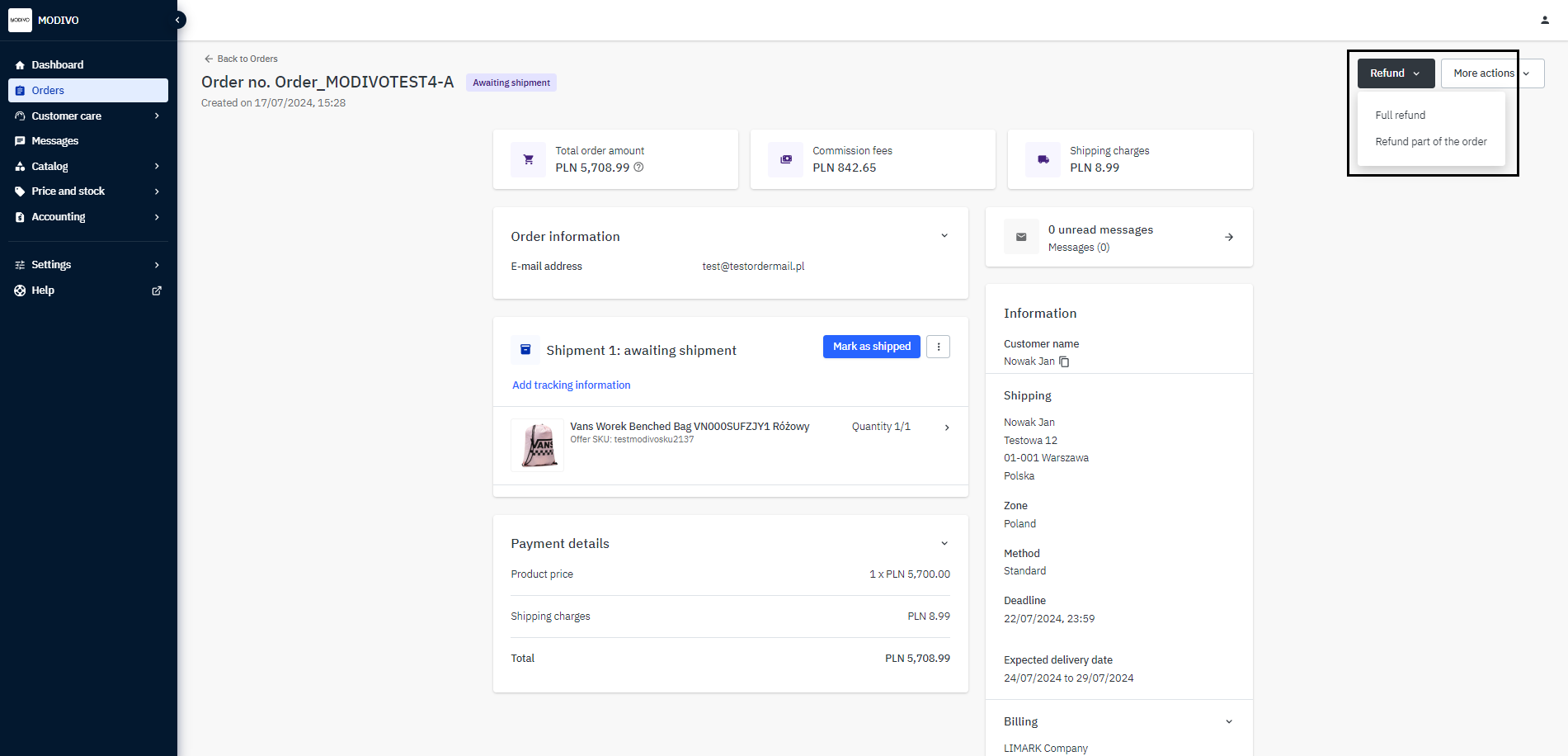
From the dropdown list, select the type of refund you want to process:
- Full Refund - choose this option if you want to refund the full amount of the order.
- Refund Part of the Order - choose this option if you want to refund part of the amount received for the order (e.g., if the Buyer returned one product out of several products ordered).
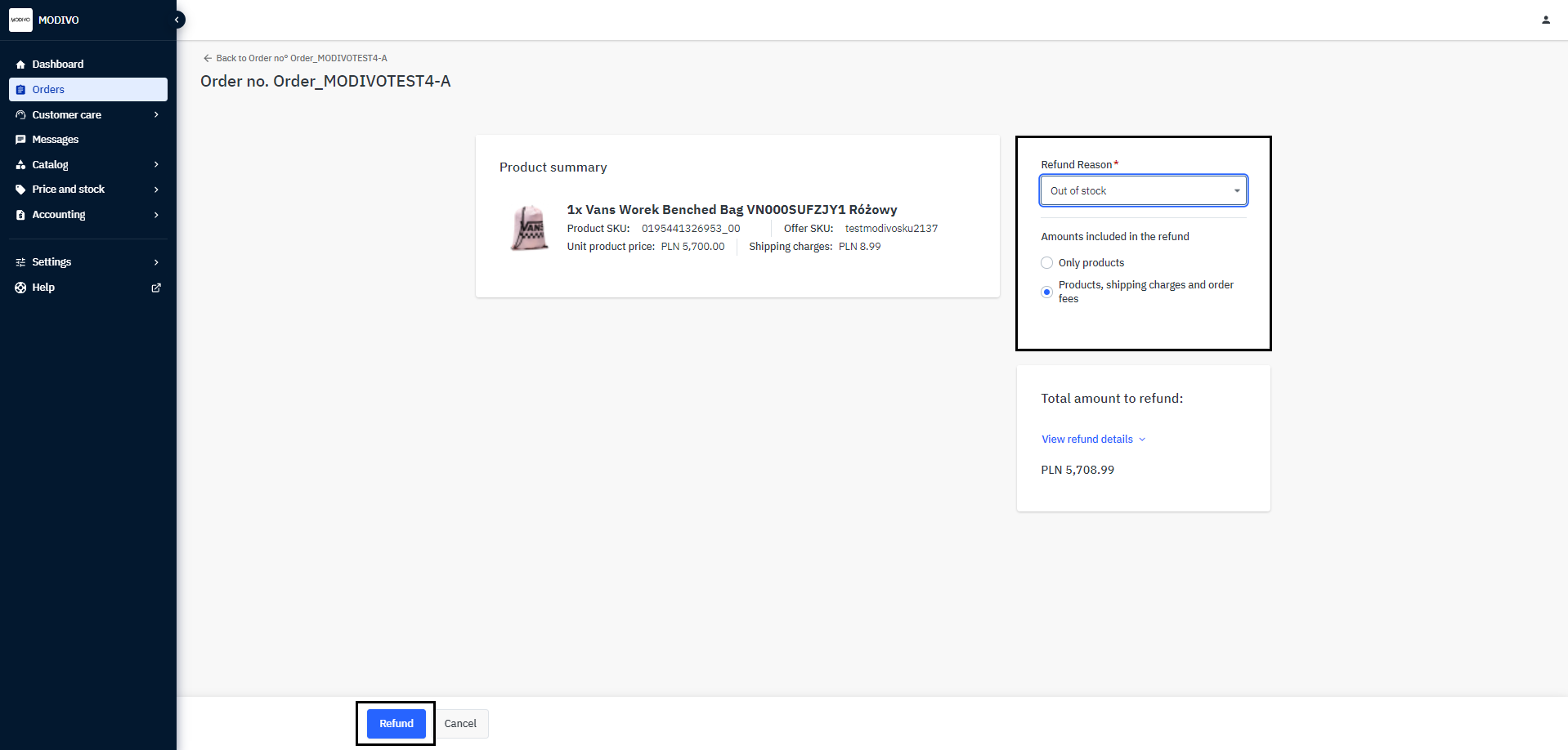
Then, on the right side, from the
Return Reasonlist, select the reason for the product return. If you do not know it, selectOther Reason.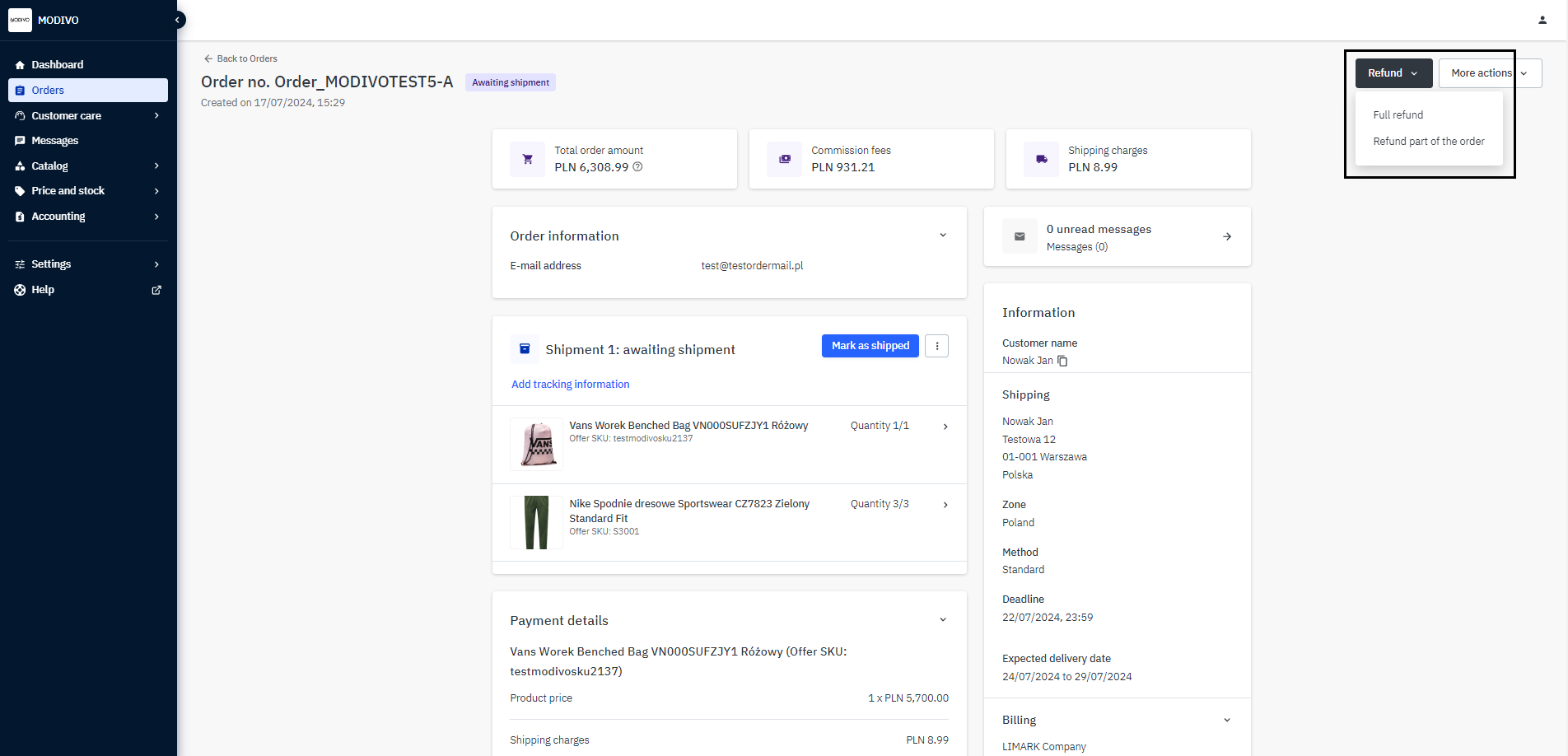
Next, in the
Quantity to Refundfield, select how many units of the product were returned.Finally, make sure that the amount in the
Products (excluding taxes)field is correct.If everything is correct, press the
Refundbutton in the lower-left corner to process the refund.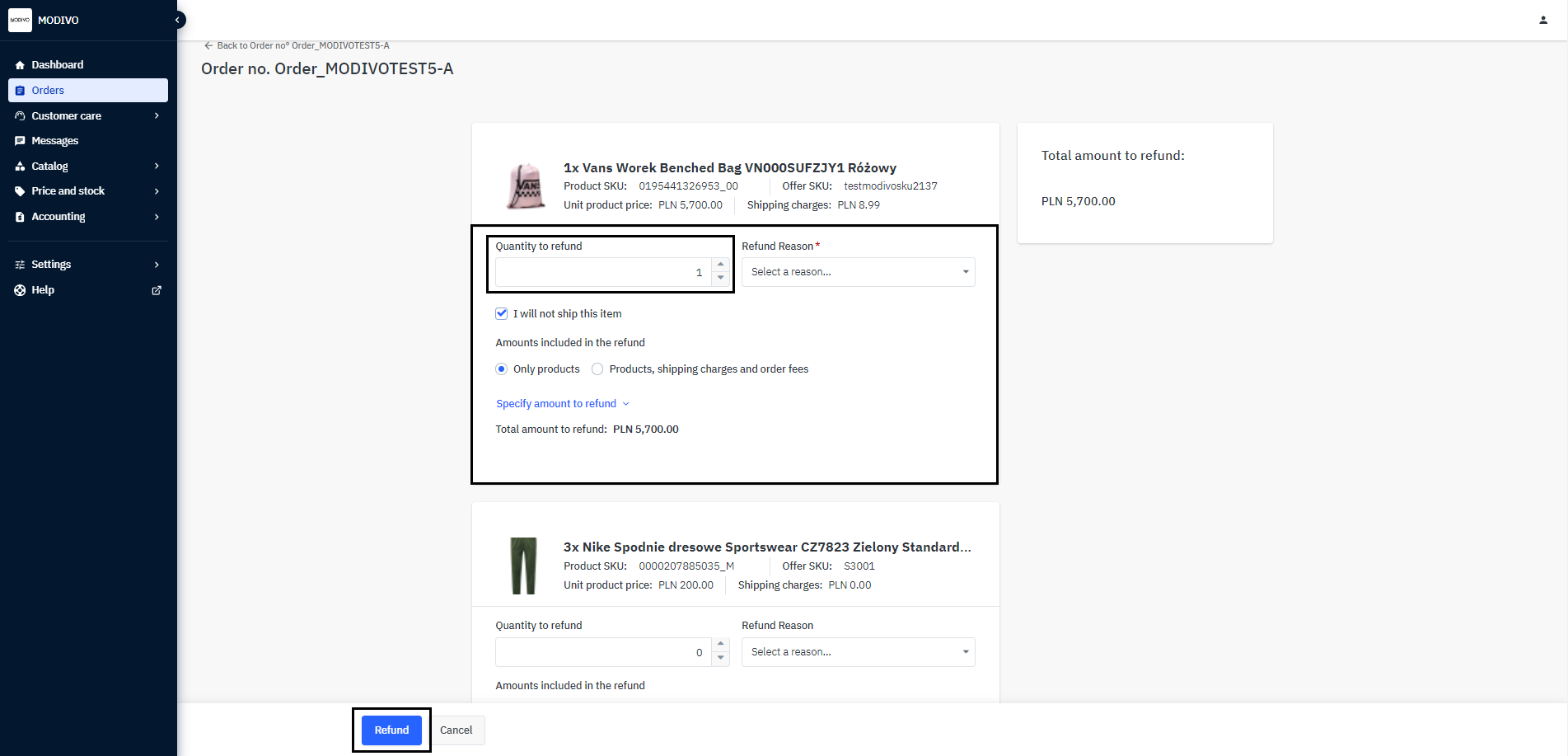
The funds will be refunded from your PayU account.
Important
Remember, when returning the entire Order, you must also refund the Buyer for shipping costs (if incurred) up to the lowest shipping cost offered by you.
For online orders, there is no requirement to include a receipt or return form in the return package.