
How to add products?
How to add products?
Each product file with a structure different from MODIVO must be manually mapped in the manual mapping wizard. To start mapping your file, log in to the Mirakl panel and then:
Go to the
Catalog-Product Importstab.On the right side, click on the
Manual Mapping Wizardsection, and then in the new window, select theEdit Mapping Using Wizardoption.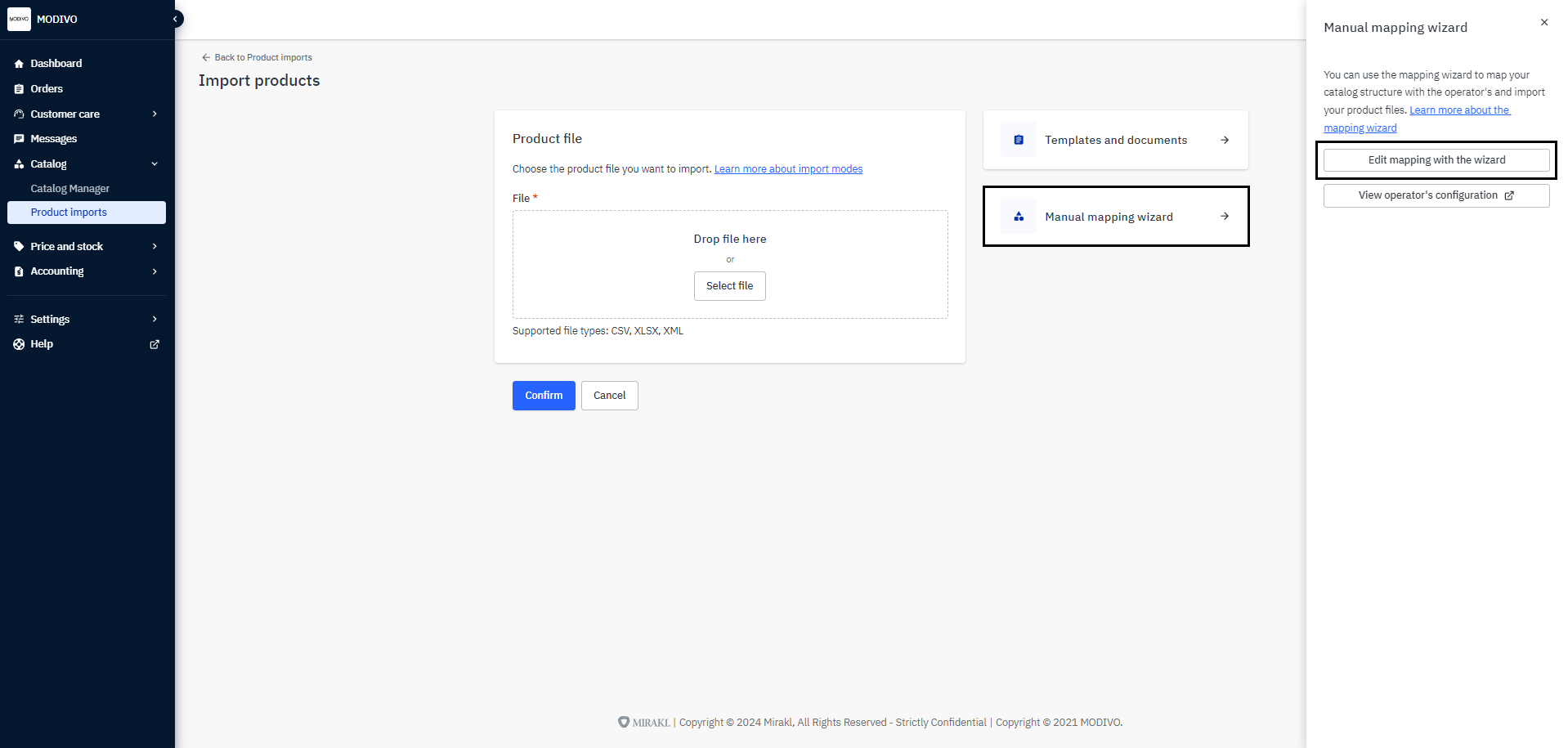
Note!
When you select the
Show Operator Configurationoption, the system will take you to MODIVO configuration where you can check the parameters and their priority for a specific parent or child category.In the first step of the wizard
Import Product File, click theChoose Filebutton or drag the import file directly from your computer. At the bottom of the page, click theNext Stepbutton to continue.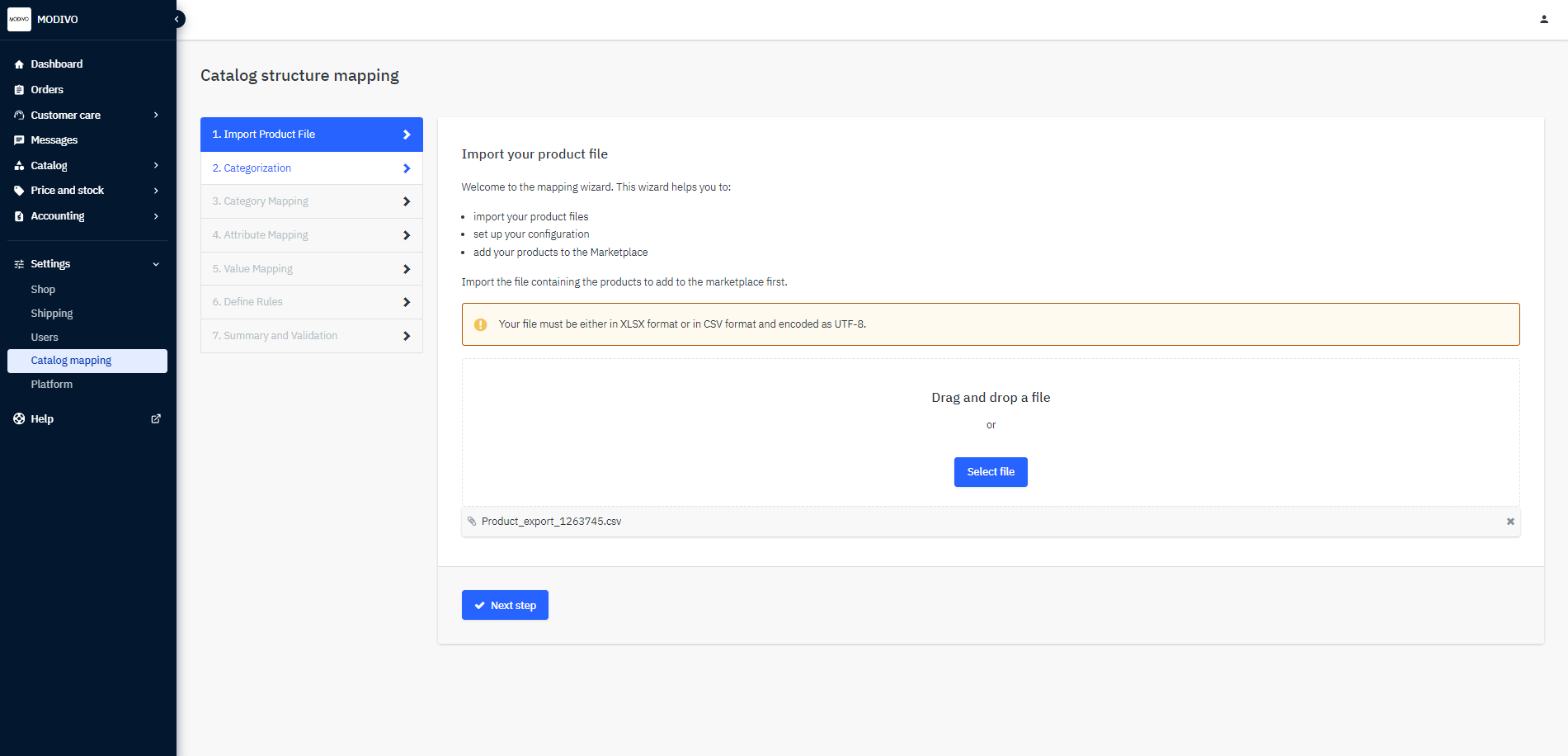
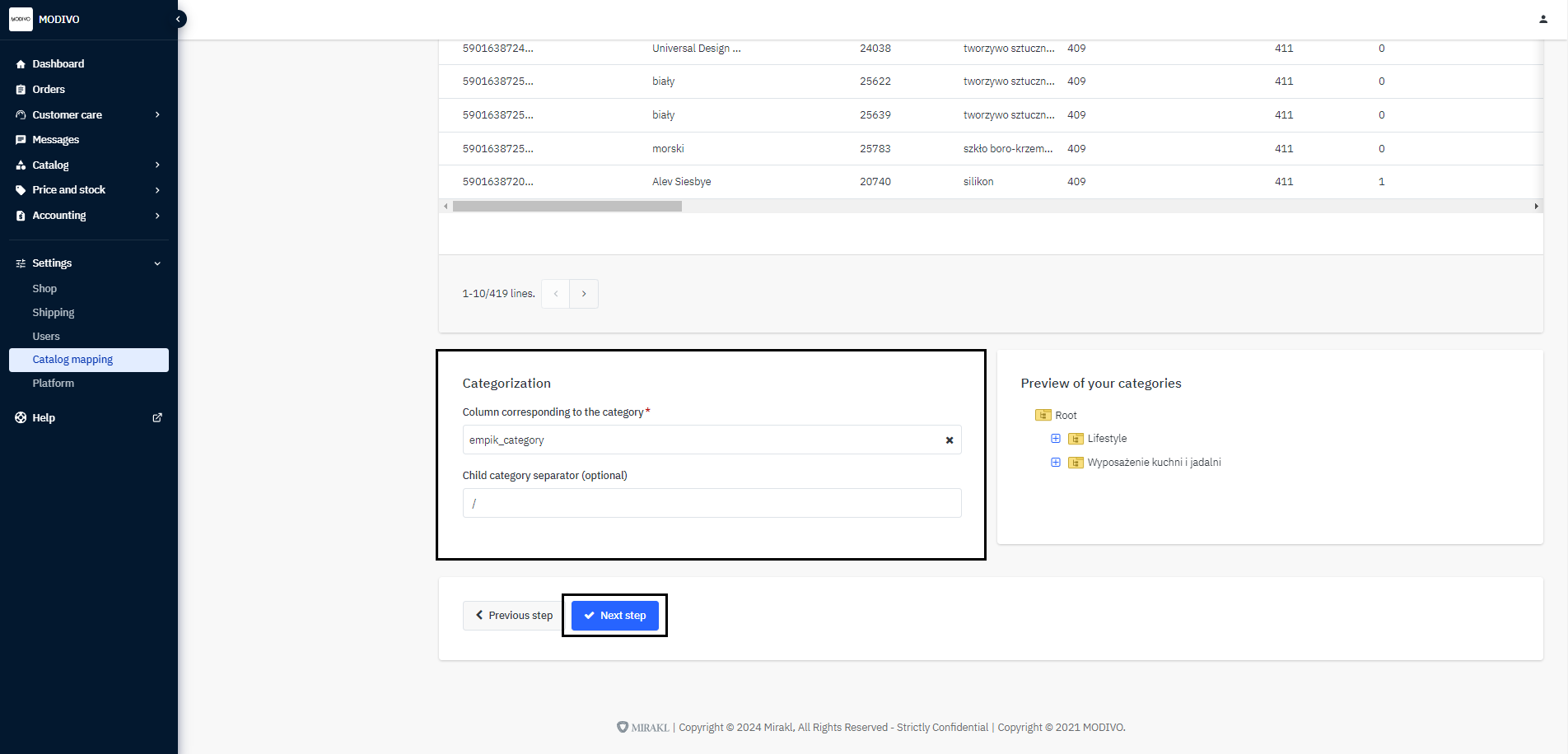
In the second step of the wizard, select the column corresponding to product categories and choose the separator by which your category is divided into subcategories if the file shows the entire path.
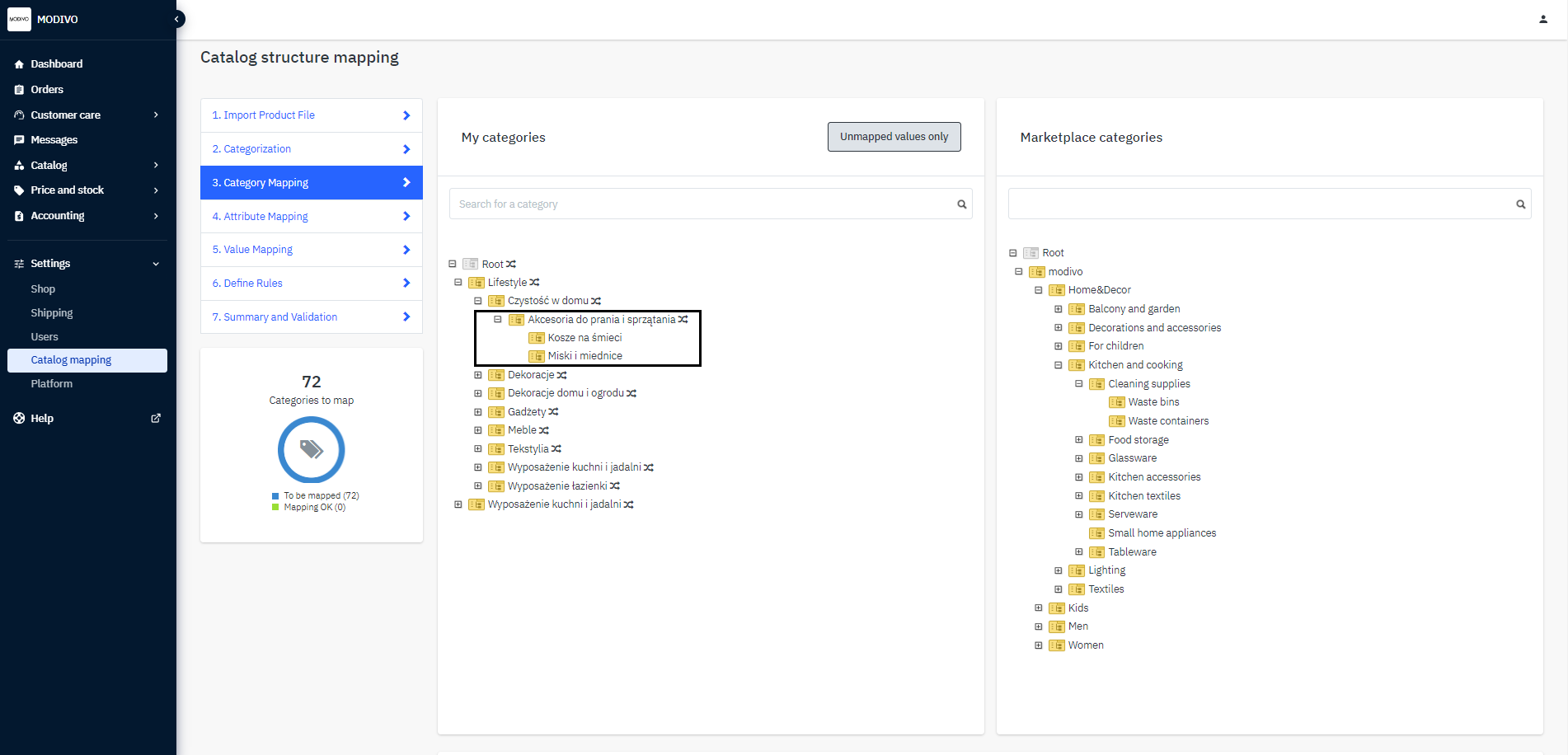
In the third step of the wizard
Categorization, map the categories from your file to the categories in MODIVO. You can do this:- Automatically - click the
Auto-mapicon - Manually - click on the lowest category and drag it to the corresponding option in the right
Marketplace Categorieswindow.
Note!
If you cannot find the appropriate category to map, contact us at [email protected] to verify and add it to the system.
- Automatically - click the
Once you have mapped all categories, click the
Next Stepbutton at the bottom of the page to proceed to the next step.In the fourth step of the wizard
Attribute Mapping, all parameters with required markings will be displayed. Click on the first parameter and then on the right list select the corresponding attribute from your file. Map all attributes in the same way.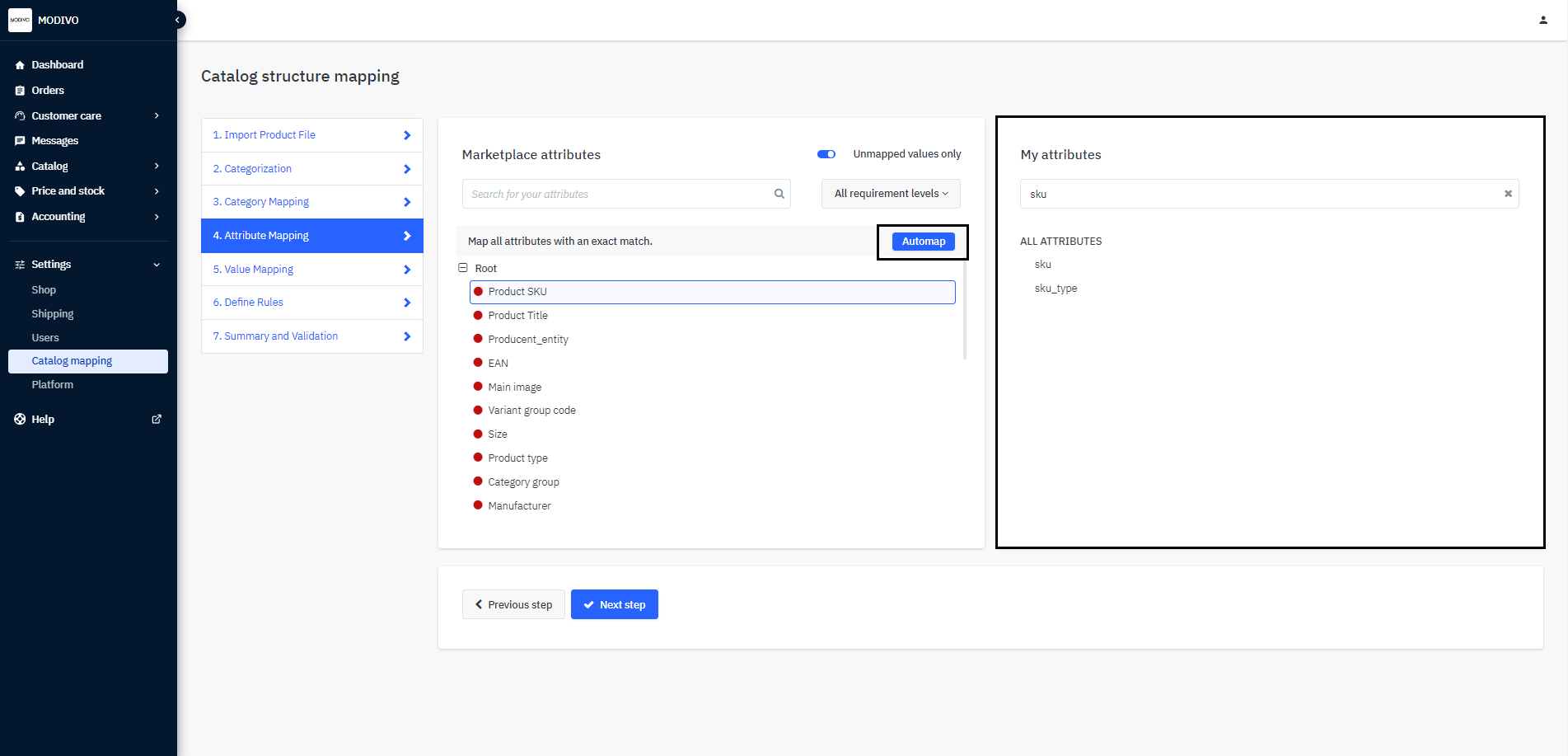
You can use the Auto-map option to match attributes between each other. Parameters that have been linked will have their name and the name of your parameter next to it.
Once you have mapped all parameters, click the
Next Stepbutton at the bottom of the page.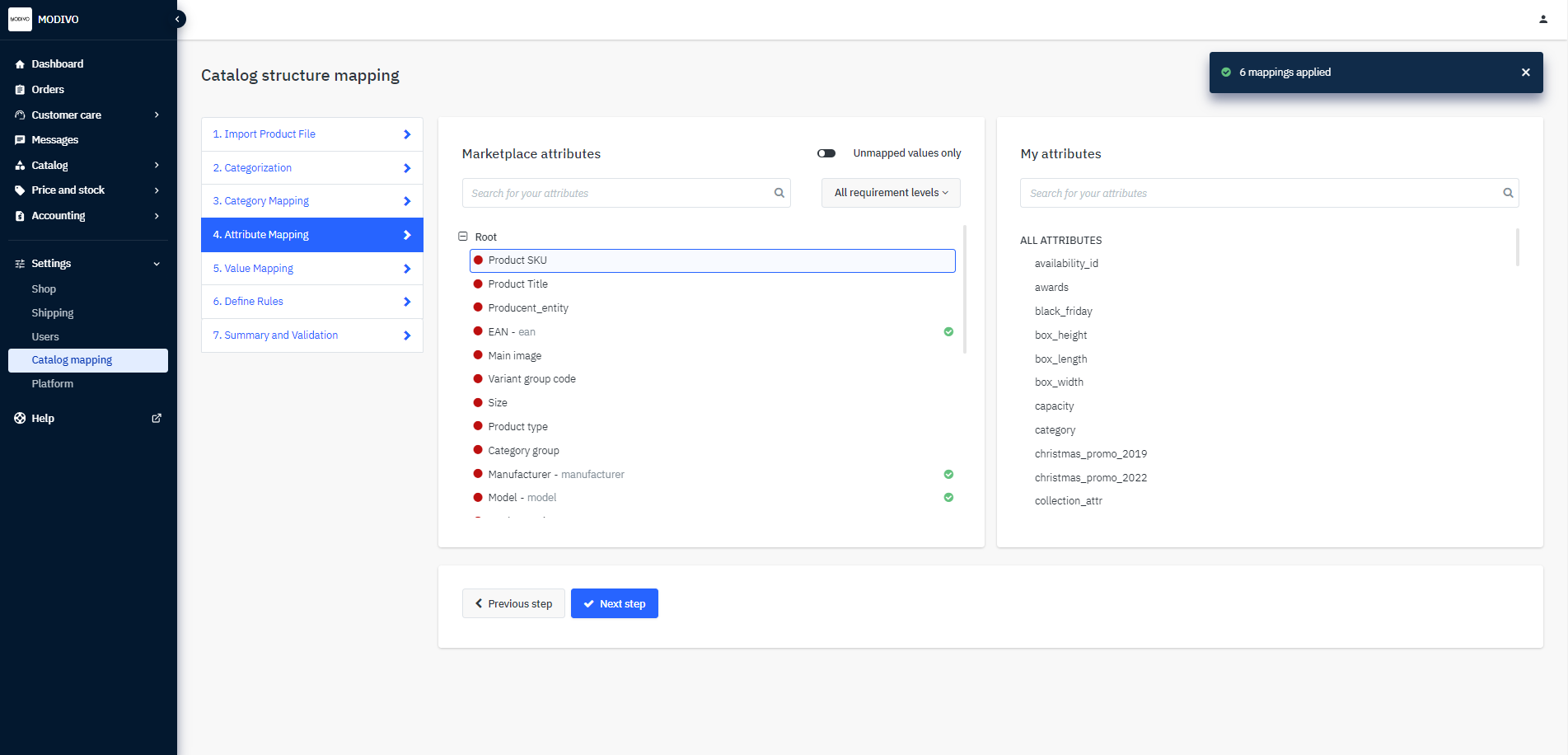
In the fifth step of the wizard
Value Mapping, map all lists of values available in the attributes in your file to the values in our system.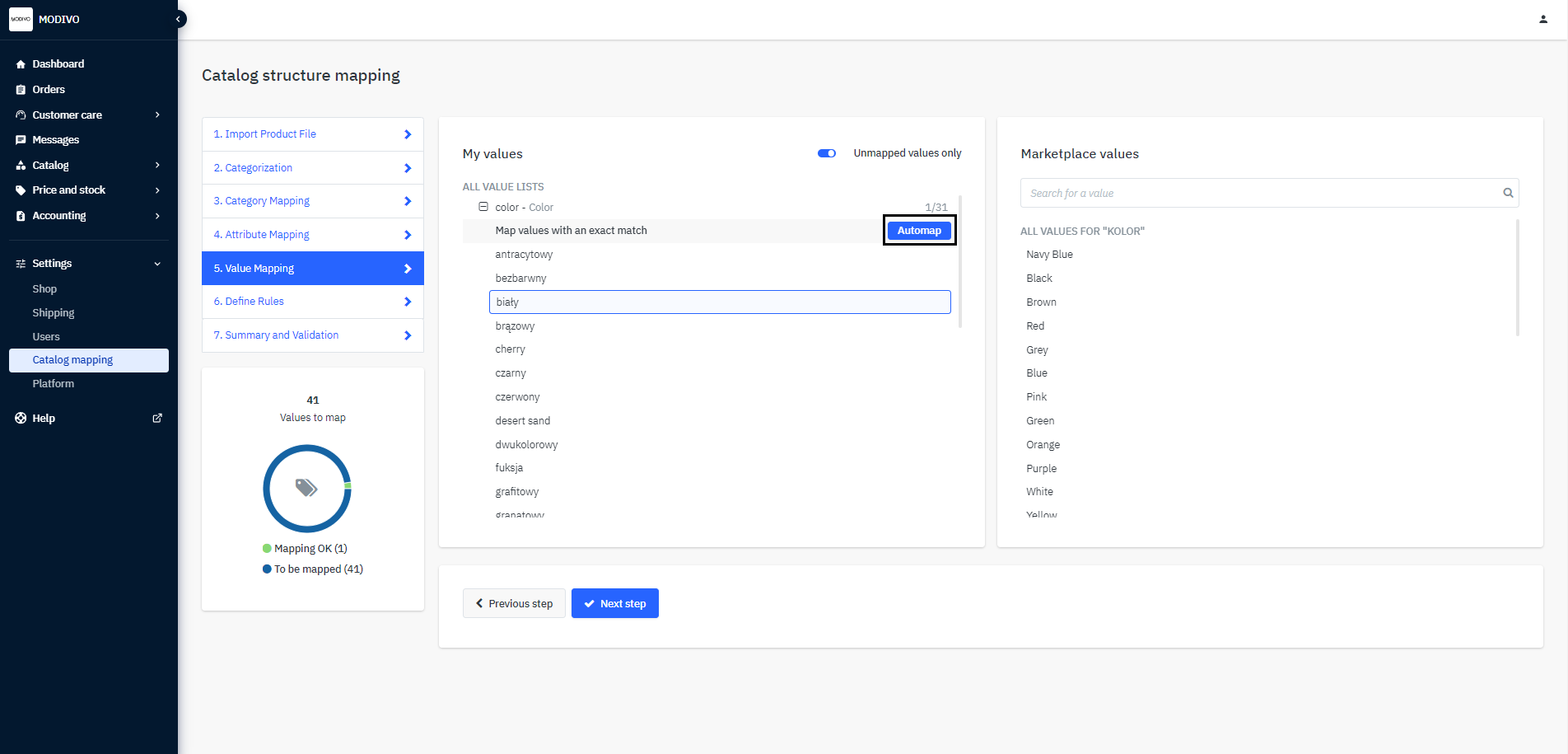
You can use the
Auto-mapoption to match values between each other. Values that have been linked will have their name and the name of your parameter next to it.Once you have mapped all values for attributes, click the
Next Stepbutton at the bottom of the page.In the sixth step of the wizard
Defining Rules, you can perform additional text transformations or validations. This step is optional and can be skipped if the values being uploaded do not require corrections.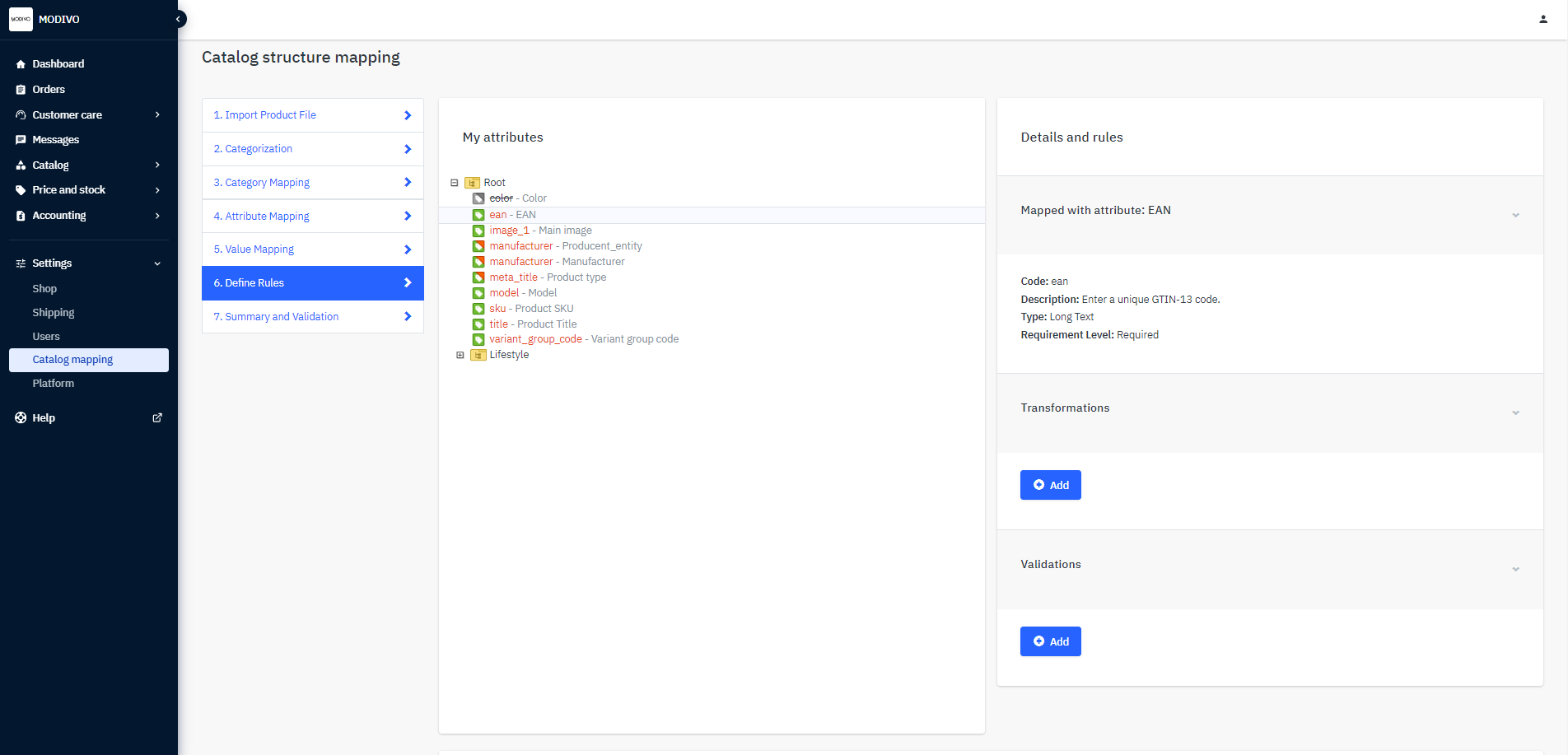
In the seventh step of the wizard
Summary and Review, a summary of the imported products is generated:- Green indicates the number of accepted products
- Red indicates the number of rejected products.
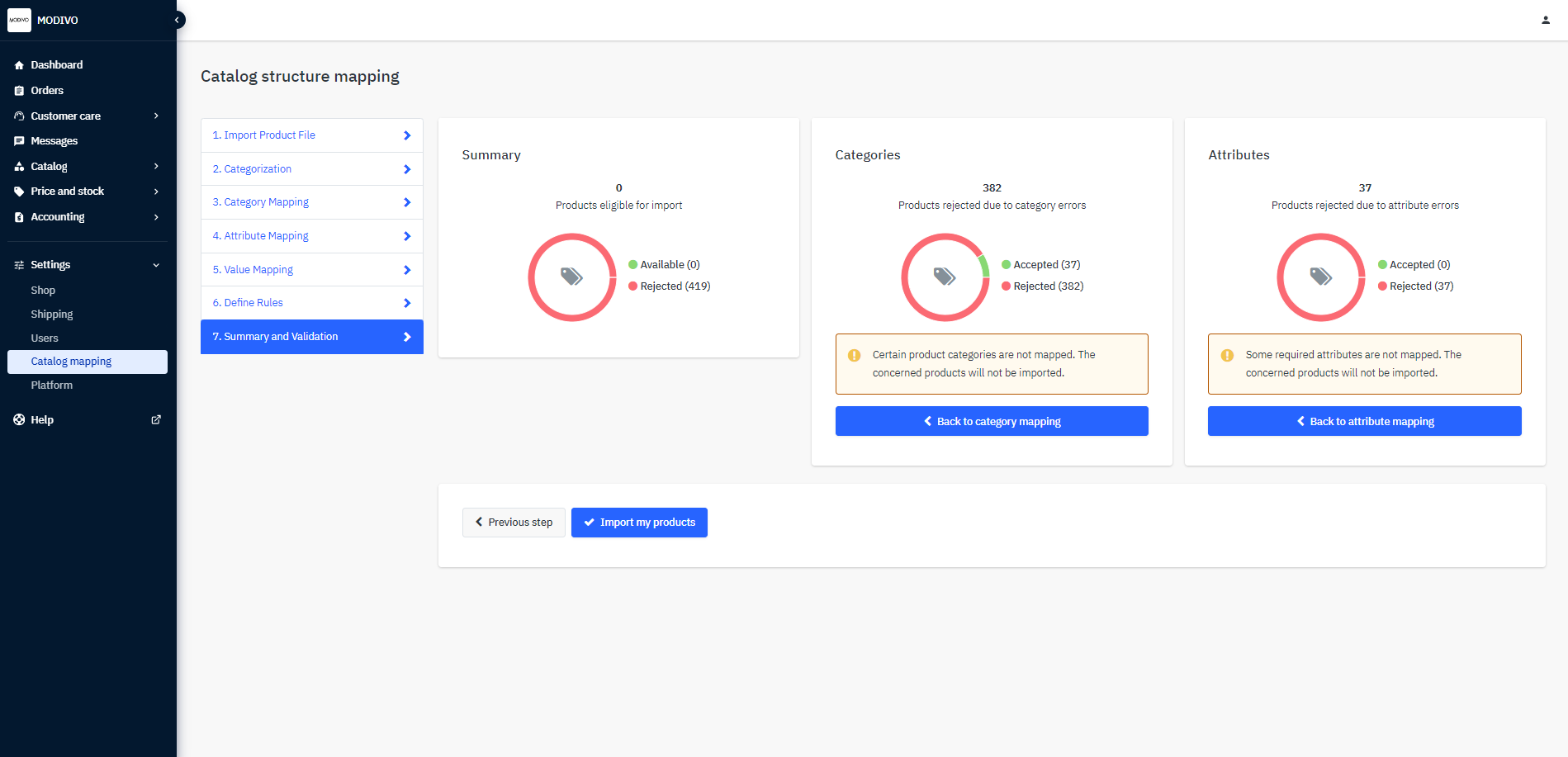
If categories, attributes, and their values are correct, the summary should show only green values. If your import has errors (as shown above), return to the specific section and verify and correct the mapping according to the previous steps.
When the values are correctly mapped, click the
Import My Productsbutton at the bottom of the window. Then go to theProduct Import Monitoringtab to check the import status.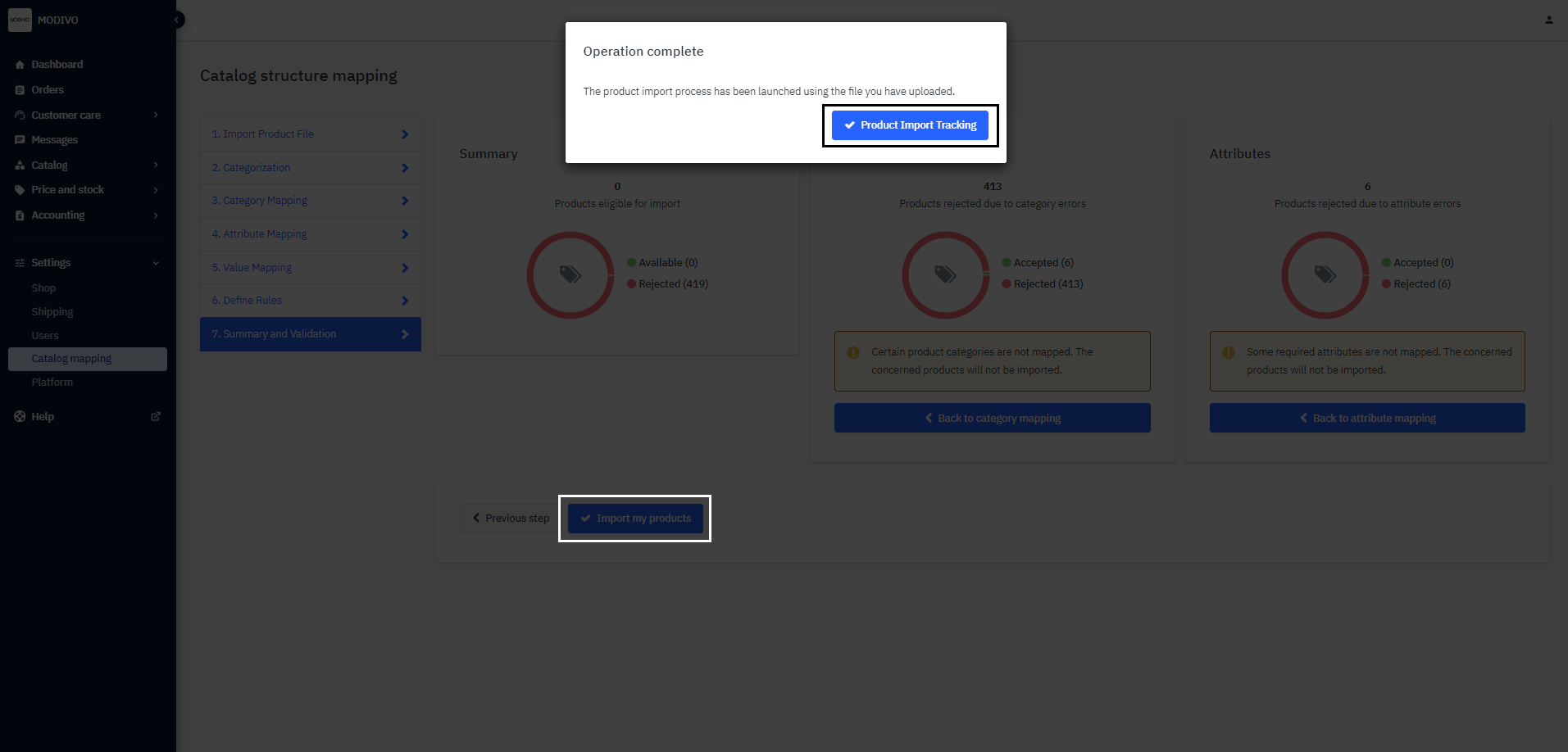
Remember!
You can find all your products along with their current statuses in the Catalog - Catalog Manager tab.