How to add and edit offers?
How to add and edit offers?
Adding an offer
To start manually adding offers, log in to your seller profile in the Mirakl panel and follow these steps:
Go to
Price and StockandOffers.In the upper right corner, click the
+ Add Offerbutton.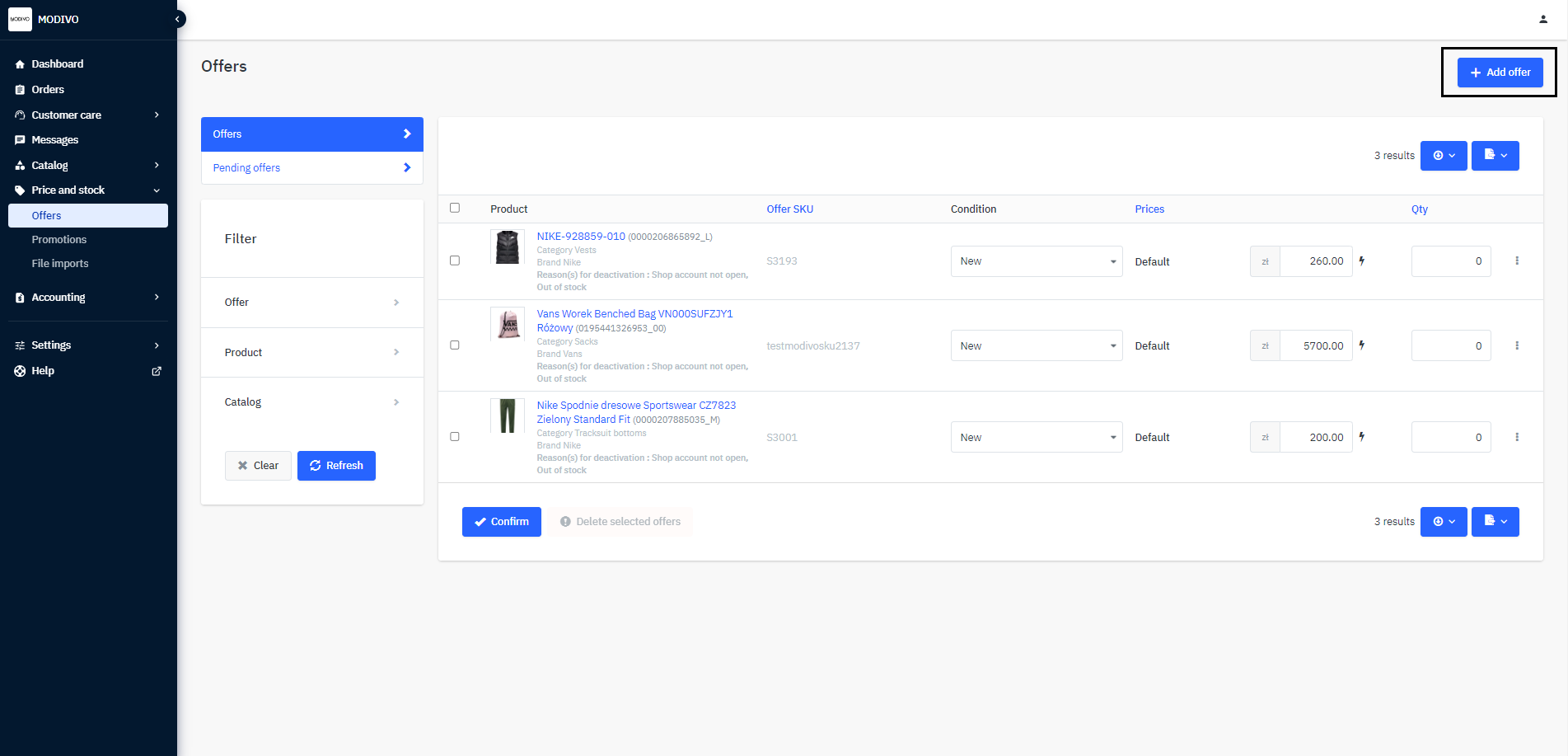
In the
Search for a product in our catalogsection, enter the product name, brand, or EAN for which you want to set your stock and price. Then click the search icon. 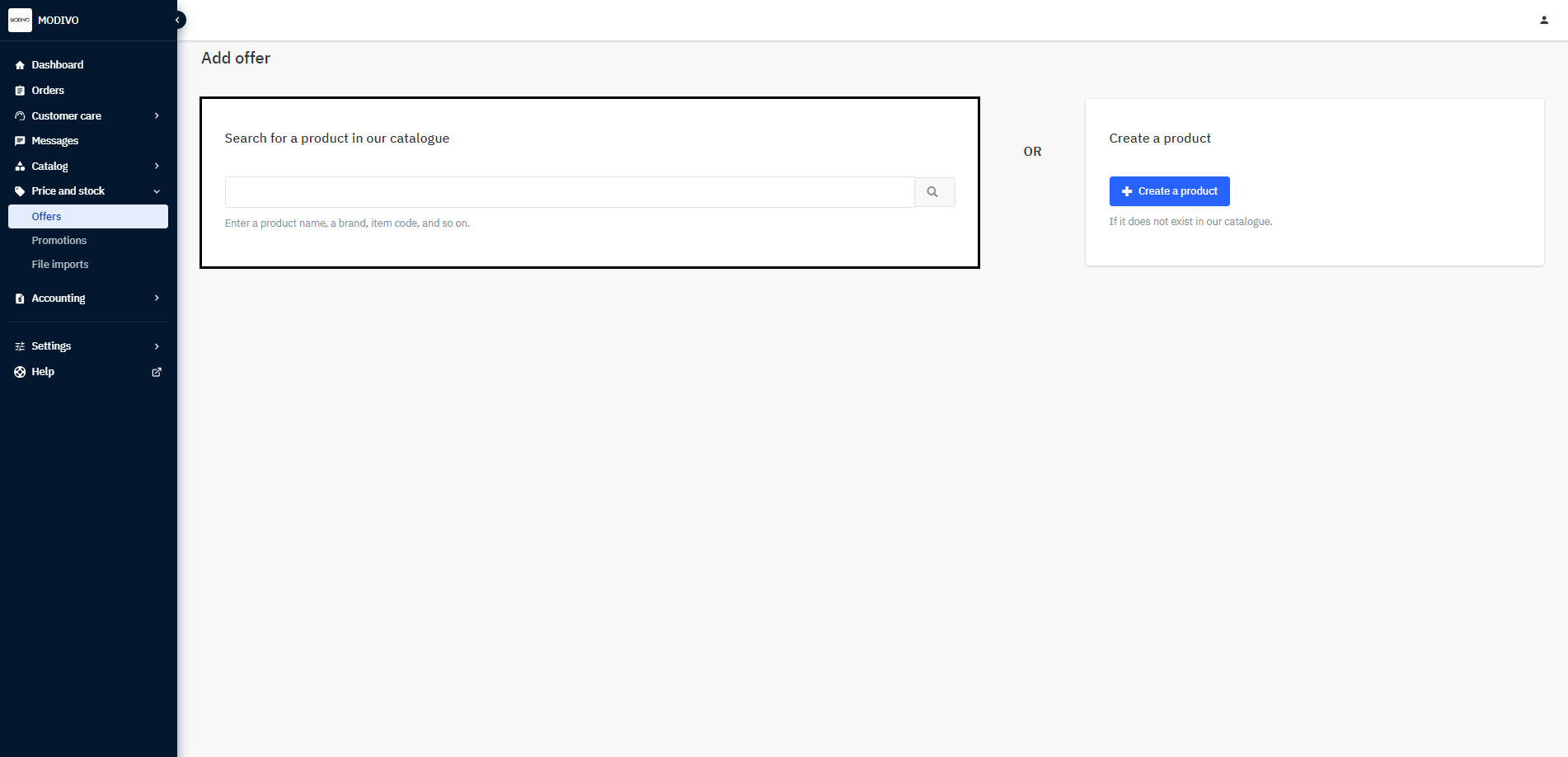
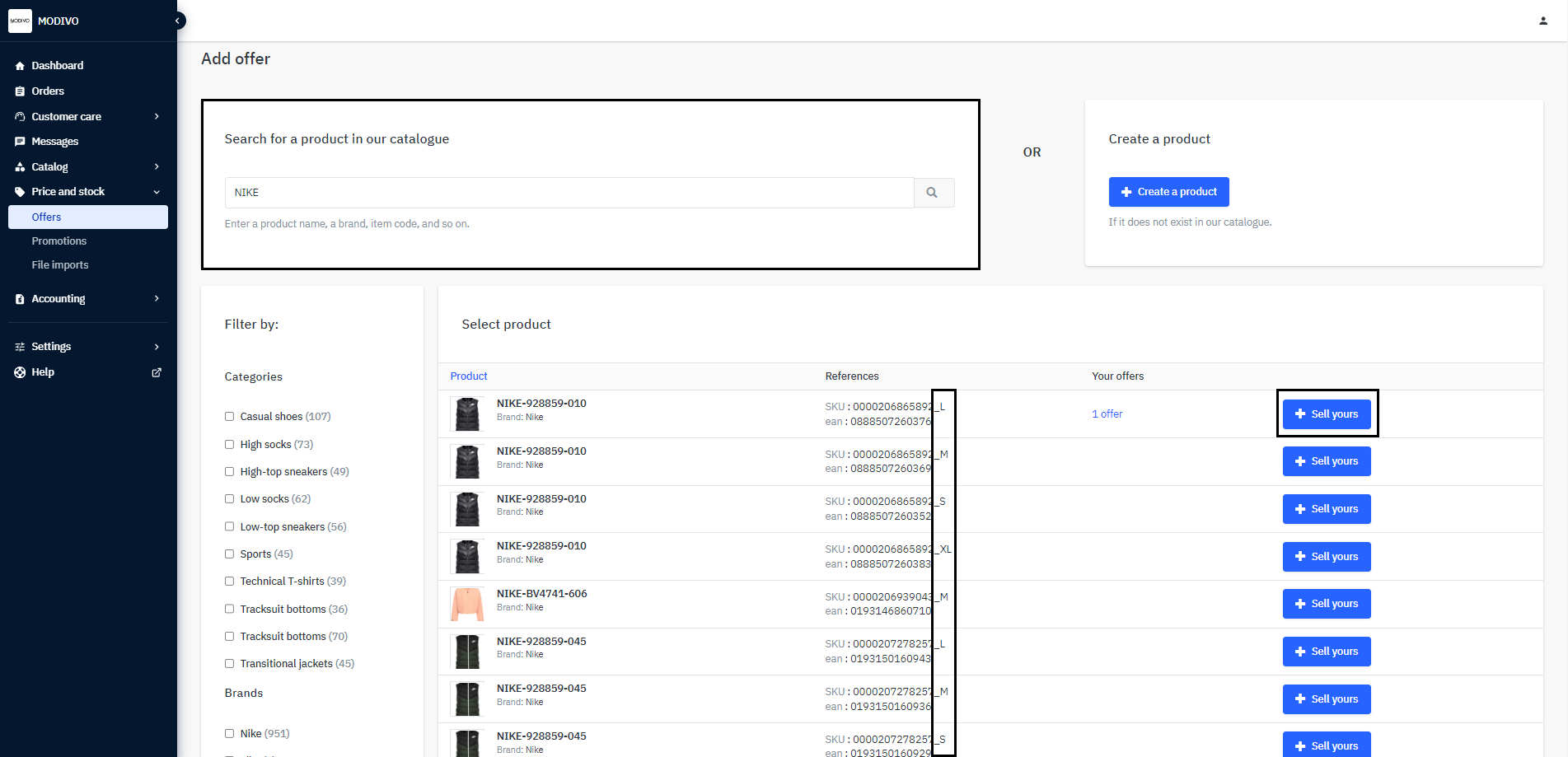
After clicking the search icon, all products matching your search criteria will be displayed.
To list an offer, click the
+ Sellbutton in the row of the selected product on the right side.Note!
If there is no size listed next to the product name, you can check it at the end of each product SKU.
A new tab will open with a form that must be filled out with required fields such as Offer SKU, Offered Quantity, and Price.
On the right side of the form, you can compare competitive offers to your own and set a price that is most advantageous for you and the buyer.
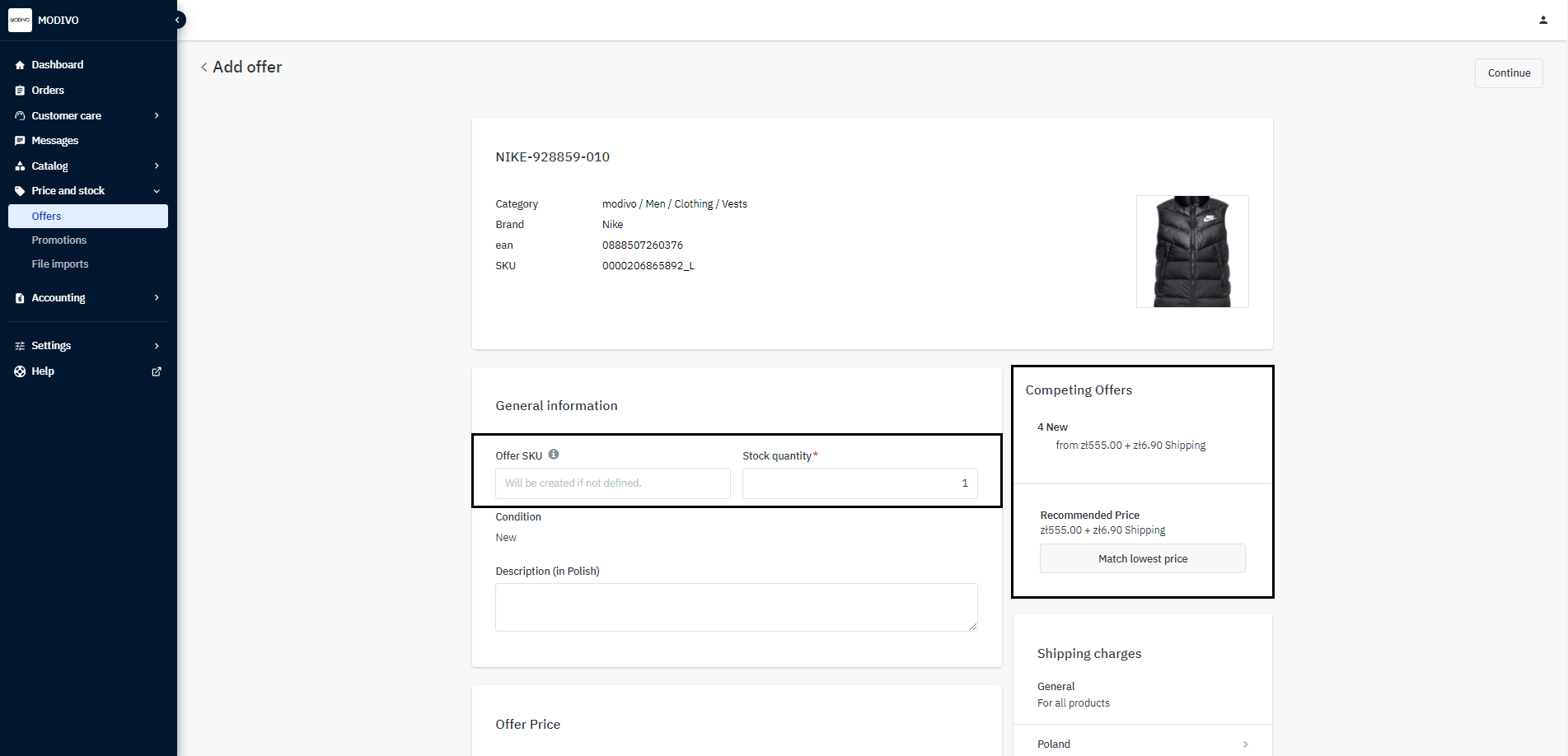
Important!
Do not fill in the offer description. It will not be visible on the MODIVO homepage. If you want to add details to the product, refer to the article: How to add a product manually.
After filling out all the data, click the
Create Offerbutton.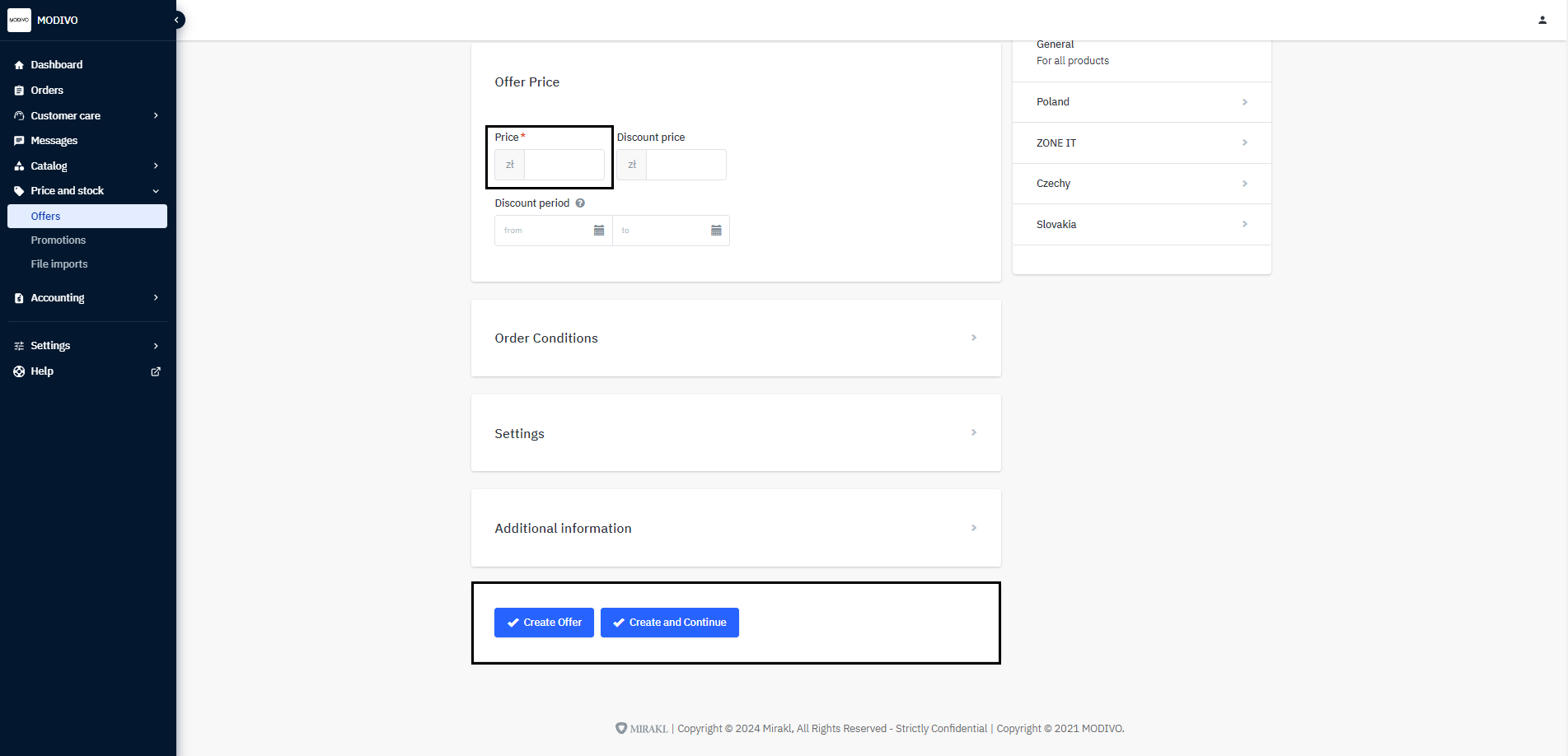
All added offers can be found in the
Price and Stock–Offerstab. Here you can also edit stock or price.
Editing an offer
To edit an offer, log in to your seller profile in the Mirakl panel and follow these steps:
Go to
Price and StockandOffersand select the offer you want to edit.To edit the price or stock, in the row of the selected offer:
- In the
Pricecolumn, enter the new price. - In the
Stockcolumn, enter the new quantity.
Finally, save the changes. To do this, click the
Confirmbutton at the bottom of the section on the left side.If you want to add a promotional price:
- In the
In the offer row on the right side, click the three dots icon, then select
Edit Pricefrom the dropdown menu.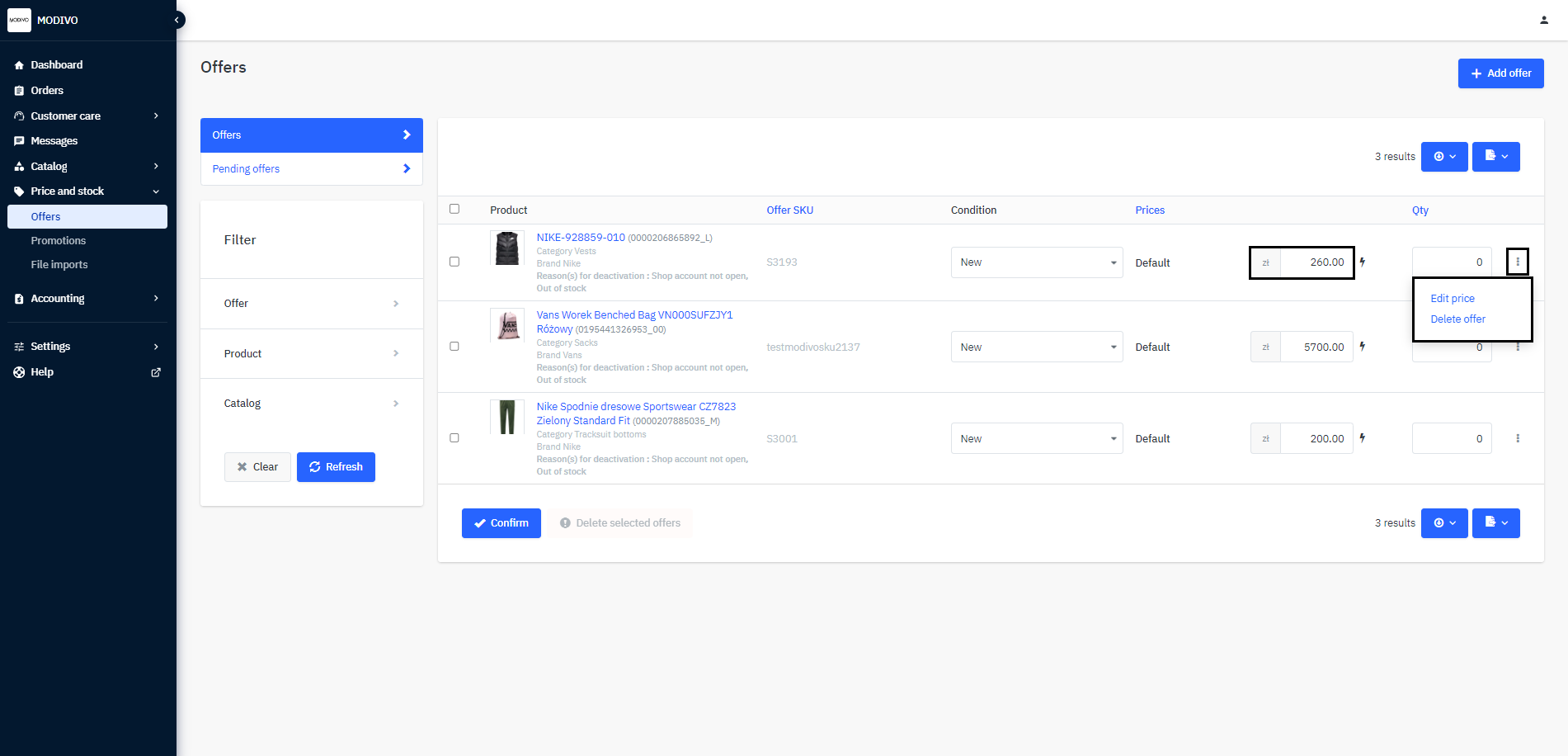
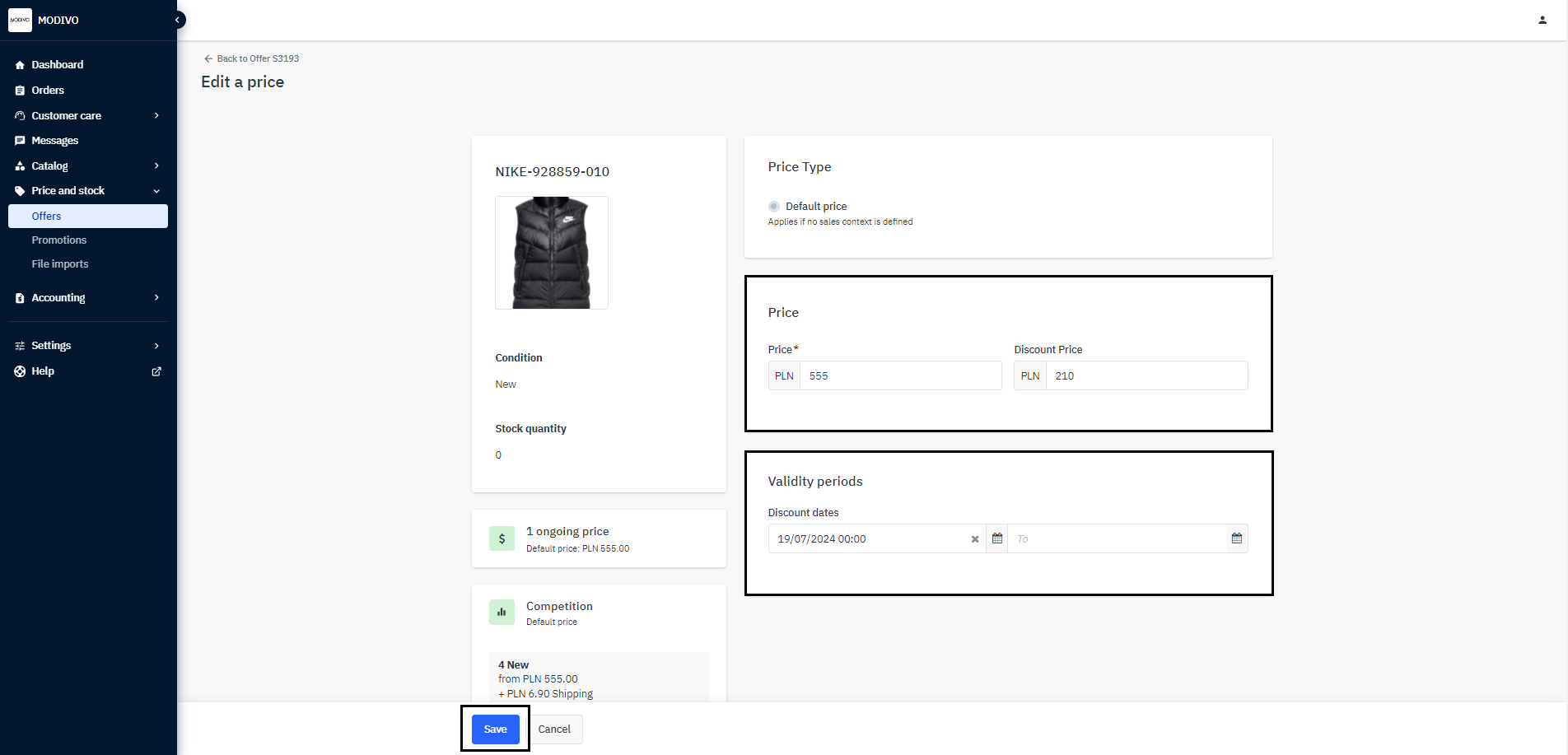
In the price editing form:
- In the
Pricesection, enter the promotional price. - In the
Validity Periodssection, choose the dates for which the promotion should be active.
- In the
Finally, at the bottom of the page on the left side, click the
Savebutton to save the changes.