
How to add promotional prices?
How to add promotional prices?
You can set a promotional price manually for each product individually or in bulk for multiple products.
Manually setting promotional prices in the Mirakl panel
To add a promotional price for a single product, log in to your seller account and follow these steps:
From the left menu, select
Price and Stock→Offers.Search for the product for which you want to set a promotional price.
On the right side of the product row, click the three-dot icon and select
Edit Price.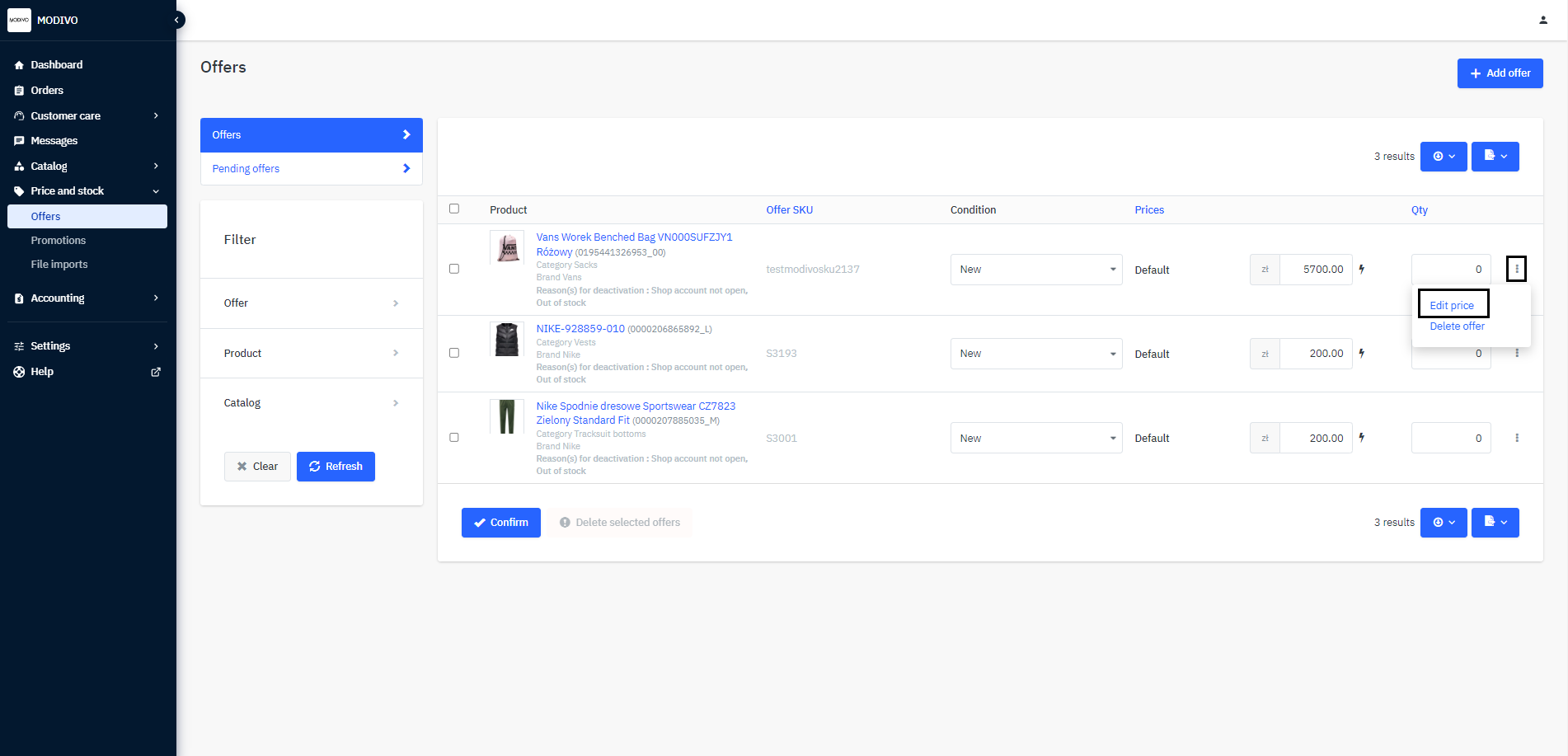
Go to the
Pricesection and enter the promotional price in thePromotional Pricefield.Then, in the
Validity Periodssection, specify the date range for the promotion in theDiscount Datesfields.After filling in the fields, save the settings by clicking the
Savebutton at the bottom left of the screen.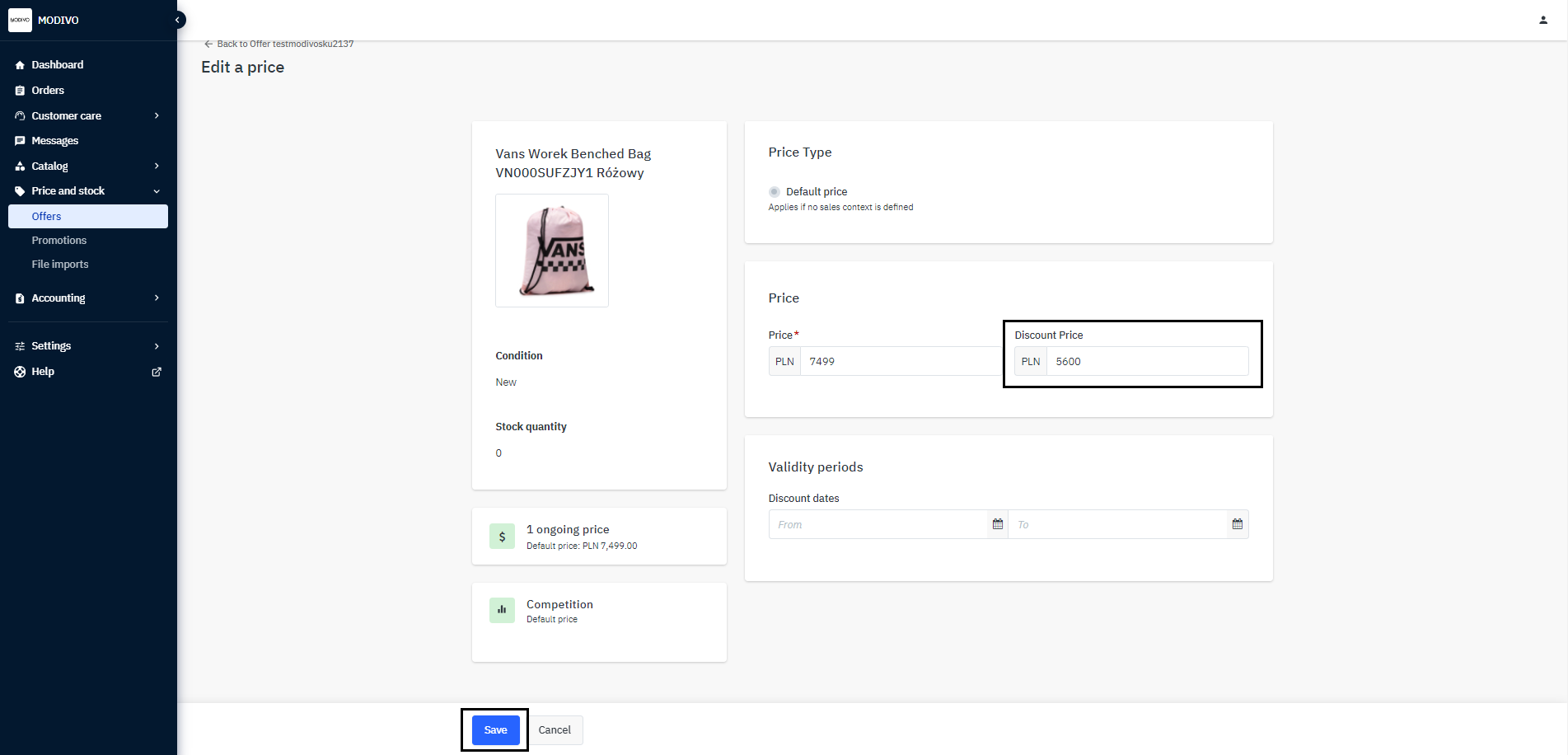
Note!
If you do not fill in the start date for the promotion in the Validity Periods section, the promotional prices will take effect on the site as soon as you click the Save button.
If you do not fill in the end date for the promotion, the promotion will continue until you manually remove it.
Bulk setting of promotional prices via inventory file
To add a promotional price for multiple products, log in to your seller account and follow these steps:
From the left menu, select
Price and Stock→Offers.In the upper right corner of the screen, click the document icon and download the
Ready for Importinventory file, which contains a complete list of products you have added to the store.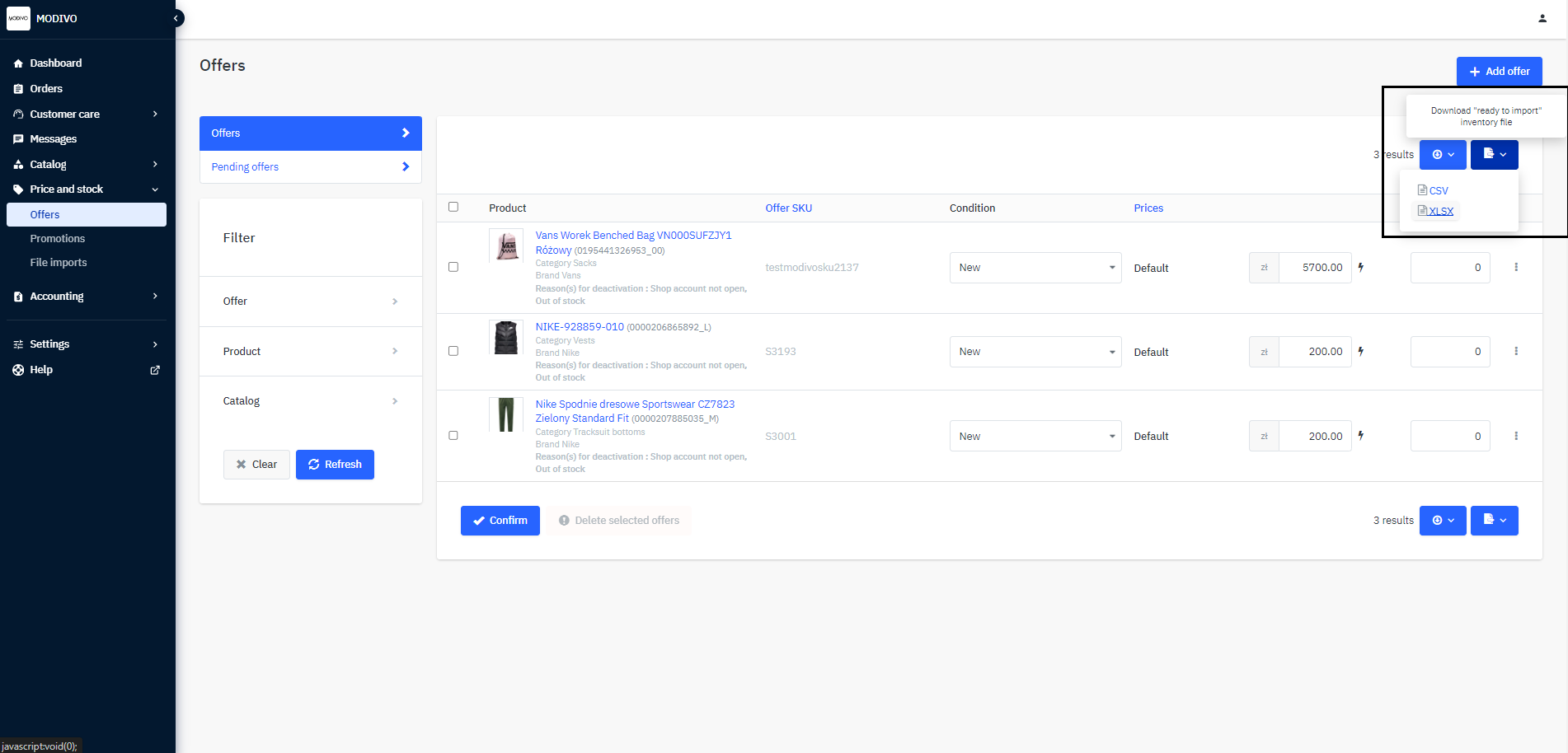
In the downloaded file, find the columns:
discount-start-date,discount-end-date,discount-price,

Update the data in these columns:
- In the
discount-start-datecolumn, enter the start date of the promotion. If you leave this field empty, the promotional prices will take effect as soon as you re-import the file into the system. - In the
discount-end-datecolumn, enter the end date of the promotion. If you leave this field empty, the promotion will last until you manually remove it. - In the
discount-pricecolumn, enter the promotional price (specific value). The value entered in this field must be less than the value entered in thepricecolumn.
- In the
Save the updated file and import it back into the system:
- From the left menu, select
Price and Stock→File Imports. - In the
Sourcesection, click theChoose File...button and select the promotions file from your computer. - In the
File Contentsection, selectOfferfrom the dropdown list. - In the
Import Modesection, chooseNormal.
Note!
If you change the import mode to
Delete and Replace, all your offers will be deleted and replaced only with those available in the file.- From the left menu, select
To import the file, click the
Importbutton at the bottom of the screen.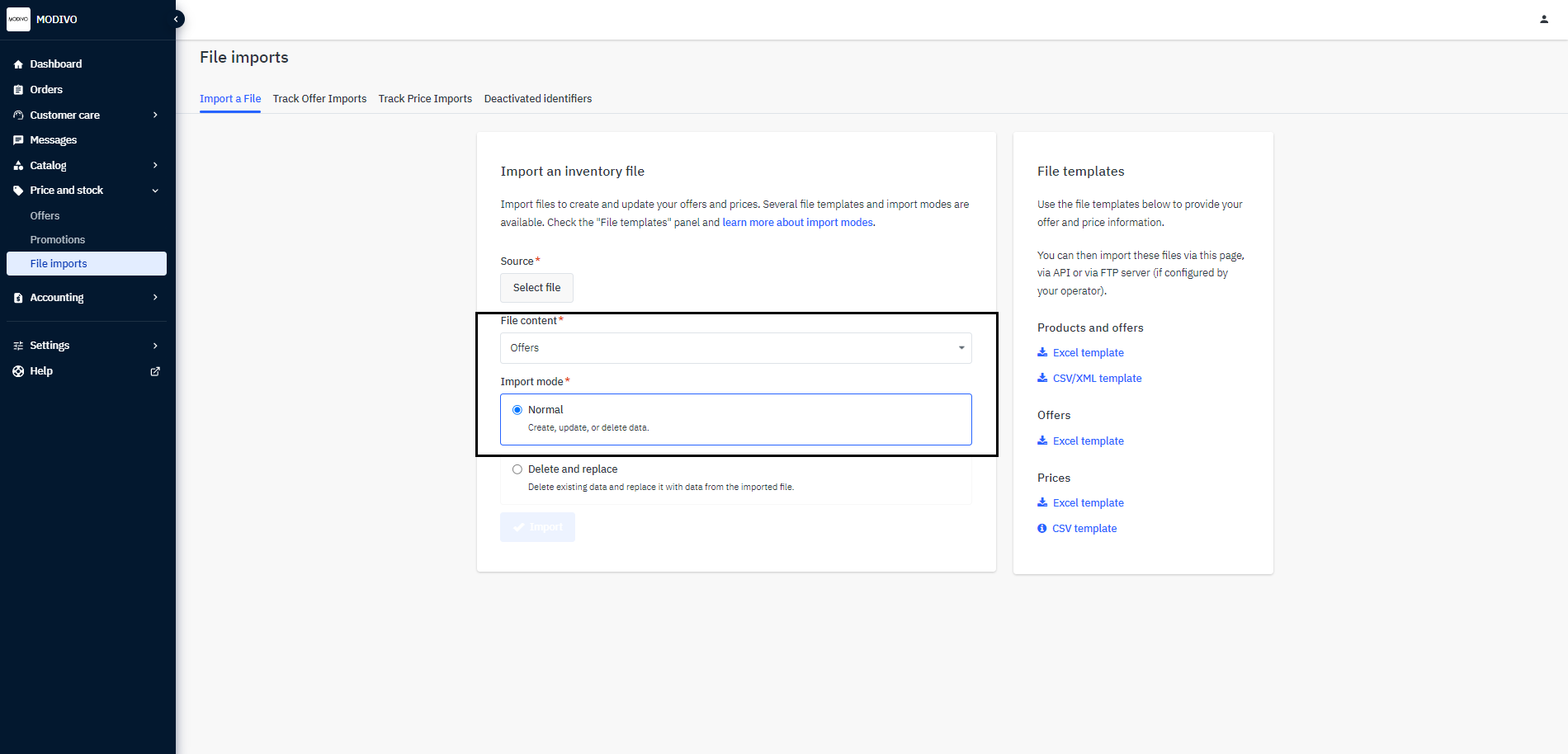
To check if the imported file contains errors:
From the left menu, select
Price and Stock→File Imports.Go to the
Monitor Offer Importstab.On the right side of the row for the file, in the
Errorscolumn, you can check how the import proceeded.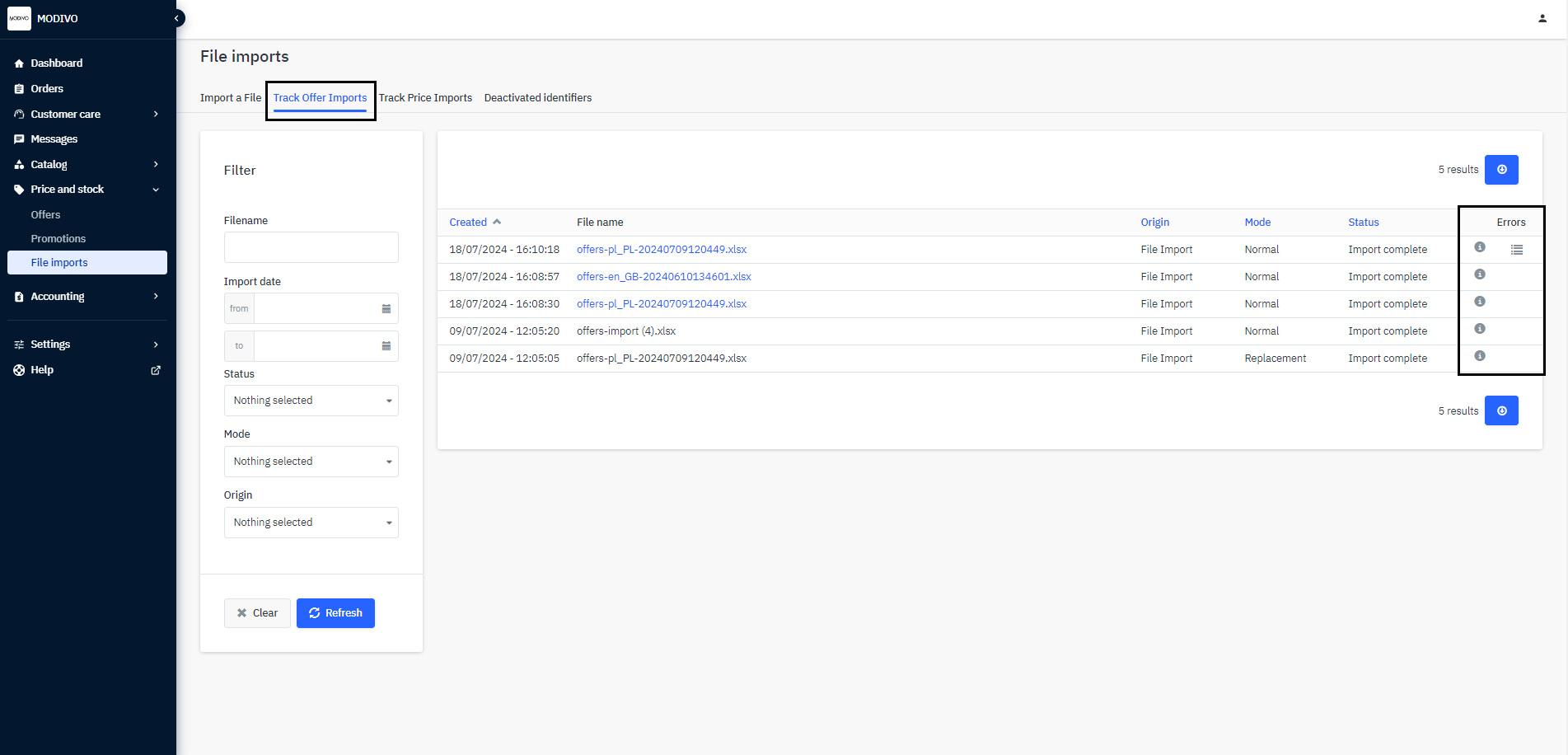
Hovering over the ⓘ icon will show you the details of the process. If errors occurred during the file import, you can download an error report. To do this, click the 𝄙 icon.
Correctly imported files will indicate that the number of rows processed matches the number of rows updated.
Incorrectly imported files will indicate which rows contain errors.
If an error occurs during import, review the file saved on your computer and ensure all data is correctly filled out according to the above instructions. Then re-import the file. If you do not import the corrected file, some or all products will not be updated with the promotional price.