How to delete offers?
How to delete offers?
You can delete offers manually for each product individually or in bulk for multiple products.
Manually deleting offers for products
To delete offers, log in to your seller account and follow these steps:
From the left menu, select
Price and Stock→Offers.Search for the offer you want to delete using the filters in the left menu.
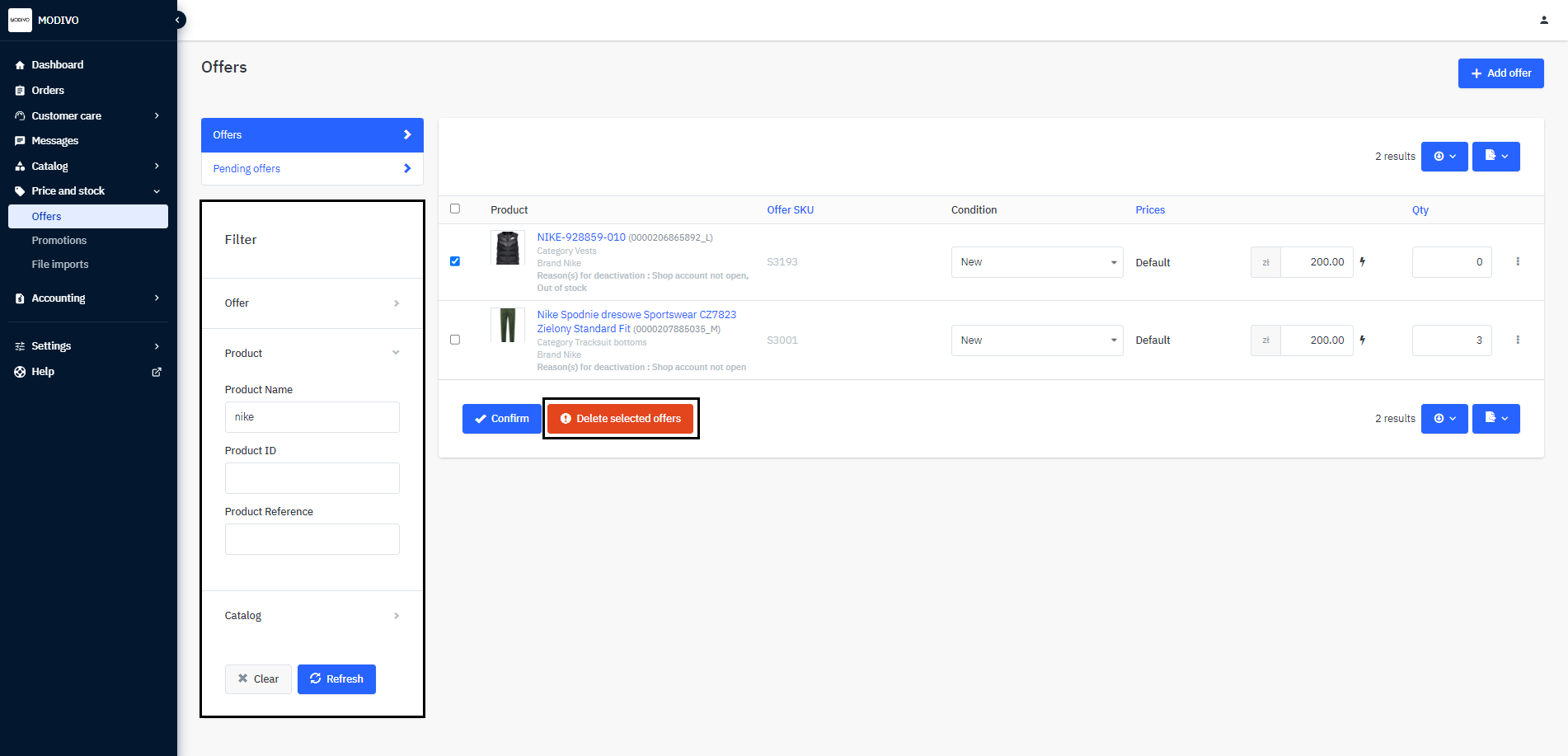
Select the offers you are interested in and then click the
Delete Selected Offersbutton.In the new window, confirm the deletion of the offer by clicking the
Deletebutton.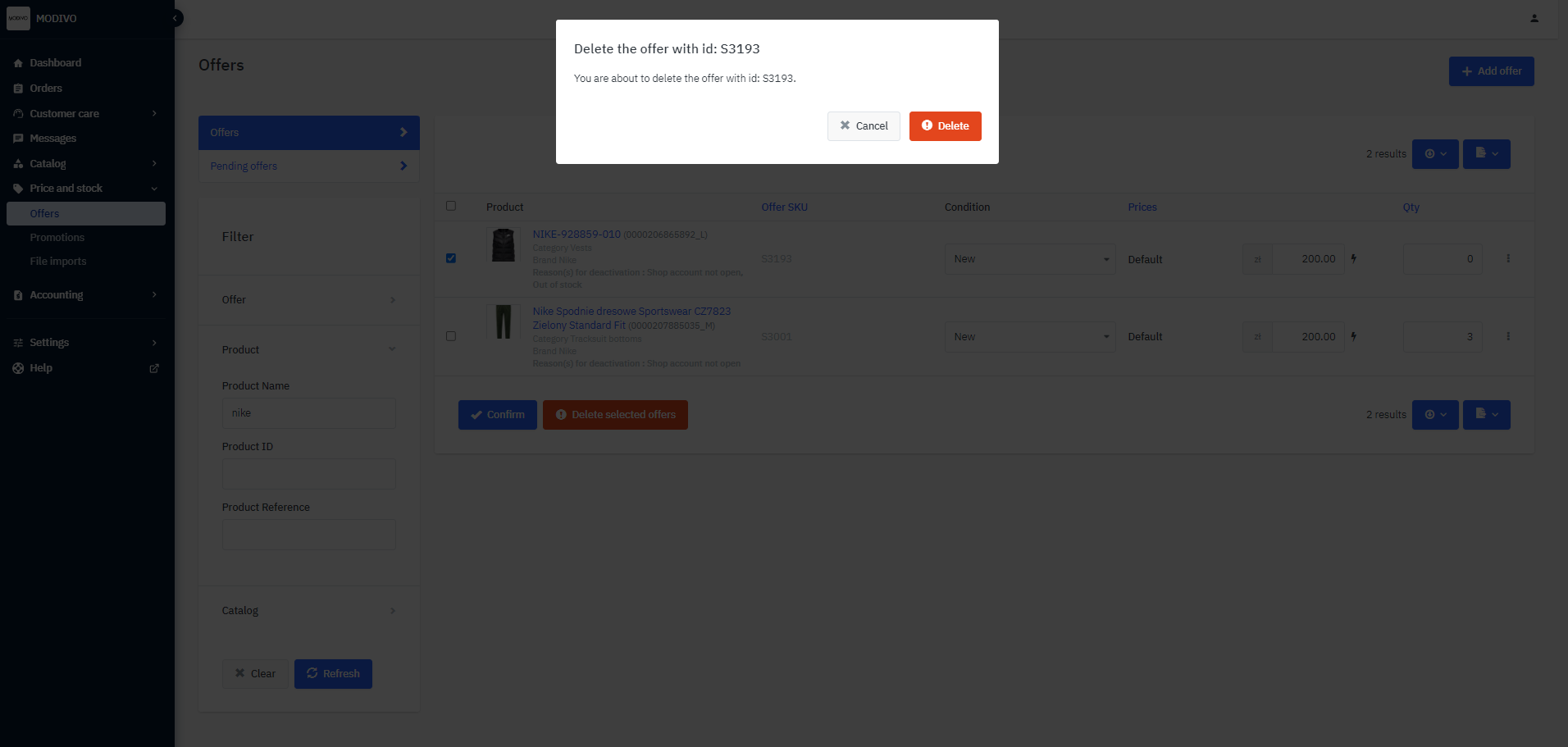
Bulk deleting offers
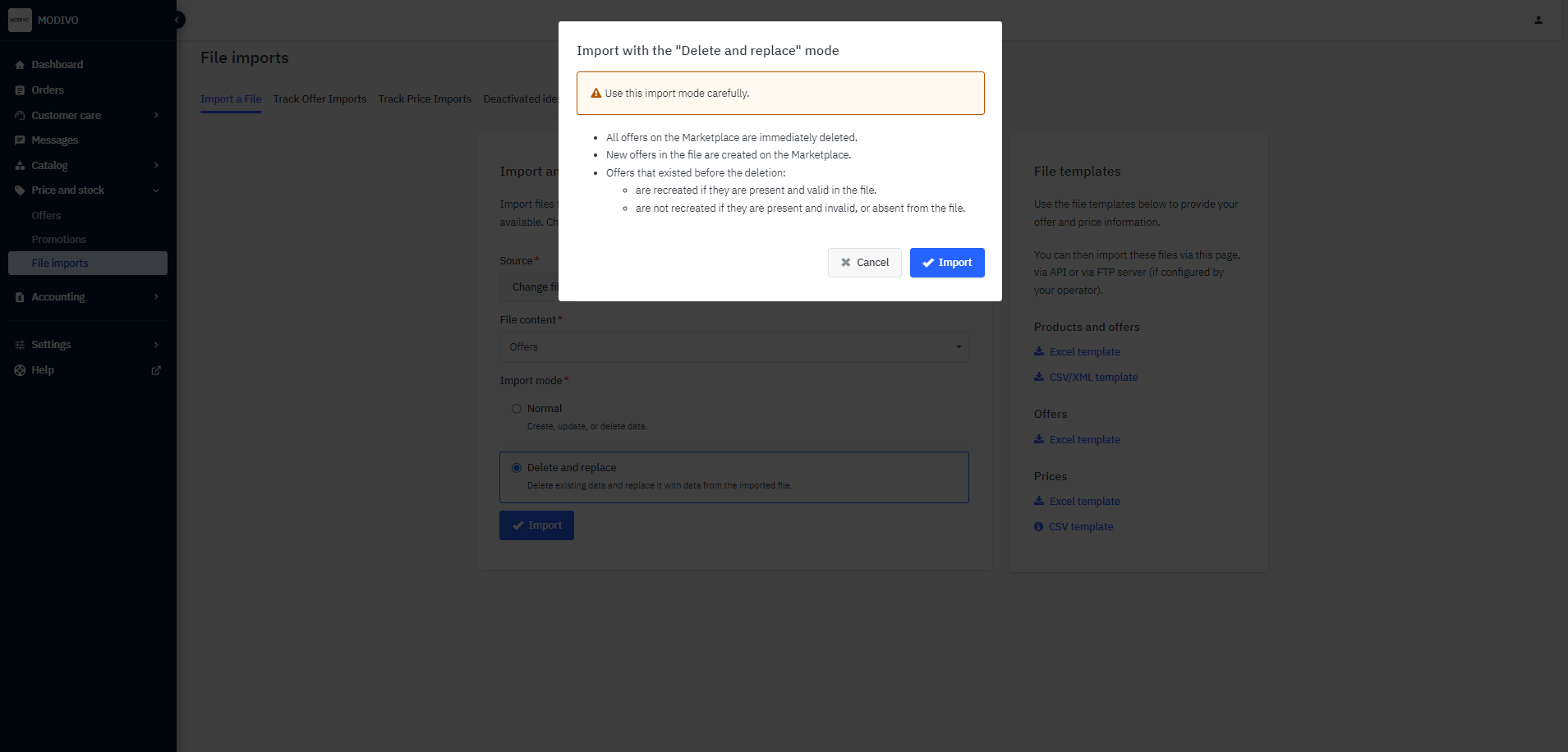
To bulk delete offers, import an empty file in the Mirakl structure into the system. Log in to your seller account and follow these steps:
From the left menu, select
Price and Stock→File Imports.Select the
Offerstemplate on the right side of the window.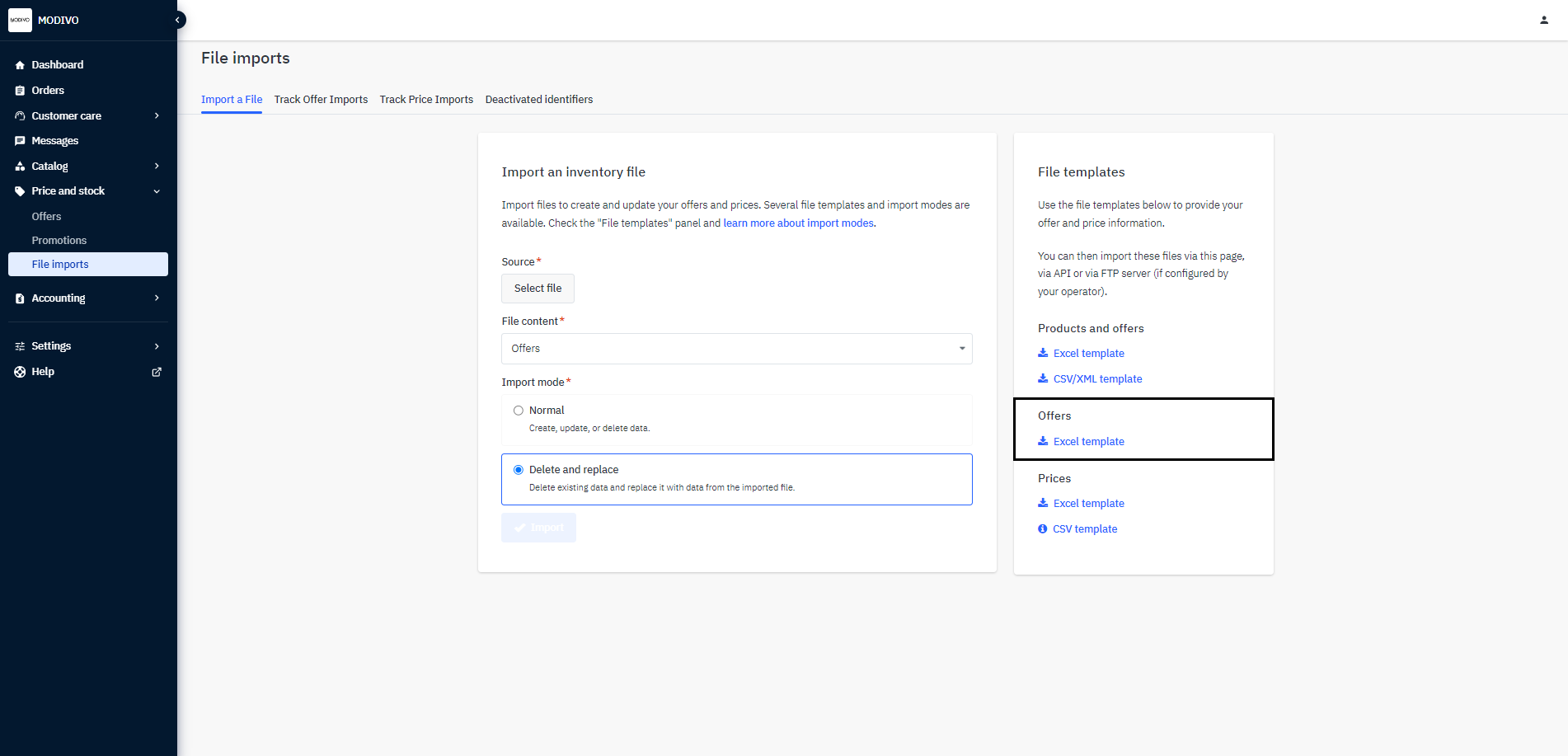
The system will take you to a new window. At the bottom, click the
Generate Templatebutton to generate the file and then download it.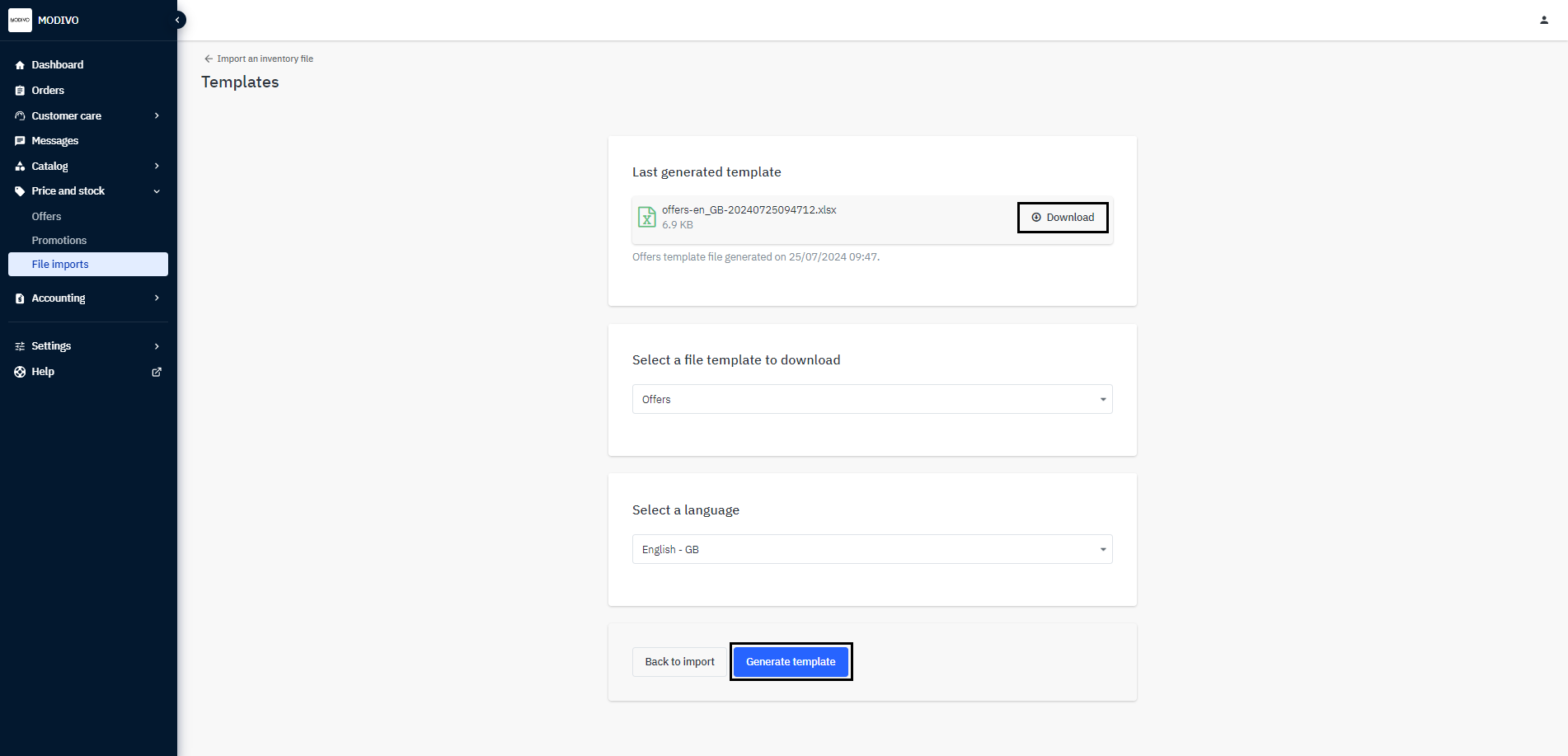
From the left menu, select
Price and Stock→File Imports.In the
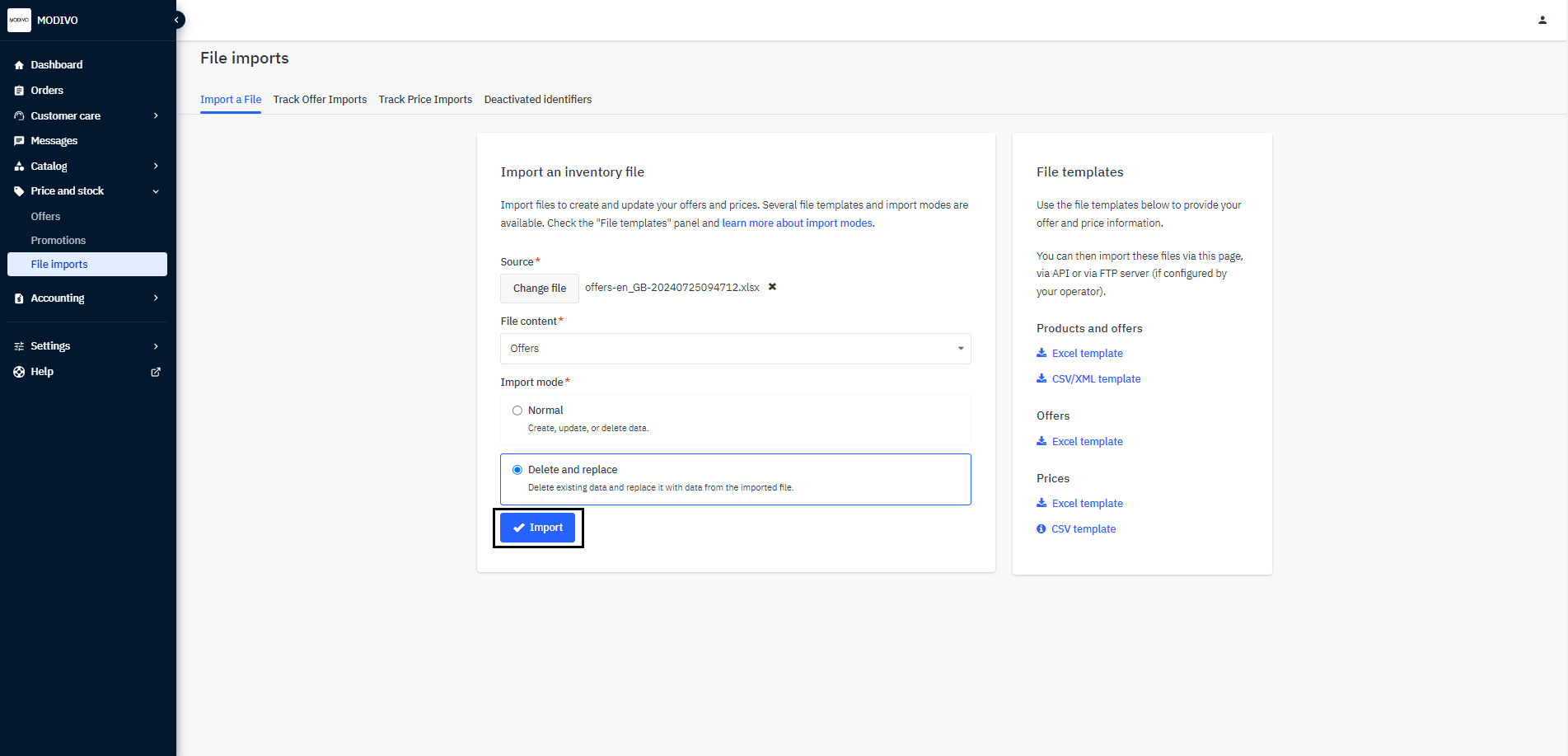
Product Filefield, select the newly downloaded template from your computer and set the following import options:- In the
File Contentsection, selectListingfrom the dropdown list. - In the
Import Modesection, chooseDelete and Replace.
- In the
To import the file, click the
Importbutton at the bottom of the screen.In the new window, confirm the removal of the listings by clicking the
Importbutton.