Explanation of product parameters
Explanation of product parameters
Values to be manually entered:
EAN – every size of a product added to MODIVO should have an EAN generated by gs1. Our system accepts only 8 and 13-digit numbers. If you do not have EAN numbers that meet our requirements, contact us at [email protected].
Product SKU – every product added to MODIVO must have a unique SKU for one size. If your products do not yet have SKU numbers, you can copy the product EAN into this field.
Producent_entity – the manufacturer/brand of the specific product.
Product type - the attribute that is the first component of the displayed product name.
Variant Group Identifier – products with different size variants can only be linked using the
variant group codeparameter. When adding products, enter a unique name or number for the designated size group of one model-color combination.Below is an example of how to correctly fill in this attribute for two colors of one blouse model:
Product Variant Group Code Helly Blouse White S HellyBlouseWhiteorBlouse1Helly Blouse White M HellyBlouseWhiteorBlouse1Helly Blouse White L HellyBlouseWhiteorBlouse1Helly Blouse Black S HellyBlouseBlackorBlouse2Helly Blouse Black M HellyBlouseBlackorBlouse2Helly Blouse Black L HellyBlouseBlackorBlouse2Important!
The value for each variant group must be unique regardless of category!
If your product does not come in multiple sizes, each item should have a different value in the
variant group codeparameter.Example of error: missing variant linking of the same product size on the MODIVO page.
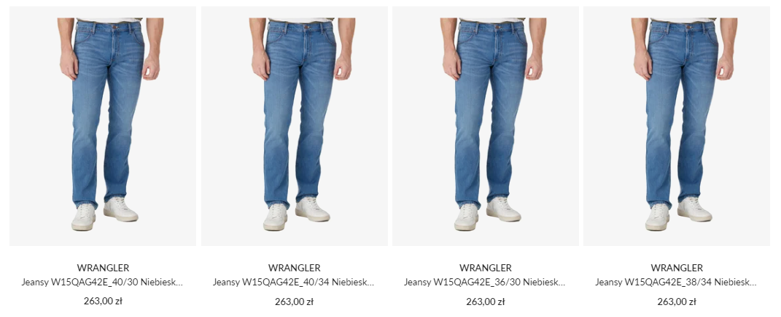
Model – an attribute that is a component of the product name displayed. It does not include color and size. See how the product name is created.
Examples:
Full Product Name Model Lancome Genifique Anti-Aging Serum 50ml Genifique Anti-Aging Columbia Women’s Jacket 1859682-010 Black M 1859682-010 Fjallraven Women’s Polar Black Stina S Stina Grouping – products with several colors should be grouped so that buyers can view its color variants by hovering over the product thumbnail.
Example:
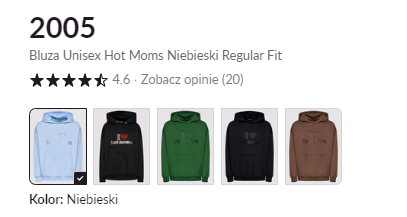
To group products, when adding a product, fill in the Grouping parameter with the same number/name for each color of the model.
Example:
Product Grouping Helly Blouse White (S/M) HellyBlouses Helly Blouse White (L/XL) HellyBlouses Helly Blouse Black (S/M) HellyBlouses Helly Blouse Black (L/XL) HellyBlouses Bruno Blouse Blue (similarly each size) BrunoBlouses Bruno Blouse Purple (similarly each size) BrunoBlouses Image 1, Image 2, 3, etc. – depending on the method of listing products, you can add images either directly from your computer or via URL. Each product added to MODIVO must meet the image requirements. The main image is the cover of the product, and subseq uently numbered images are additional to the main one. See image requirements.
Values to be selected from drop-down lists
Depending on the parameter and integration method, values in our system will be displayed differently.
Selecting data in our template
Parameters for which you can enter or select only one value will have a drop-down menu.
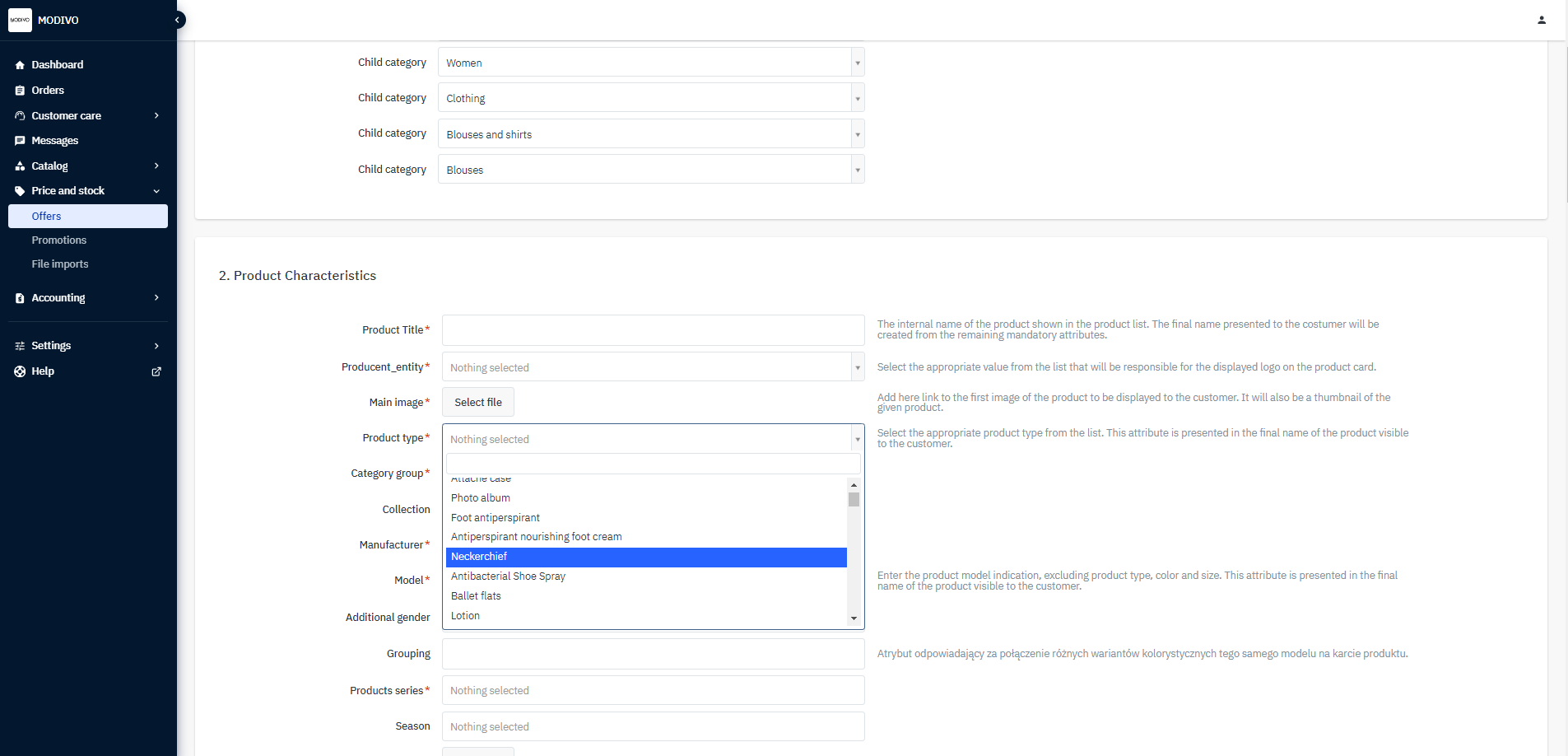
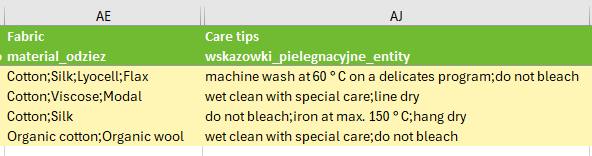
Parameters where you can enter or select more than one value are available in the ReferenceData tab. Values in the file should be separated by semicolons and should not have spaces between the entered data.
Selecting data in other integration methods
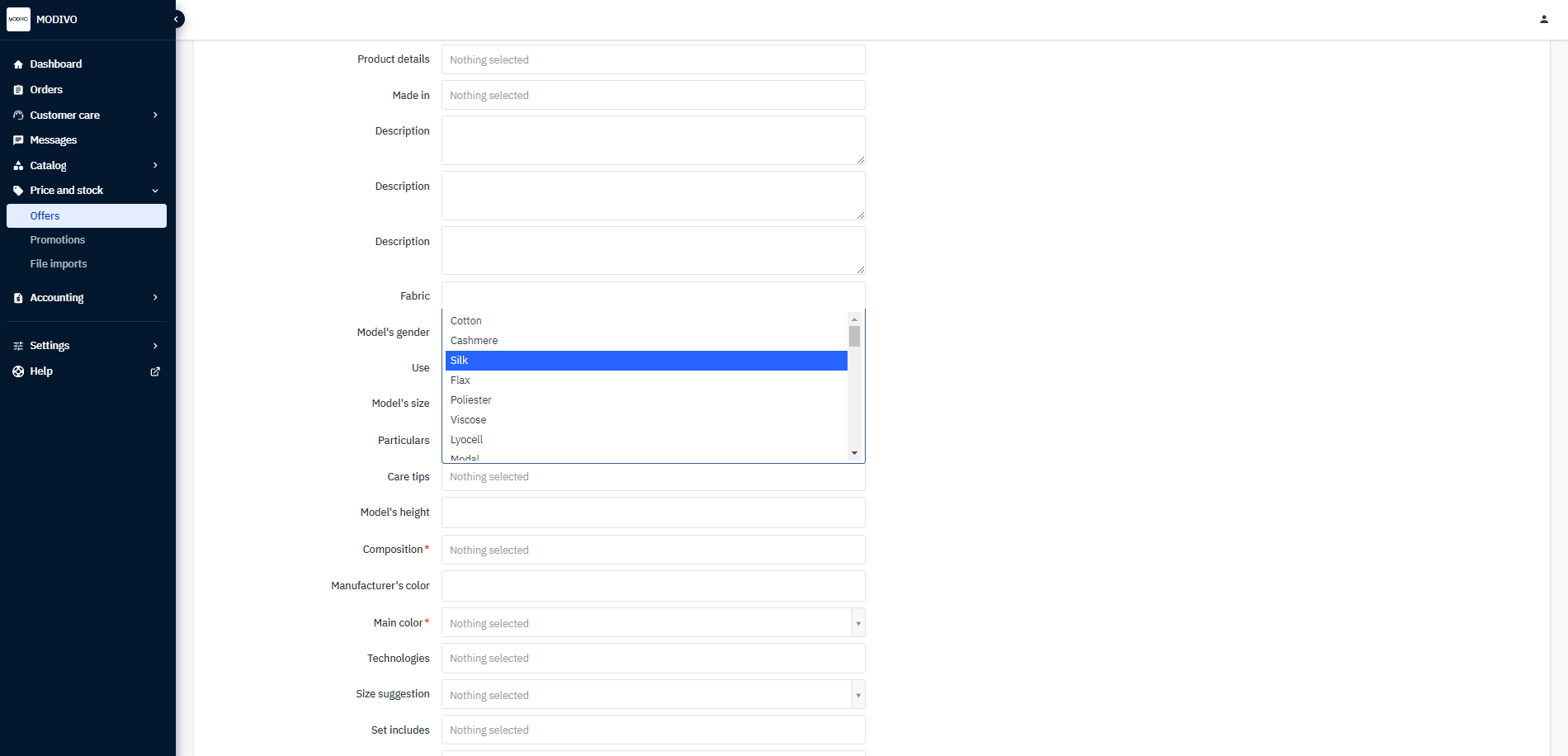
Each parameter will have a drop-down menu from which you can select one or more values depending on available options.