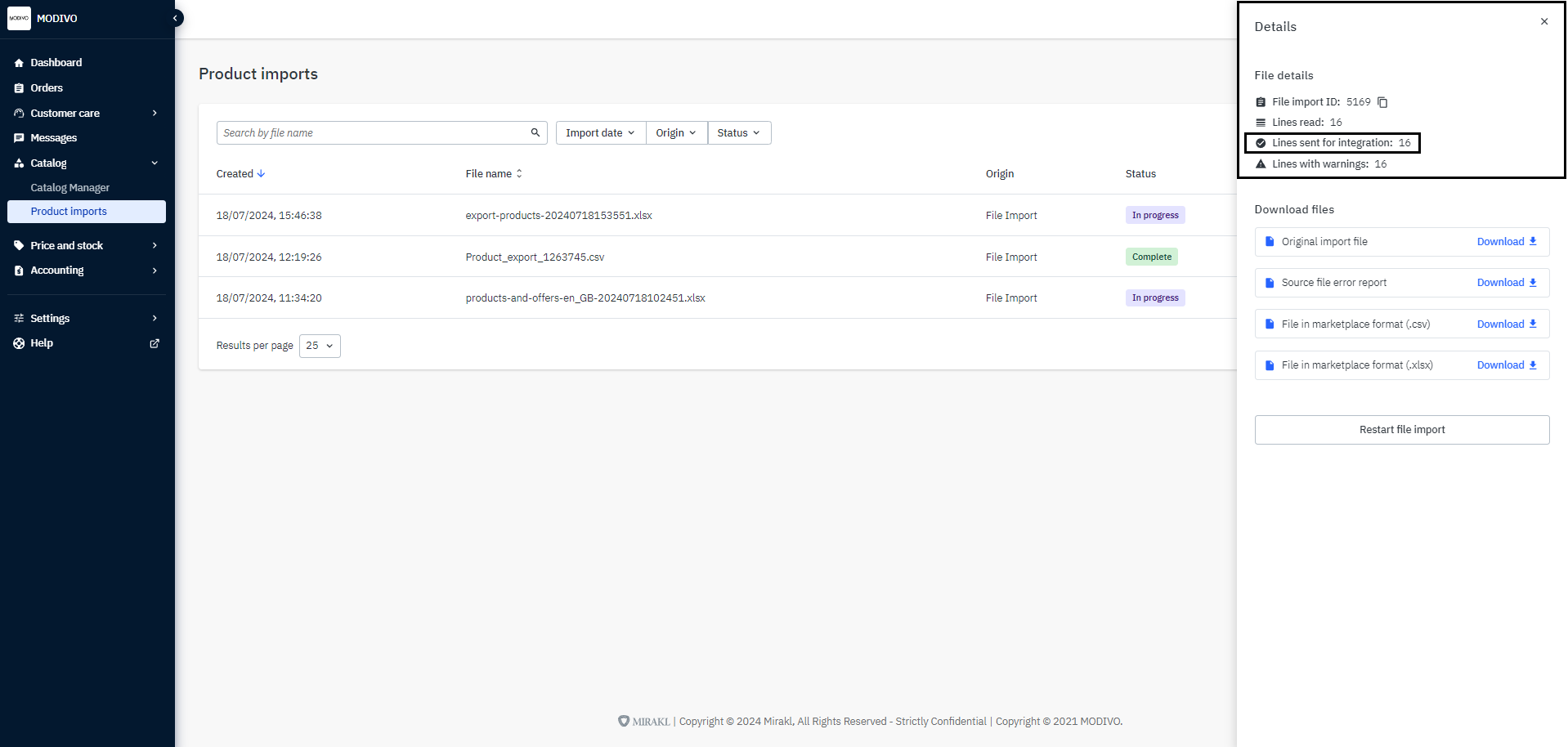
How to edit product parameters?
How to edit product parameters?
To edit parameters for already added products, log in to your seller account on the Mirakl panel and choose the appropriate method for editing:
- Single product editing
- Bulk product editing
- Editing products via Excel file
Remember!
Editing is not possible for parameters such as: SKU, EAN, SIZE, and VARIANT GROUP IDENTIFIER.
Single product editing
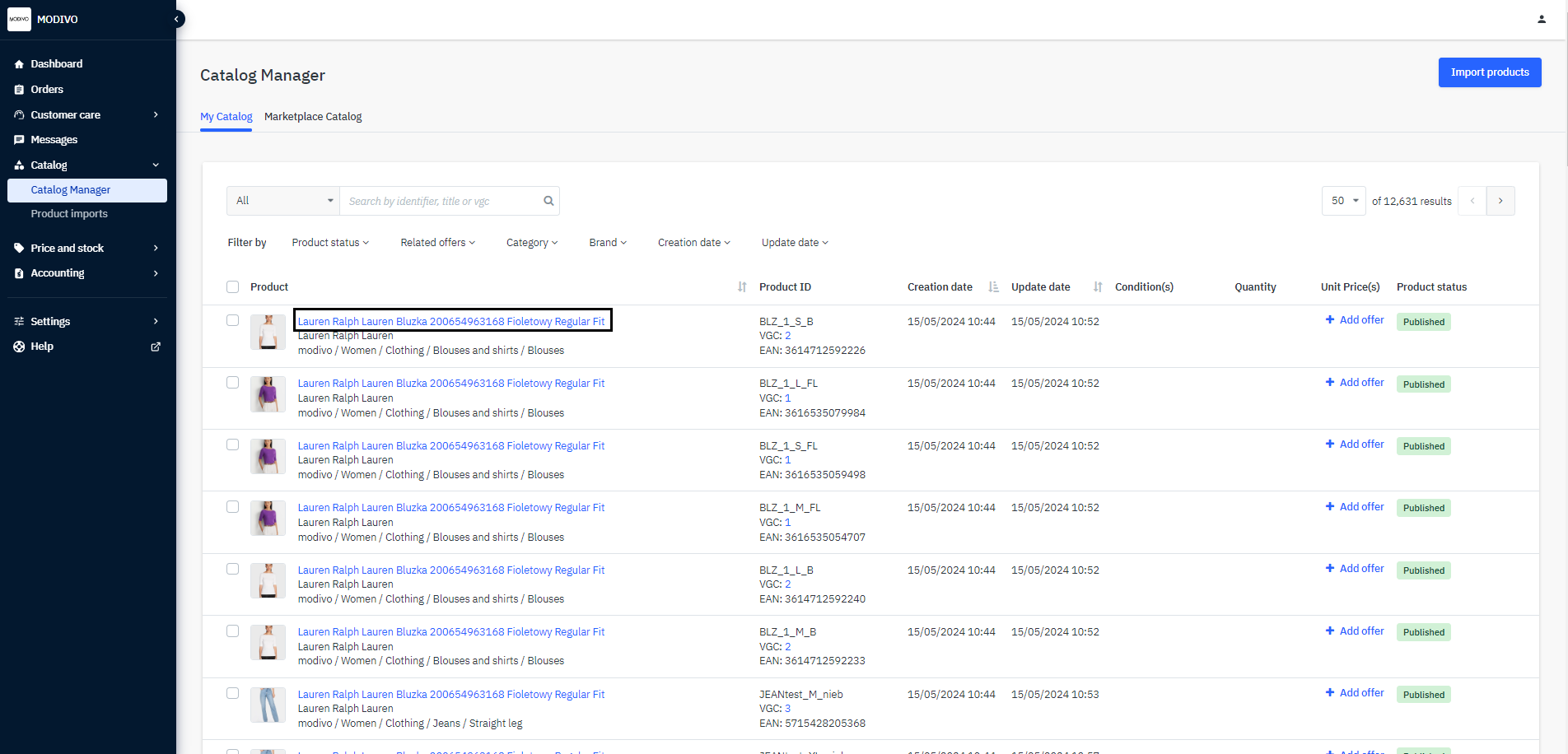
In the left menu, select Catalog and Catalog Manager.
Click on the name of the product you want to edit.
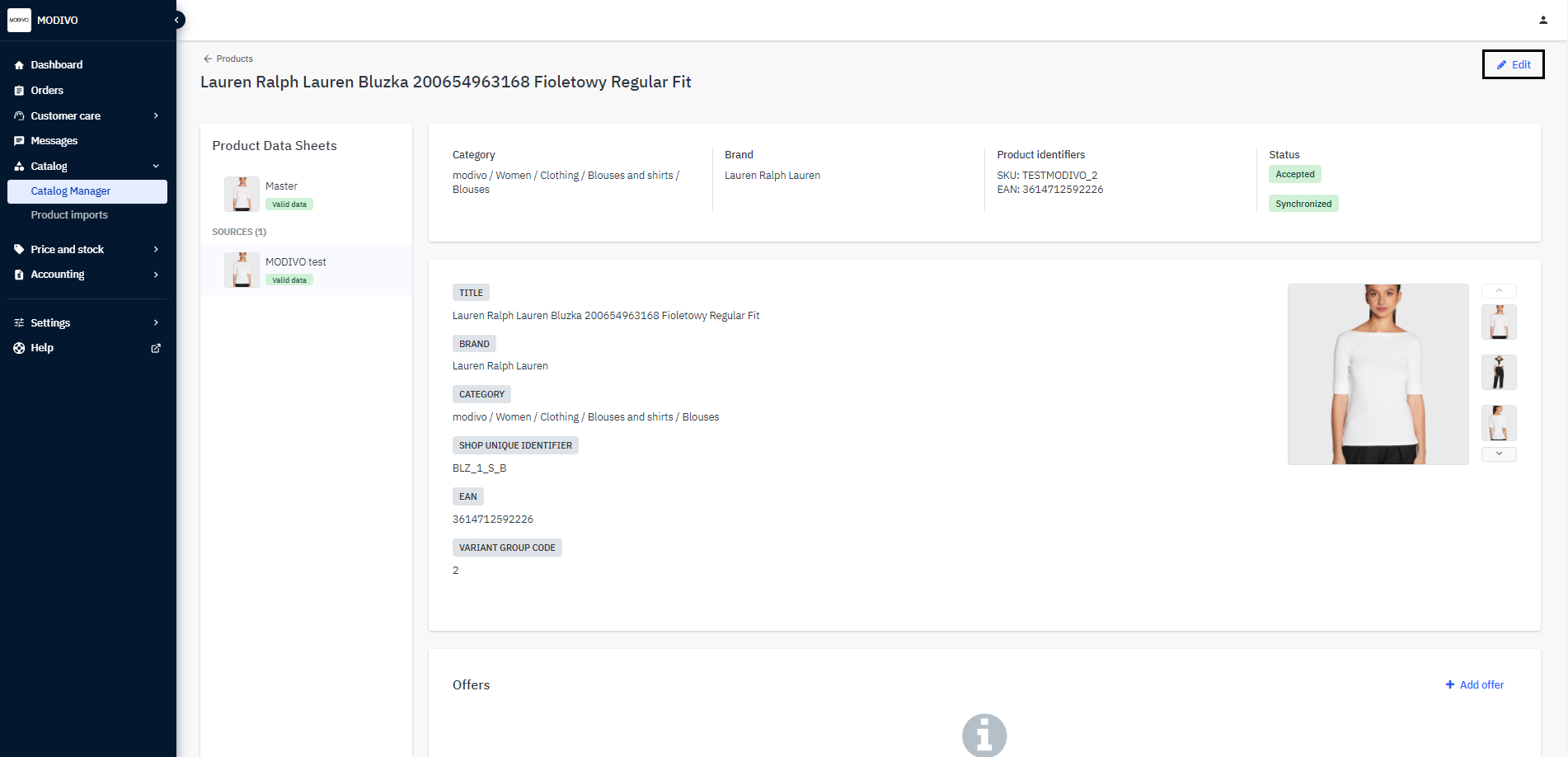
In the upper right corner, click the Edit button.
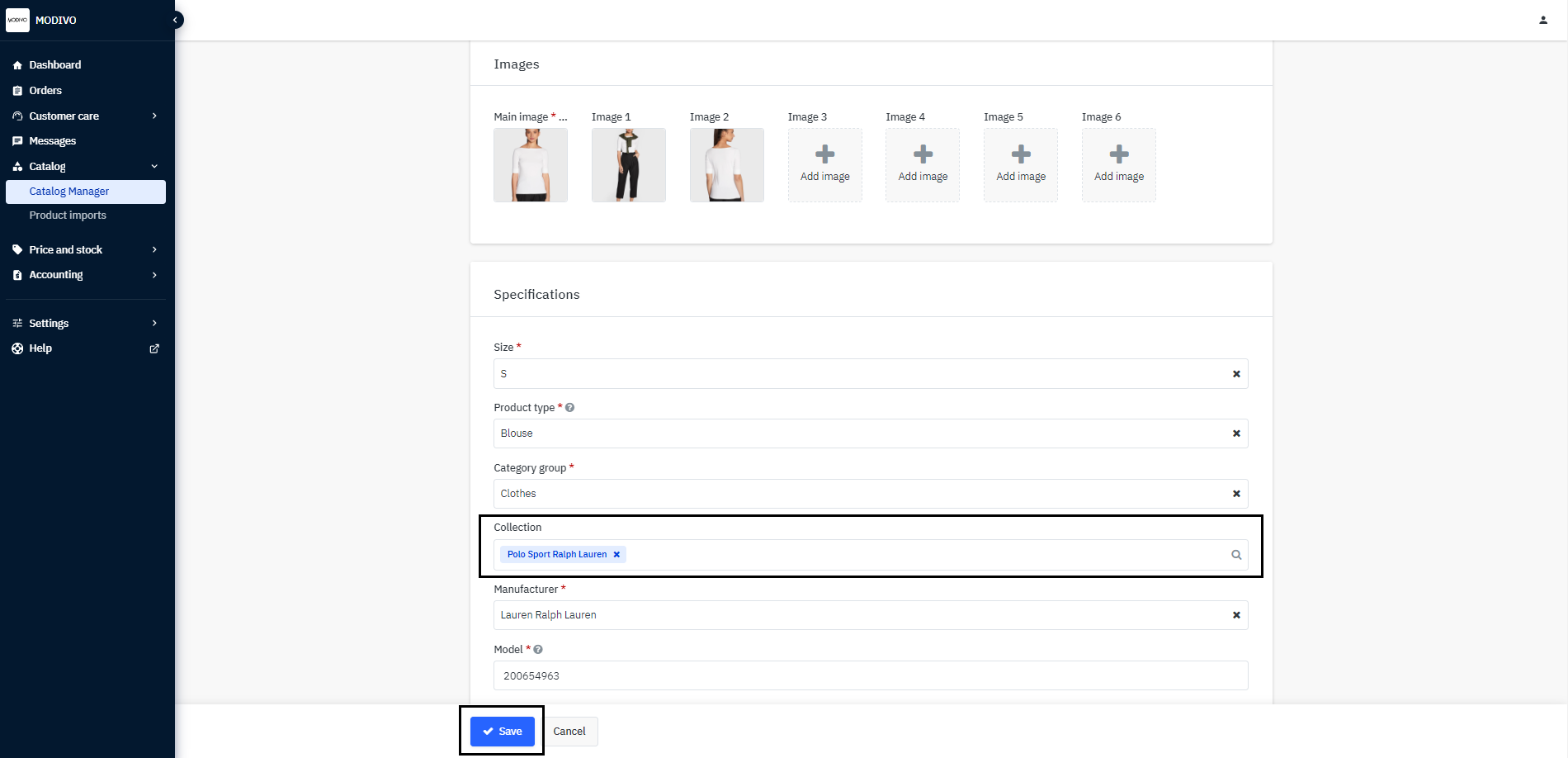
Choose the fields you want to modify and fill them with available options.
Save changes by clicking the Save button at the bottom of the page.
Note!
If you are editing parameters for a product with size variants, make sure to apply changes to each size of the product for the new parameters to be reflected on the main page. Changes will be visible on the site within 24 hours from the time of editing.
Bulk product editing
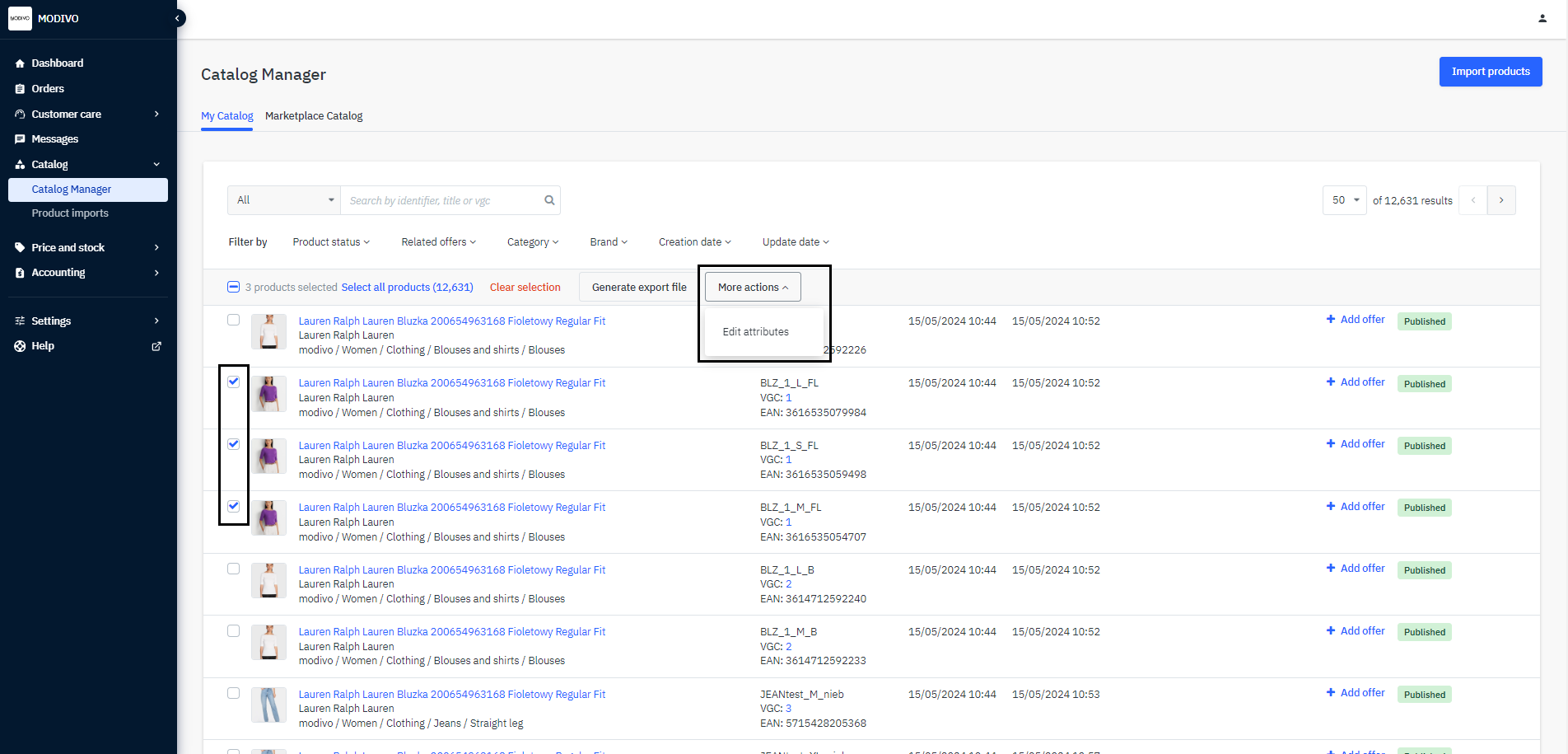
In the left menu, select Catalog and Catalog Manager.
Select the products you want to edit.
At the top of the product list, click the More Actions button, and then select Edit Attributes from the dropdown menu.
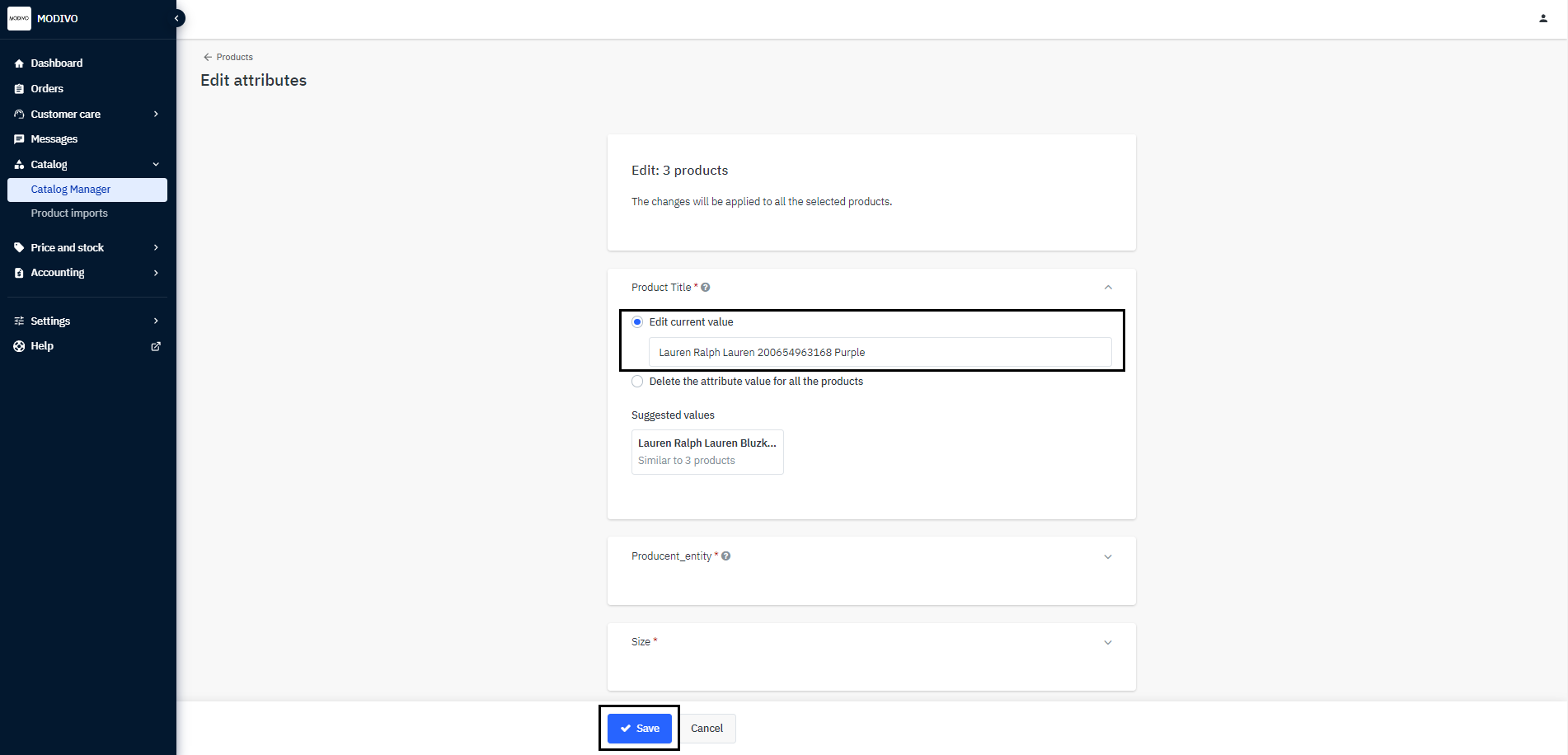
Choose the fields you want to modify and fill them with available options.
Save changes by clicking the Save button at the bottom of the page.
Editing products via excel file
In the left menu, select Catalog and Catalog Manager.
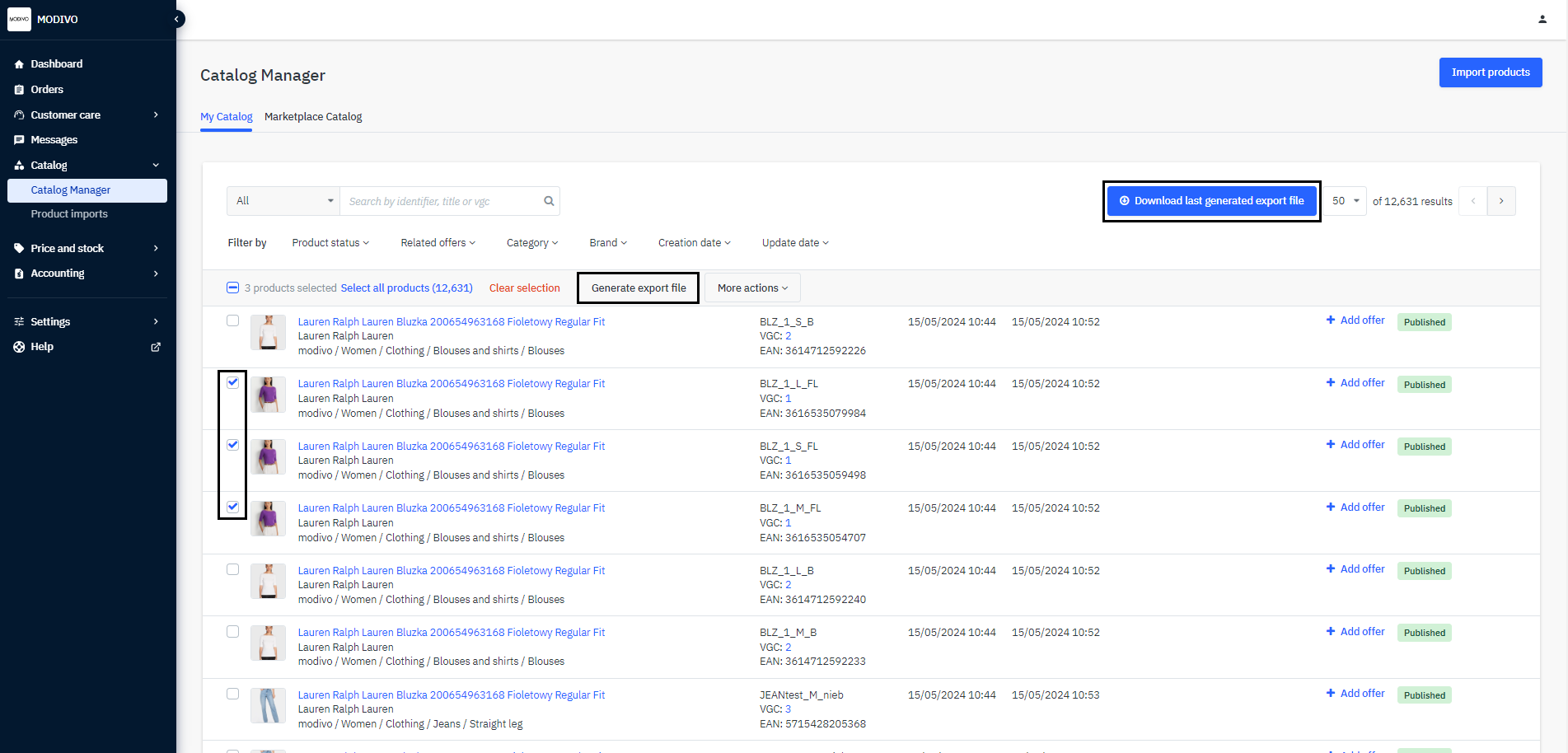
Select the products you want to edit.
In the table header above the product list, click the Generate Export File option.
Then, in the upper right corner of the table, click the Download Latest Generated Export File button.
Open the file and select the fields you want to edit, then choose the available option from the list.
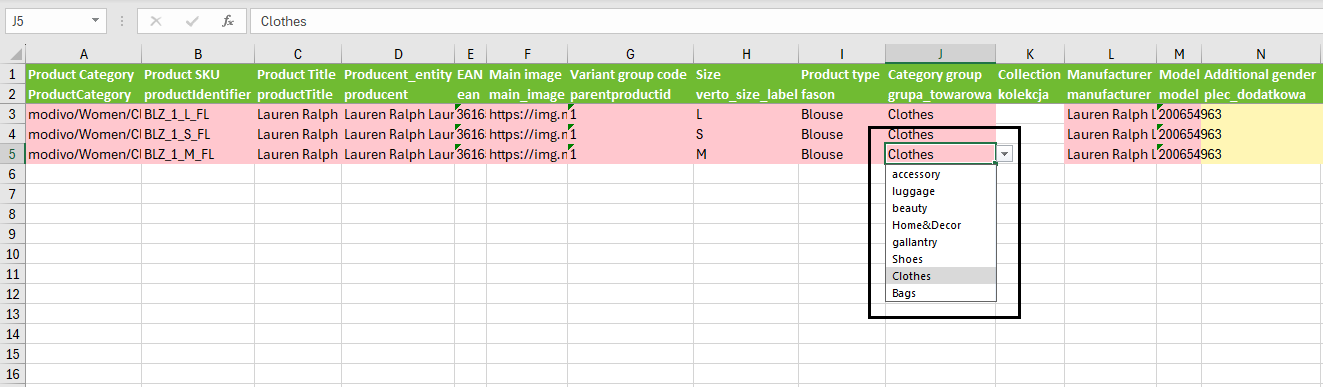
If the selected field does not show a dropdown menu, go to the second tab named ReferenceData. Then, use the shortcut CTRL + F to search for the parameter code you want to edit or a specific value.
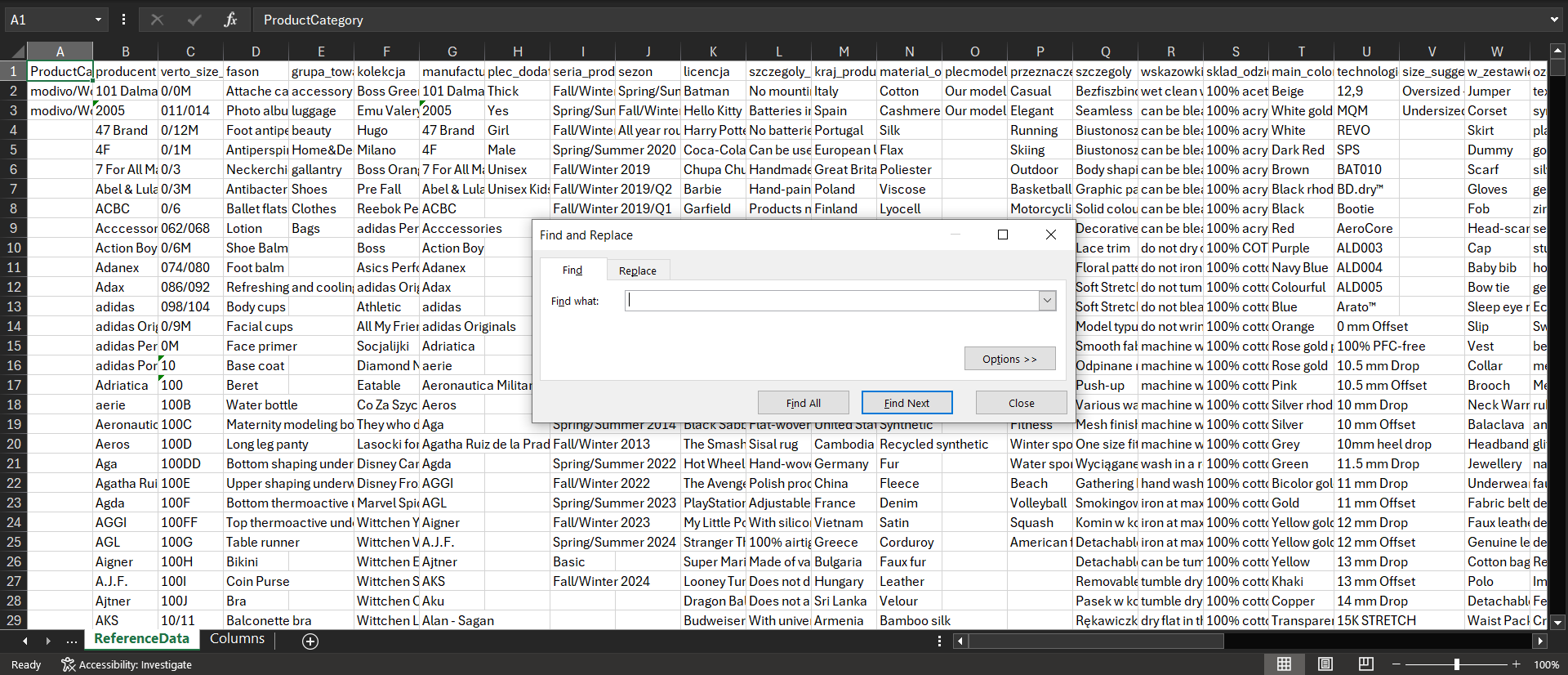
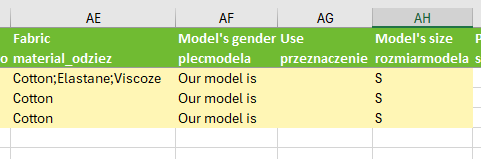
Check the available values to add and copy them to the first tab Data for the corresponding parameter field (see point 4). If you want to add more than one value, separate them with a semicolon (;) with no spaces in between.
Note!
If the ReferenceData tab is missing values you want to add to your products, check how you can add missing values.
Remember, currently the parameters where values cannot be added are:
- Primary Color
- Care Instructions
- Product Group
- Product Series
- Material
After making changes, save the file. Do not change its format.
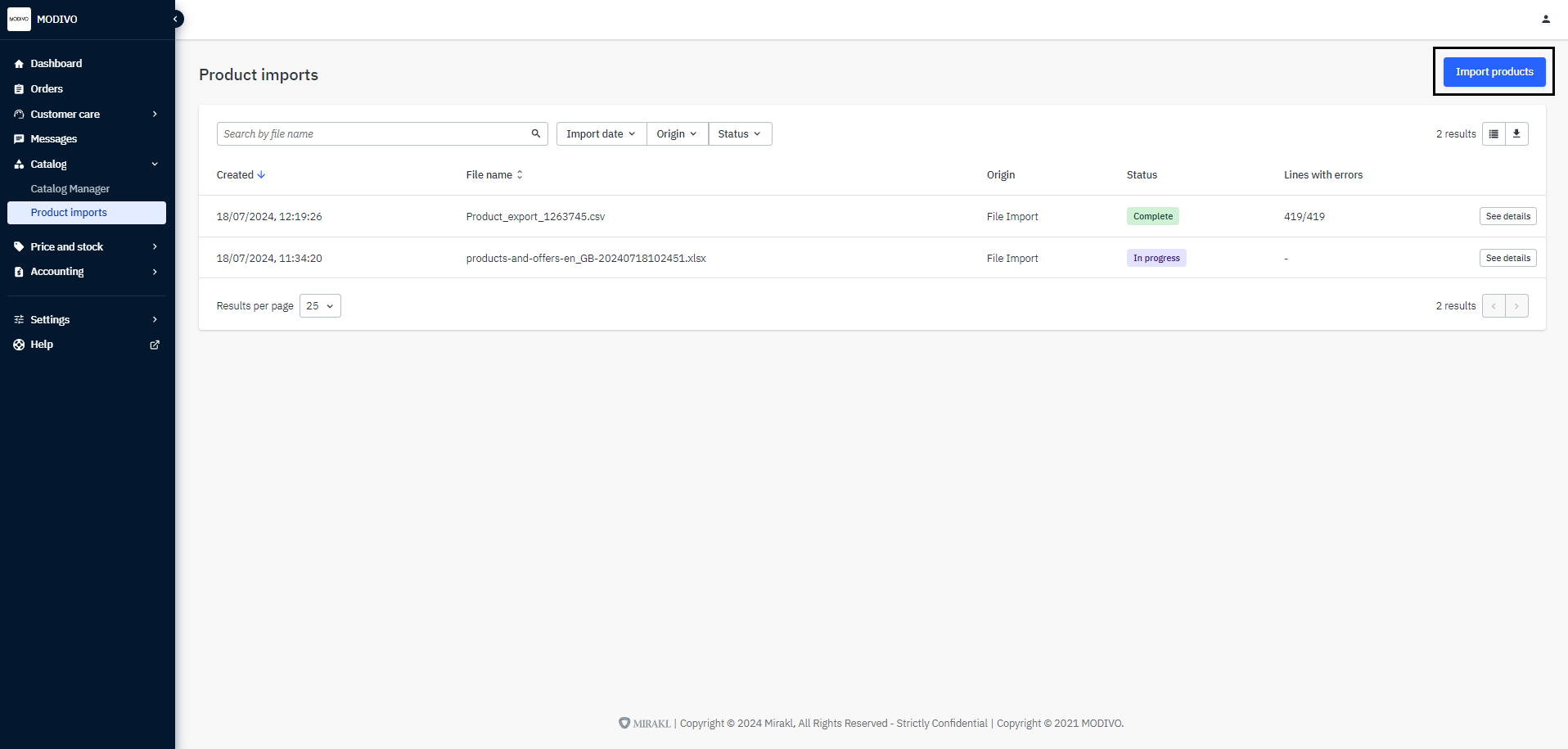
In the Mirakl seller panel, go to Catalog and then Product Imports.
In the upper right corner, click the Import Products button.
- In the Product File field, select the previously saved file with the edited values from your computer. Then click Confirm below the field to import it.
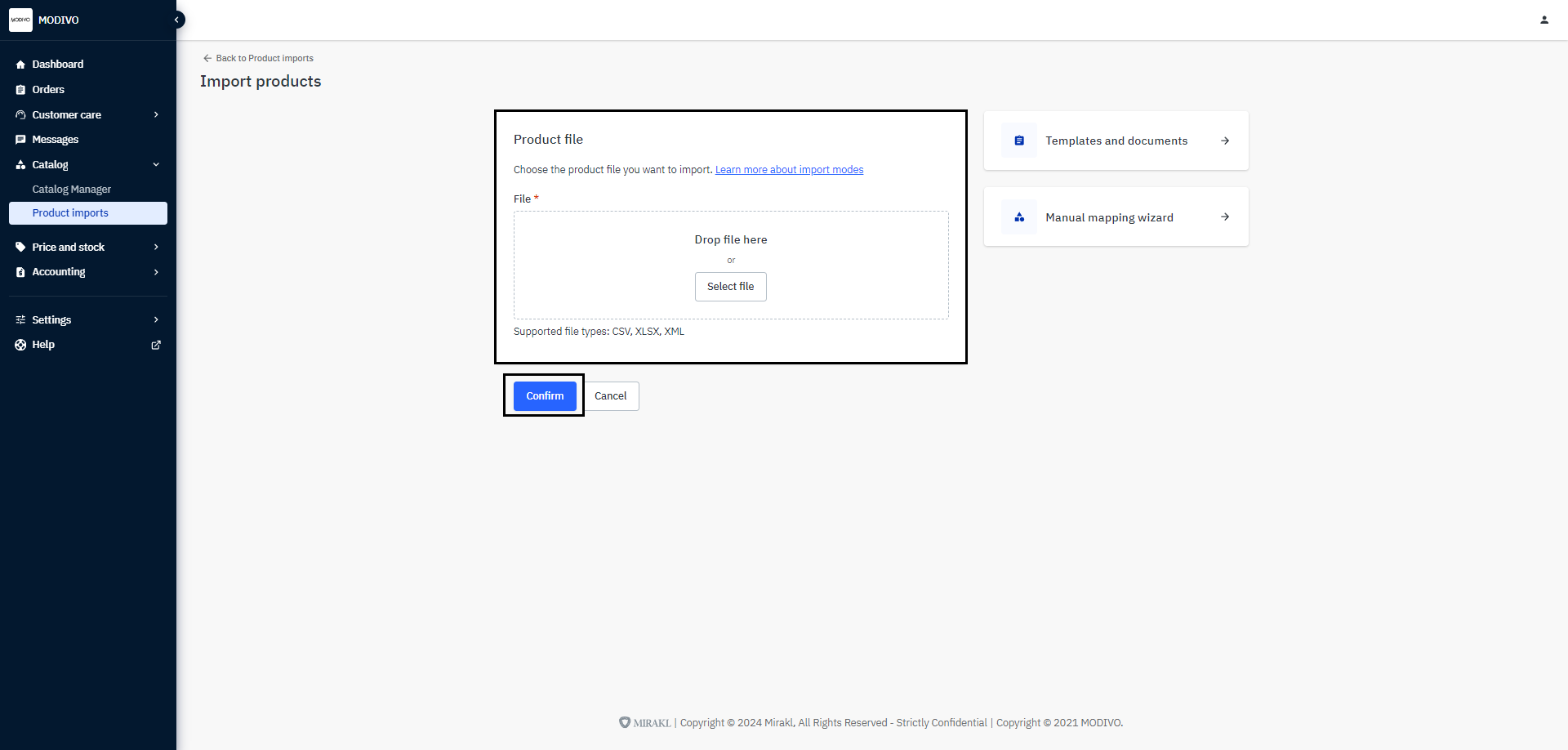
- The system will automatically take you to the product import monitoring panel, where you can check if the import was successful.