
How to Connect Product/Offer Feed?
How to Connect Product/Offer Feed?
Offer feed and offer/product feed
Go to Settings - Shop – Imports and find Offer Import Settings FTP / HTTP.
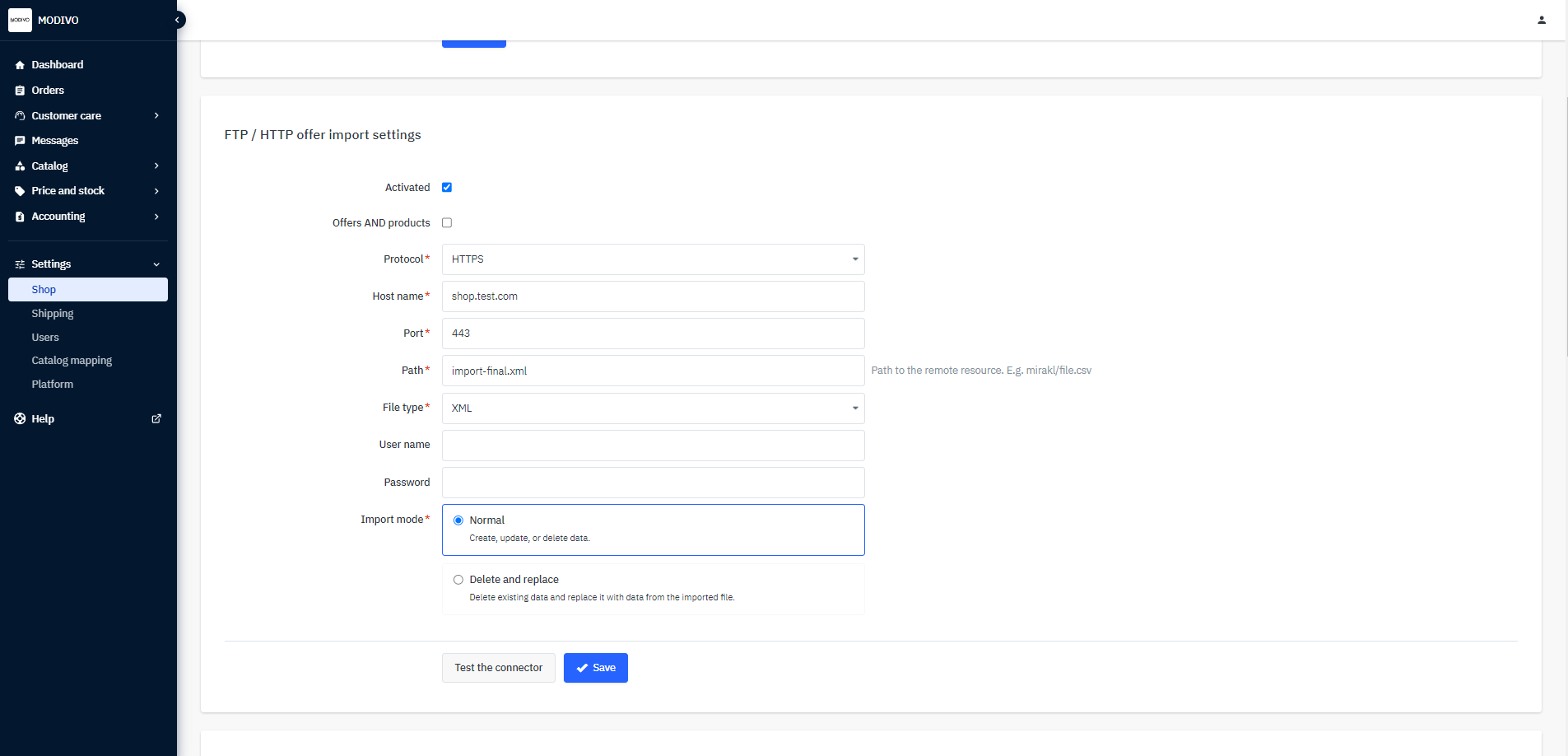
Select the Activated option and fill in the fields based on the following guidelines:
Protocol – choose the connection method (HTTP, HTTPS, SFTP, or FTP).
Host Name – the URL address of your store.
Port – set the following values:
- For FTP connection: 20
- For SFTP connection: 22
- For HTTP links: 80
- For HTTPS links: 443
Path – the link to the XML/CSV/XLSX file with offers, e.g.,
test.pl/plikdoimportu.xml. When you provide a link to an XML/CSV/XLSX file located on your server in the Path field, offers will be automatically retrieved based on changes in that file. Important: The indicated file must be prepared in the correct schema.File Type – choose XML, CSV, or XLSX. You can also leave Automatic Detection.
Username – fill in this field if authentication via login is required.
Password – fill in this field if authentication via login is required.
Important
Note! If your file contains offers along with products, enable the Offers AND products option.
Once you have filled in the fields, click the Test Connection button to check if the connection works correctly. When you see a successful connection message, click the Save button to confirm the addition of the connection.
Product feed
Go to Settings - Shop – Imports and find Product Import Settings FTP / HTTP.
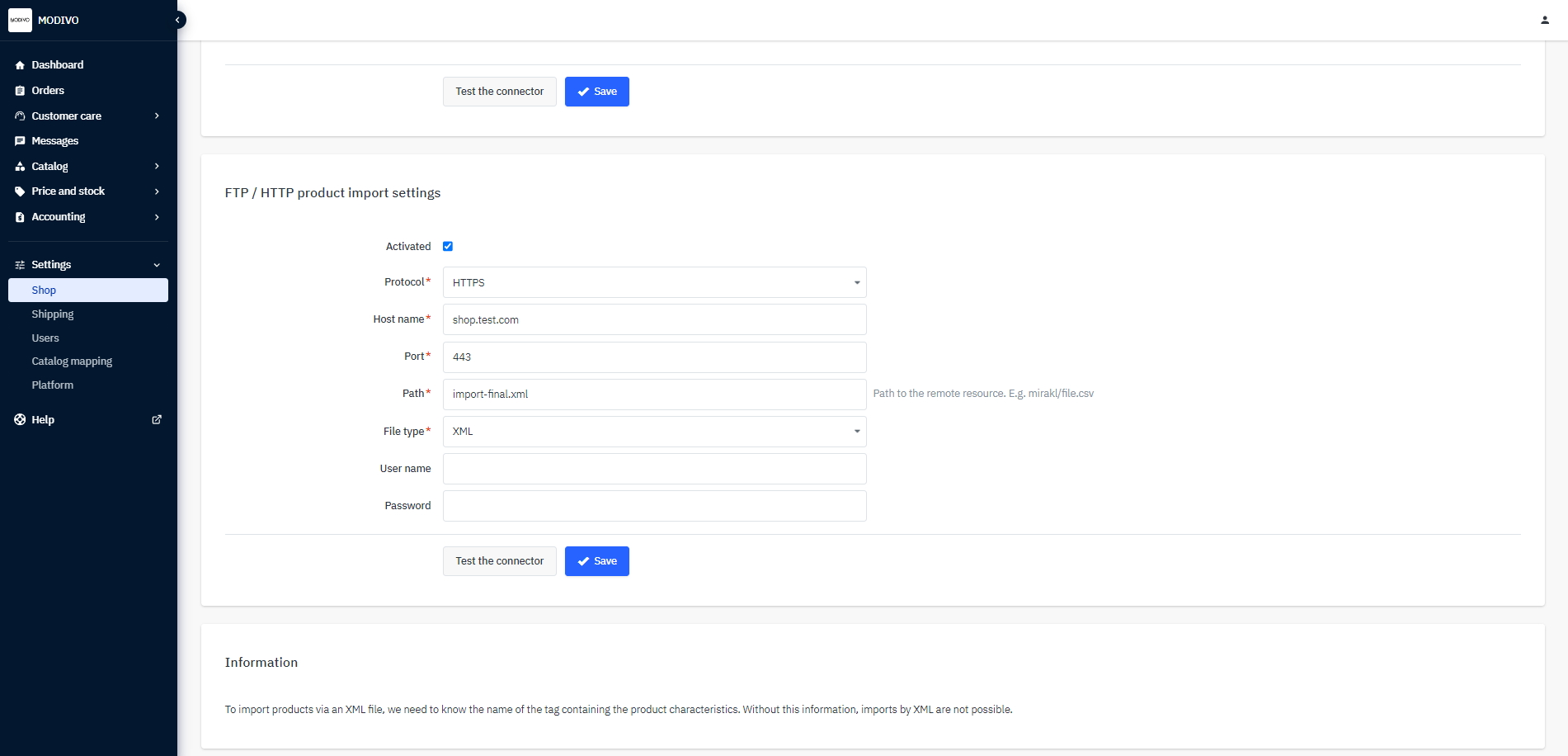
Select the Activated option and fill in the fields based on the following guidelines:
Protocol – choose the connection method (HTTP, HTTPS, SFTP, or FTP).
Host Name – the URL address of your store.
Port – set the following values:
- For FTP connection: 20
- For SFTP connection: 22
- For HTTP links: 80
- For HTTPS links: 443
Path – the link to the XML/CSV/XLSX file with products, e.g.,
test.pl/plikdoimportu.xml. When you provide a link to an XML/CSV/XLSX file located on your server in the Path field, products will be automatically retrieved based on changes in that file. Important: The indicated file must be prepared in the correct schema.File Type – choose XML, CSV, or XLSX. You can also leave Automatic Detection.
Username – fill in this field if authentication via login is required.
Password – fill in this field if authentication via login is required.
Once you have filled in the fields, click the Test Connection button to check if the connection works correctly. When you see a successful connection message, click the Save button to confirm the addition of the connection.
Important
Important! Data from the file is retrieved every hour, starting from full hours.