
How to map values in parameters?
How to map values in parameters?
To add a product catalog in your structure or the structure generated via Mirakl:
Go to the
Settings-Catalog Mappingsection.In
My Catalog Structure, first add the attribute responsible for the product category. When you click on theRootname, a plus iconwill appear, allowing you to add the attribute responsible for the product category. 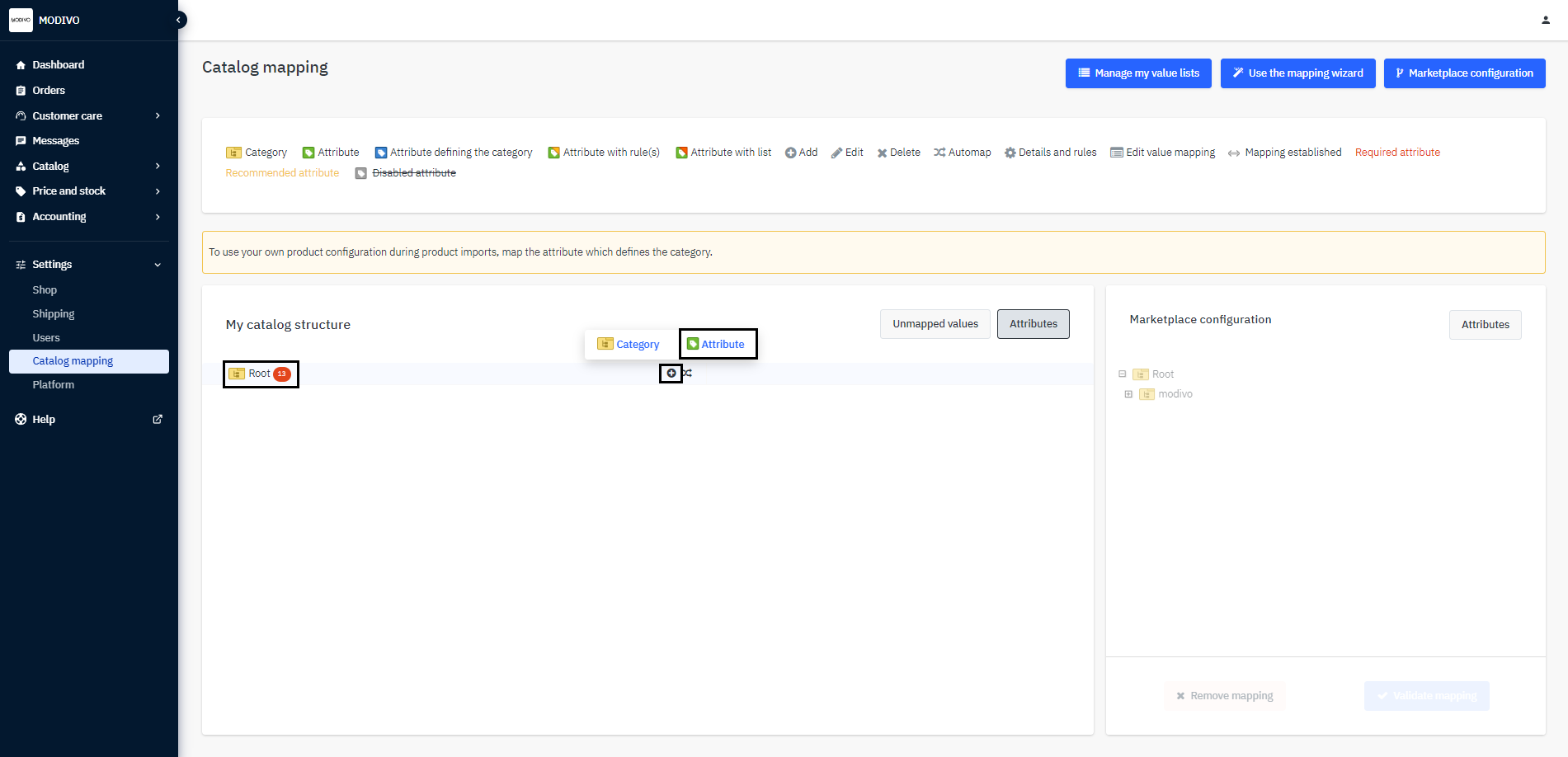
In the
Attribute Codefield, enter a name describing your parameter, which contains the product categories. Click theConfirmbutton to save.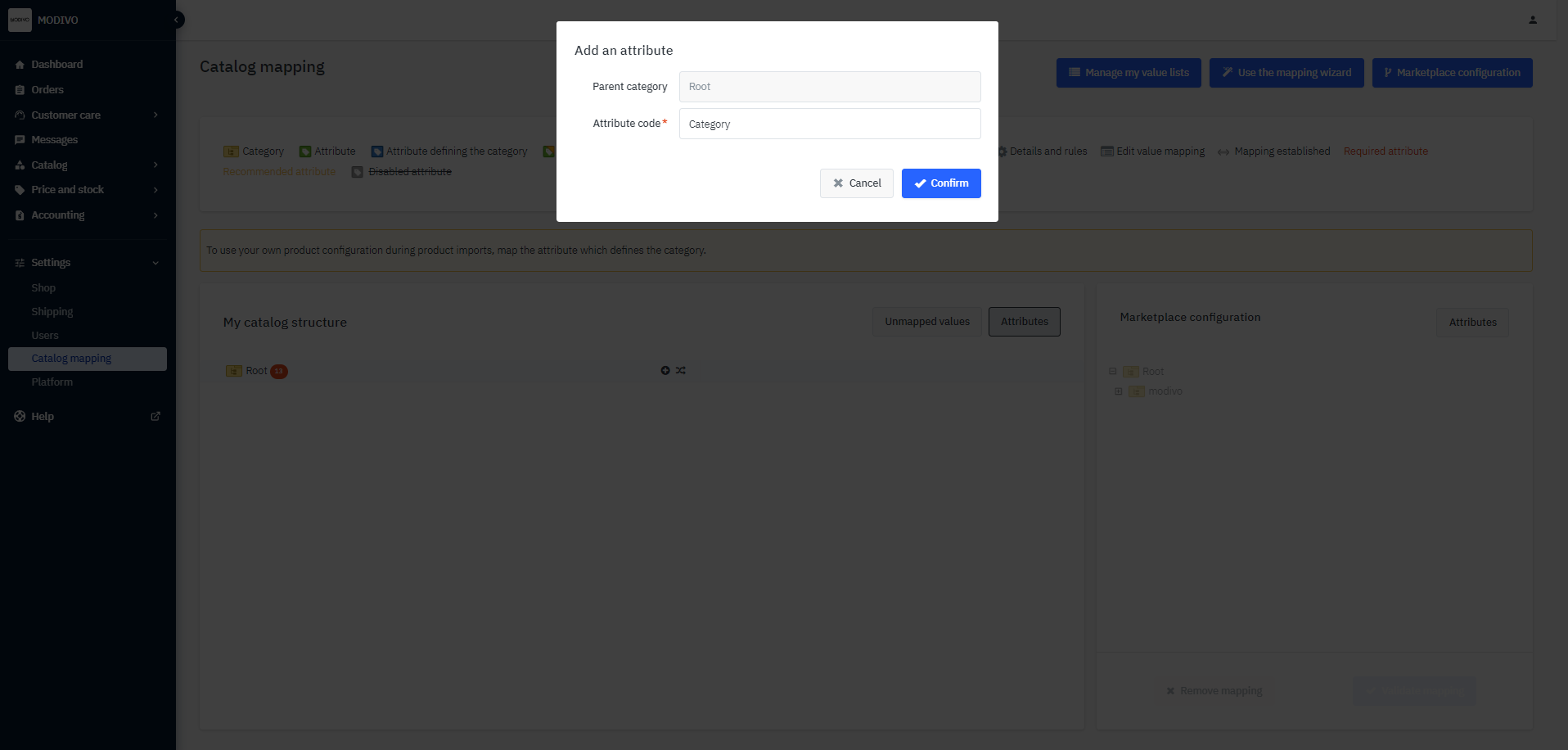
Under the
Rootname, a new field will appear with the name you entered, with the statusNot Mapped. On the right side of the screen, you will find all the parameters available in our system. Select your parameter and then map it to our parameter corresponding to the categories namedProduct Category.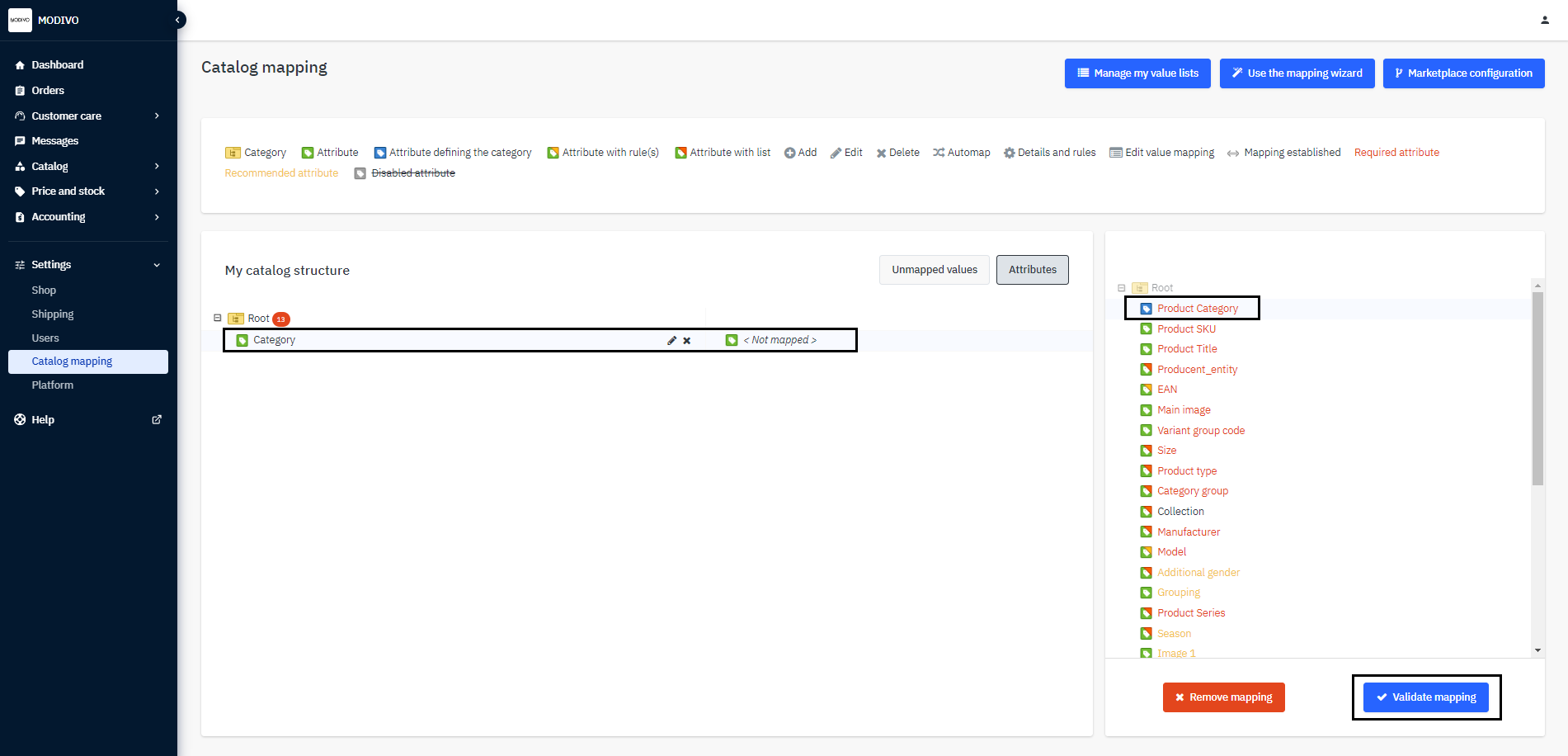
Finally, in the lower-right corner, click the
Check Mappingbutton.Next, map all the categories from your file to those currently used on MODIVO. To do this, click the
Rootname, then the plus iconand select the Categoryoption.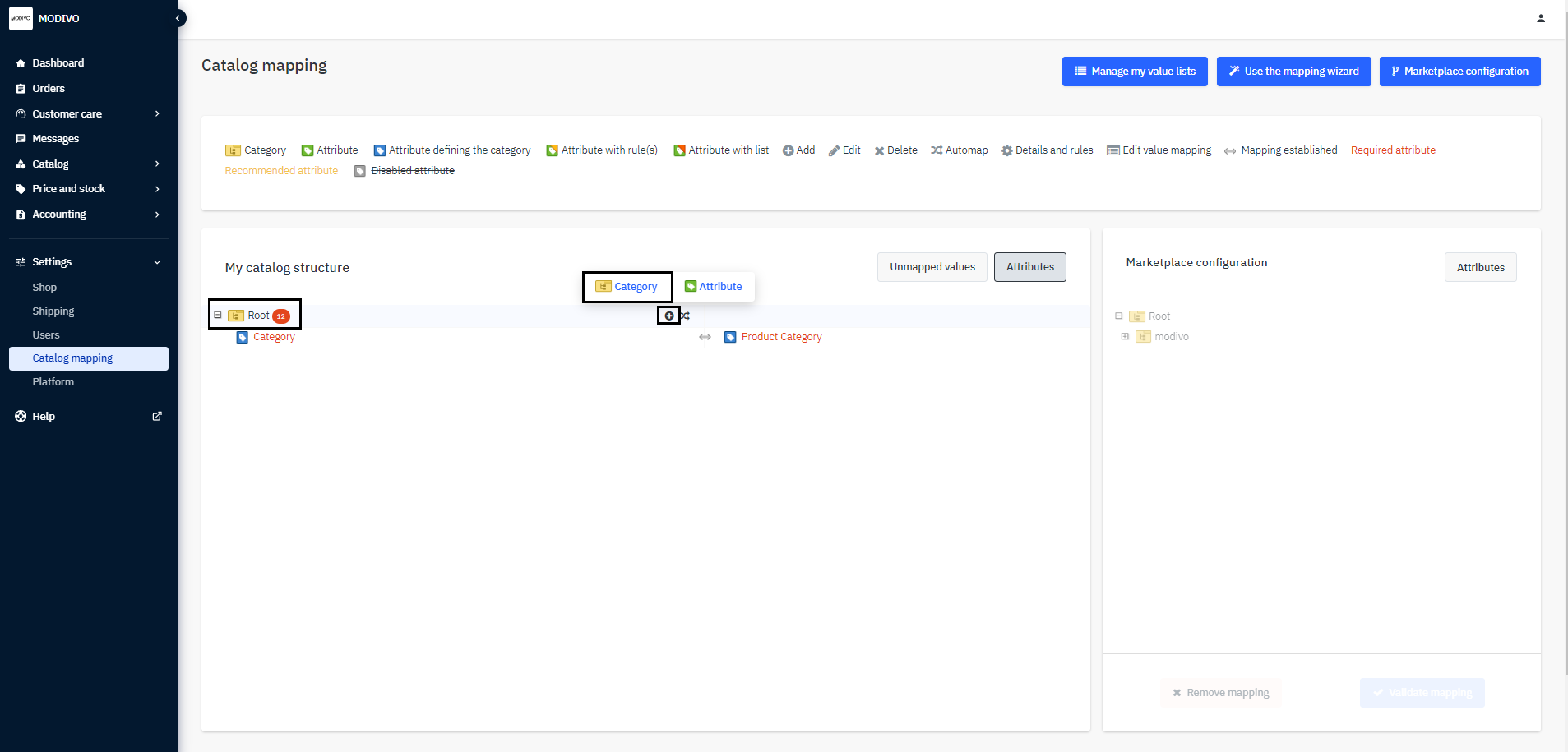
Fill in the code field and the name field of your category in the file.
Warning!
The code is what will be available in the file. The name is needed to identify the code (if it were numbers).
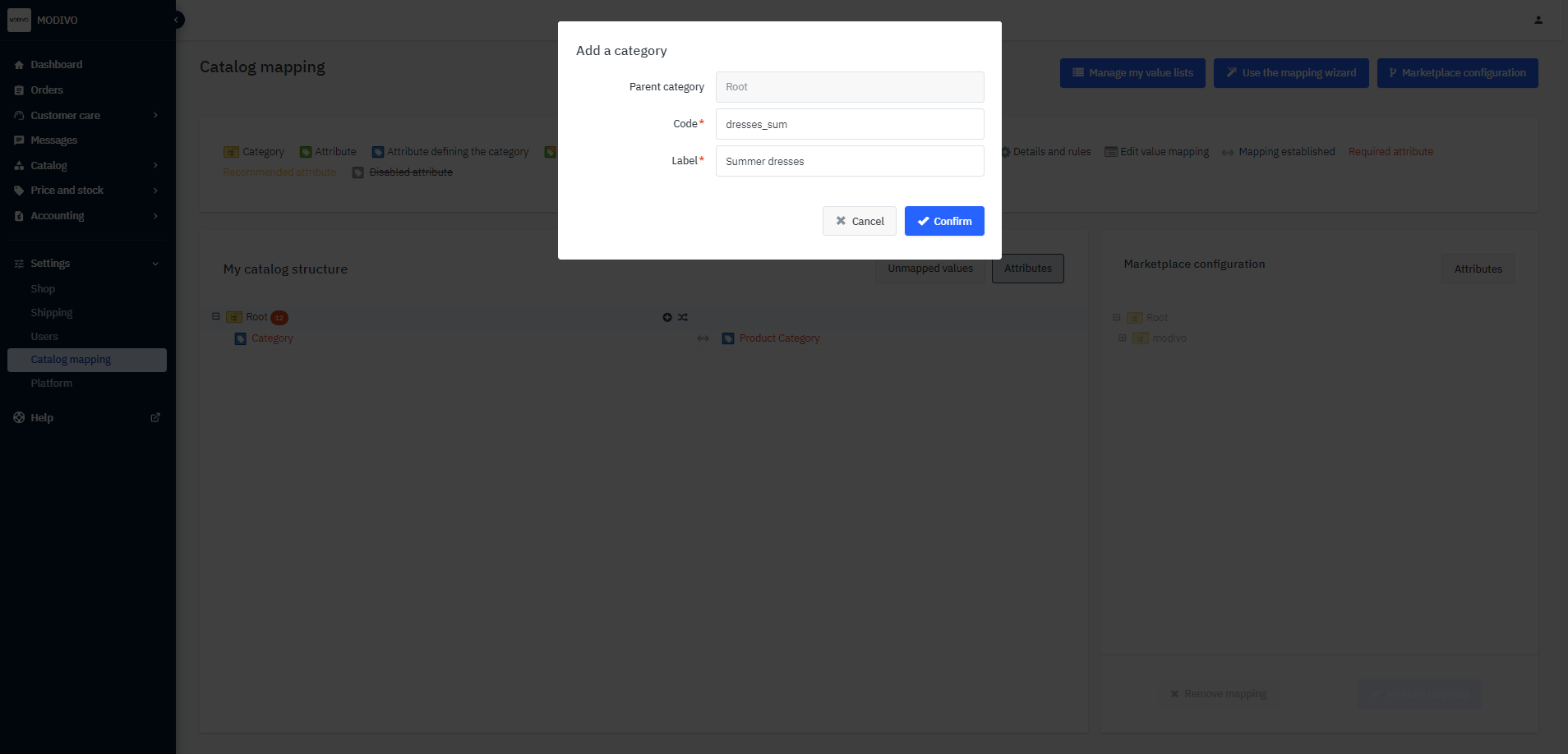
In the next step, add each required (and optional and recommended) parameter to
Rootor directly to lower categories. Add and map parameters in the same way as the category attribute.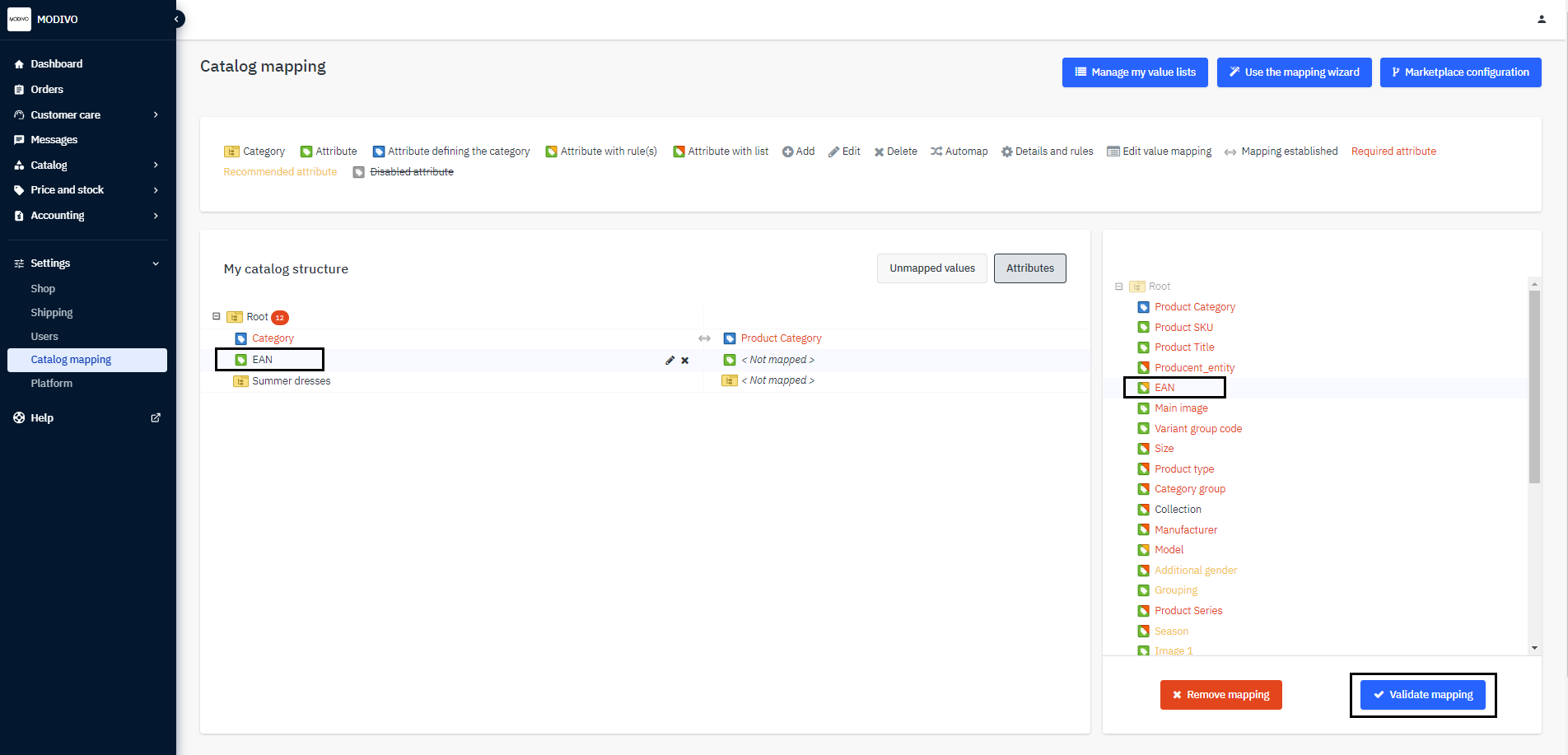
Warning!
After mapping your categories to the lowest categories of MODIVO, additional required, recommended, and optional parameters will appear that need to be mapped.
Every value you send in the file must be mapped to a value in our system.
In the upper right part of the screen, click the
Manage My Value Listsbutton, thenCreate Value List.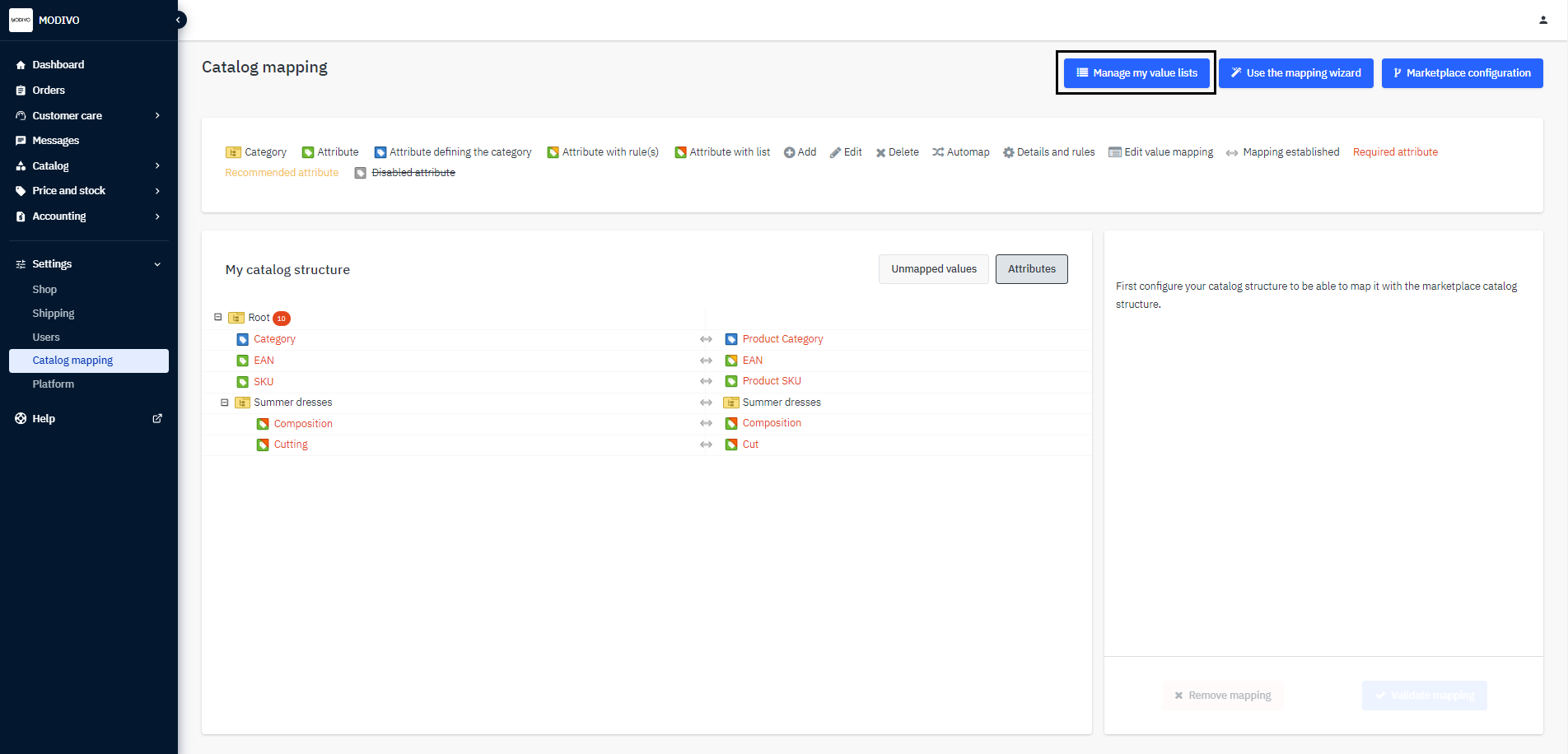
In the
Define Value Listwindow, define the value code that will be included in the file and the label displayed for the value list of the given parameter. Then click theAddbutton.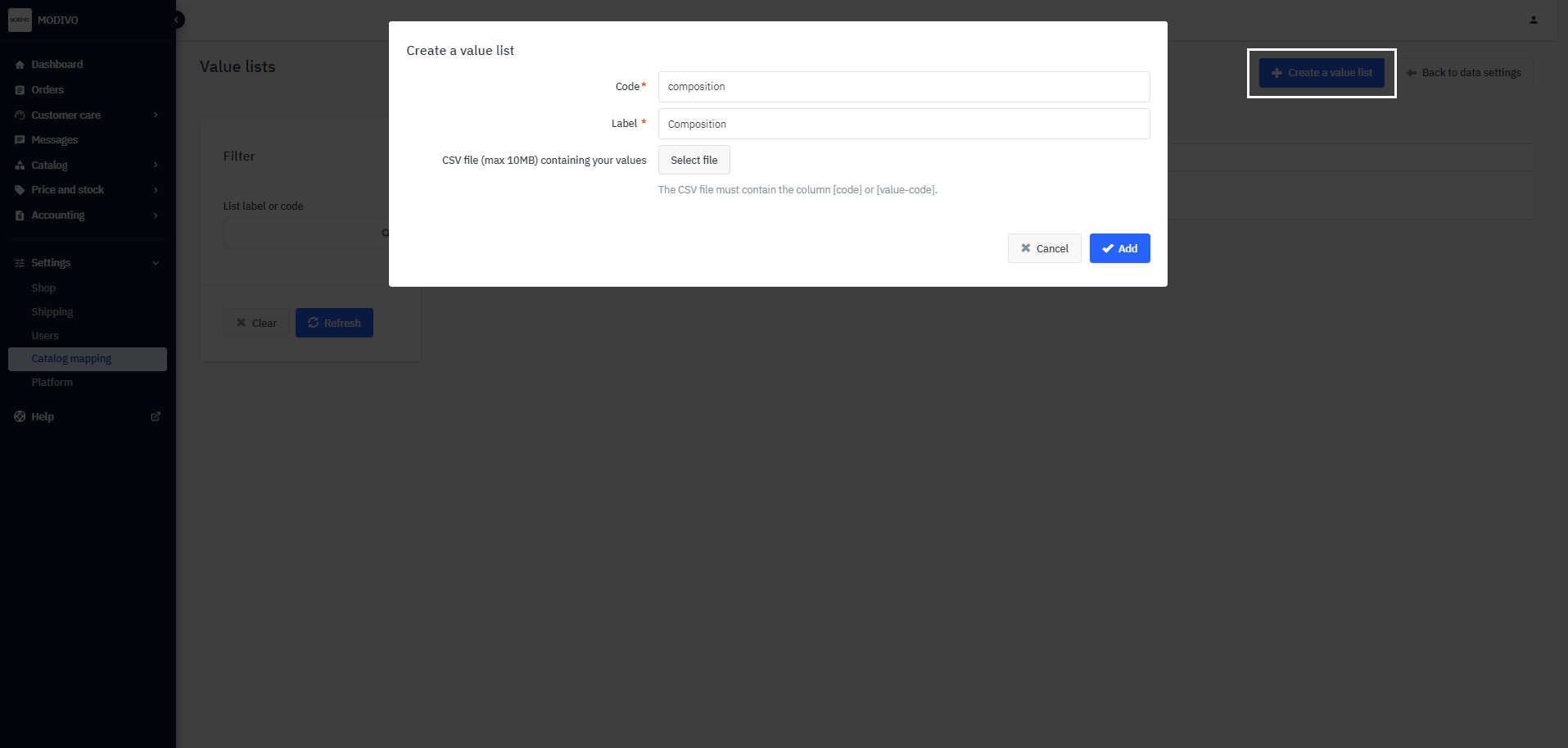
In the given value list, create or import all the values that will be in the imported file for a specific parameter. In the example below, this is composition:
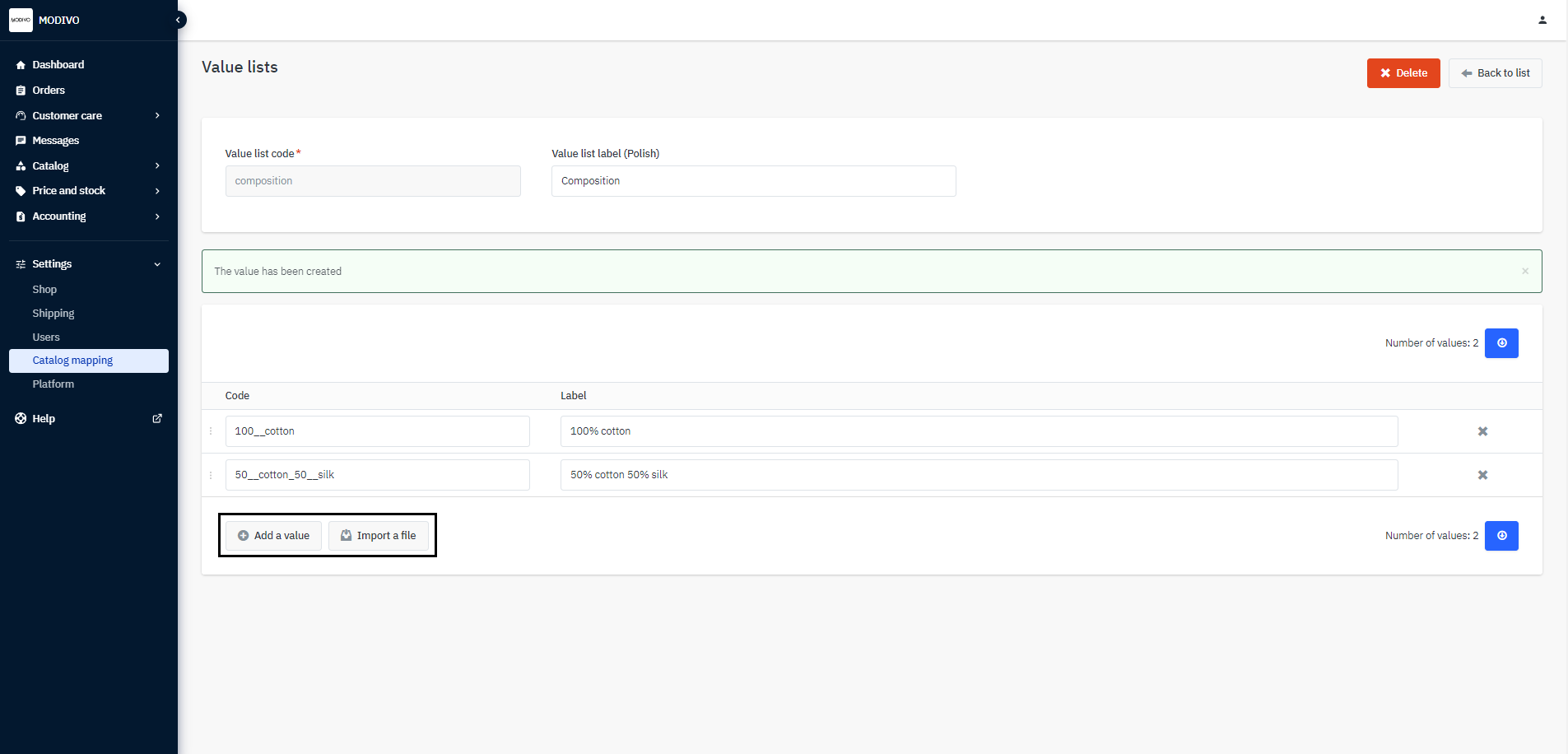
Once you add value lists for all parameters, map them to the appropriate parameters. Go back to the
Catalog Mappingtab and find the parameter you want to assign the value list to. ClickEdit Value Mappingand proceed to select the list you will be mapping.Warning!
Make sure the parameters you added are mapped to parameters in MODIVO. Otherwise, values will not appear for mapping.
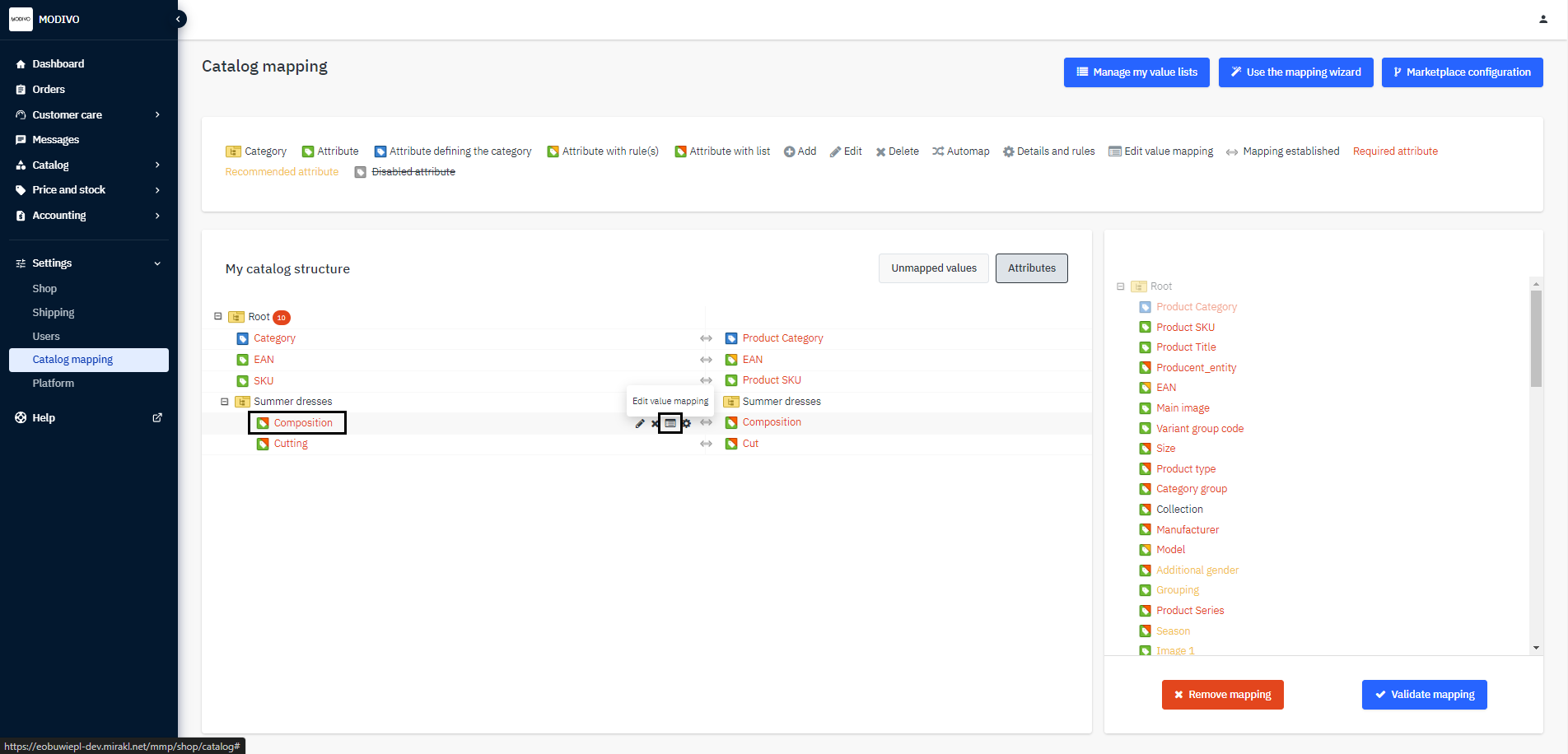
Select the list you want to map with the values from the given parameter in MODIVO. Click and drag all values from your list to those in our system. To return to mapping the next lists, click the shaded field and continue the process for other parameters.
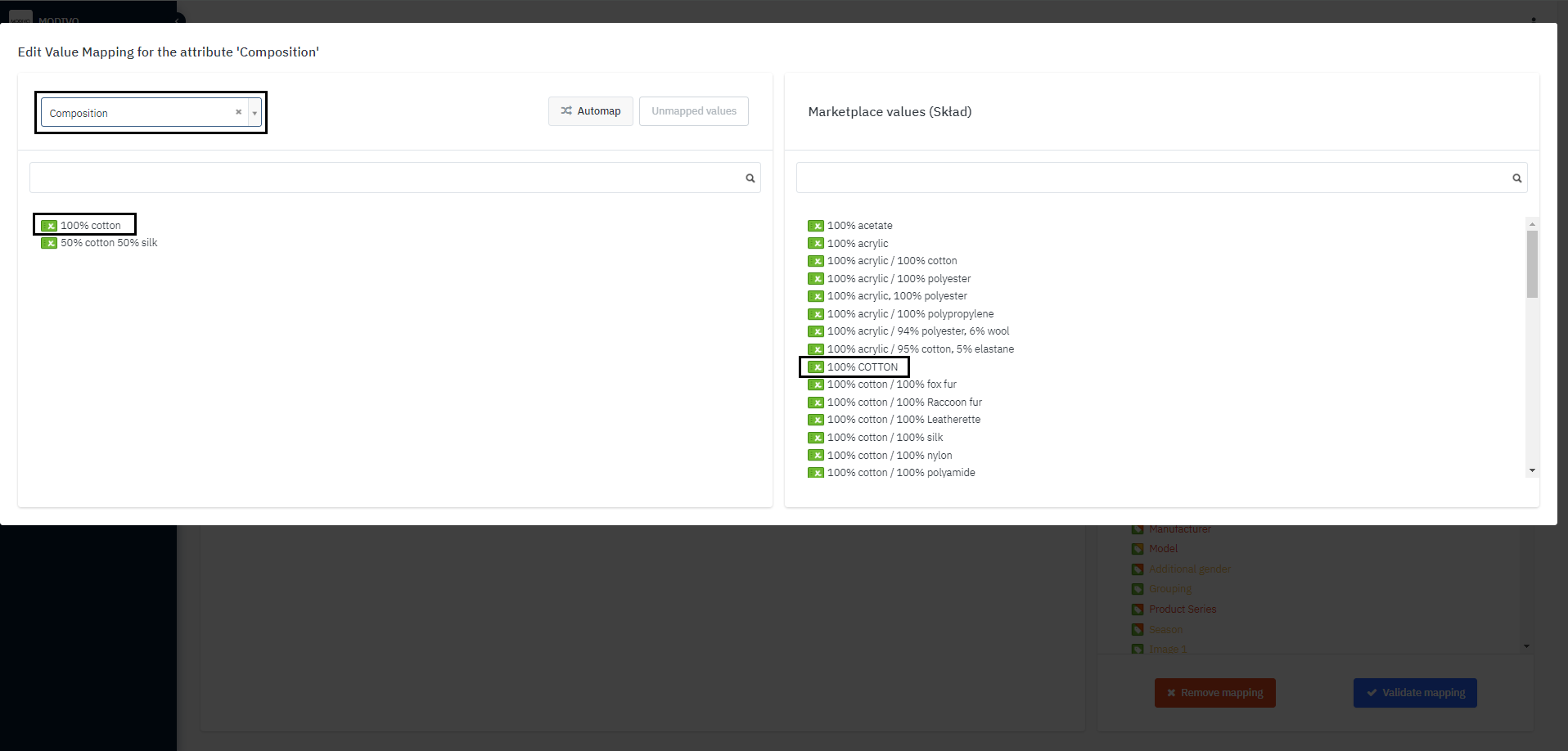
When you have mapped each parameter and category from your file, you can import it into the system.