
How to import a product/offer file?
How to import a product/offer file?
You can import the completed file after logging in to the Mirakl panel.
Product file
Go to the
Catalog-Product Importstab.In the top right corner, click on the
Import Productsbutton.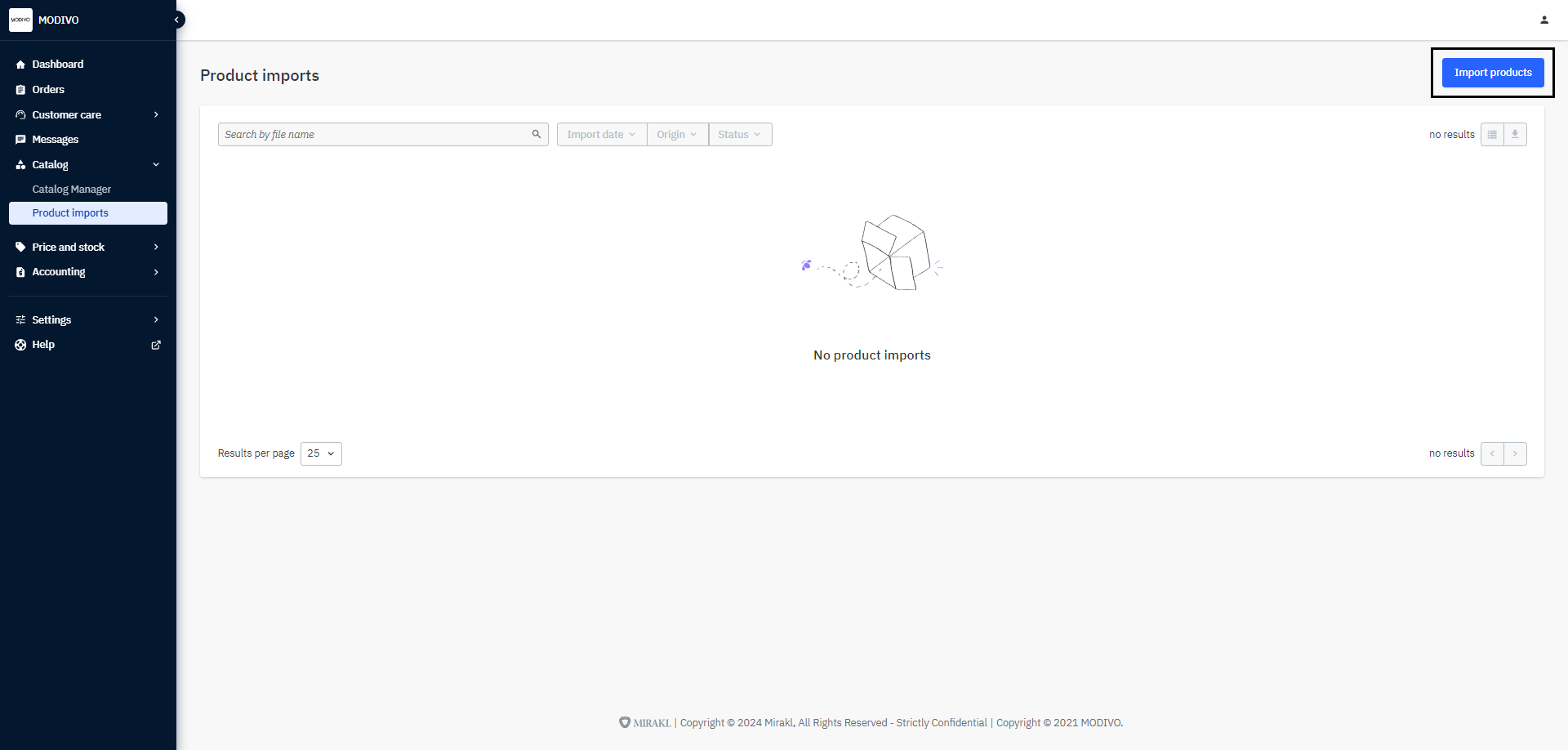
In the next window, in the
Product Filesection, click theChoose Filebutton or drag the product or product-offer file to the import window.Click
Confirmto upload the file for verification.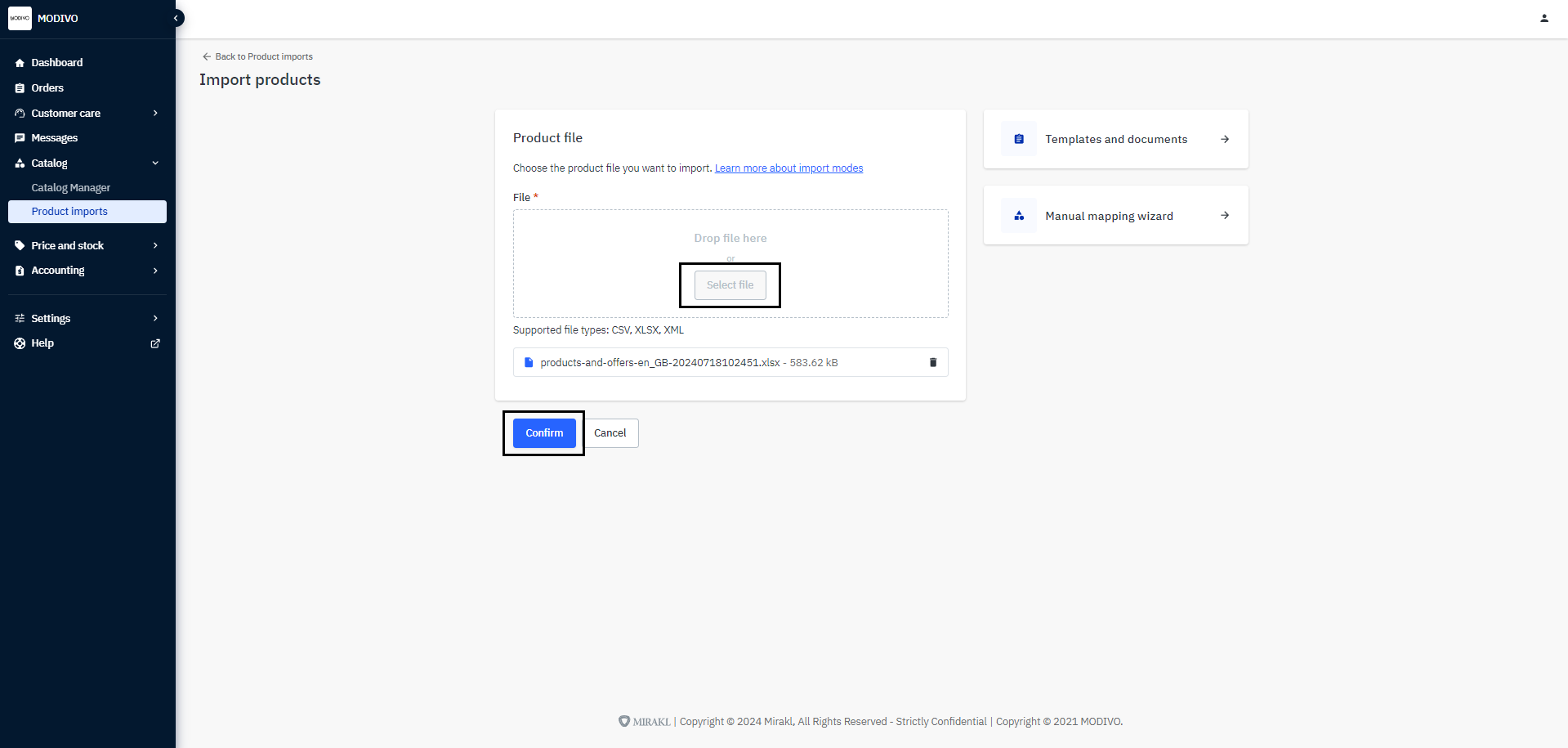
The system will automatically take you to the
Product Importstab, where you can monitor the current import.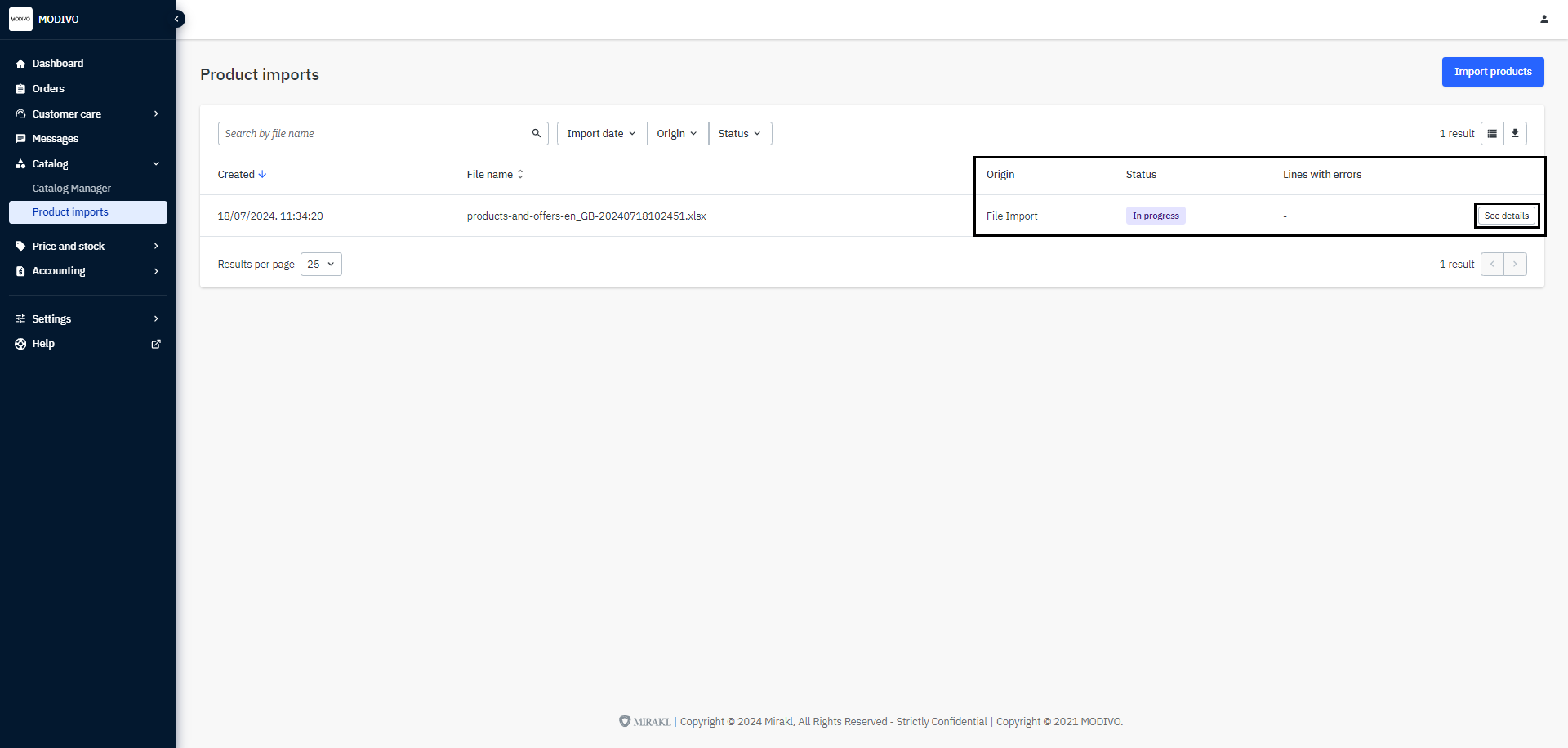
If errors occur during the import, refer to the section: How to check import errors - link
Offer file
Go to
Price and Stock-File Imports.In the
Import Stock File-Sourcesection, clickChoose Fileand select the file you want to import from your computer.At the bottom of the section, click
Importto import the file.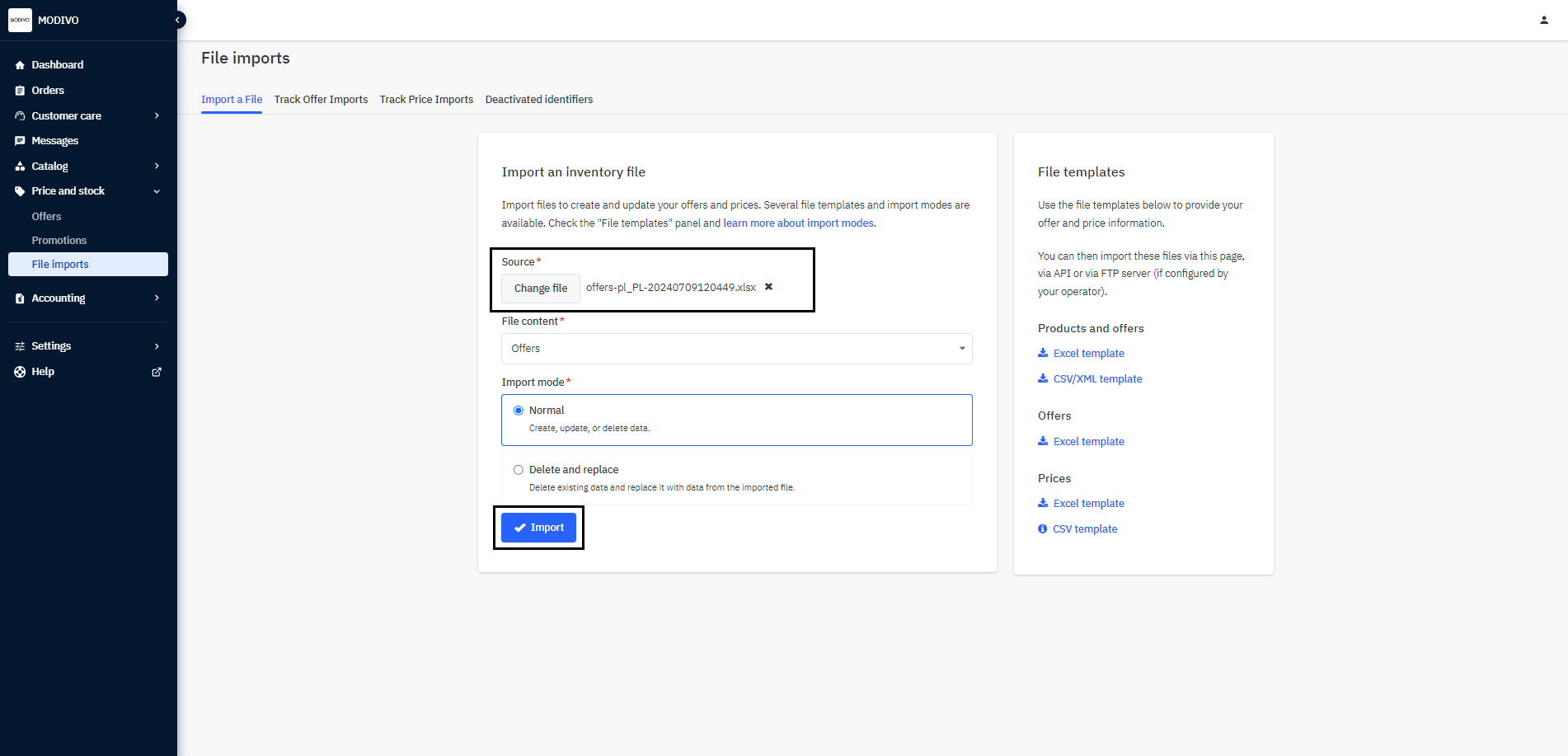
Note!
Normalimport mode will add offers from the file to your account.Delete and replacemode will delete all current offers available in the account and replace them with those in the imported file.