
How to add products and offers?
How to add products and offers?
Adding products
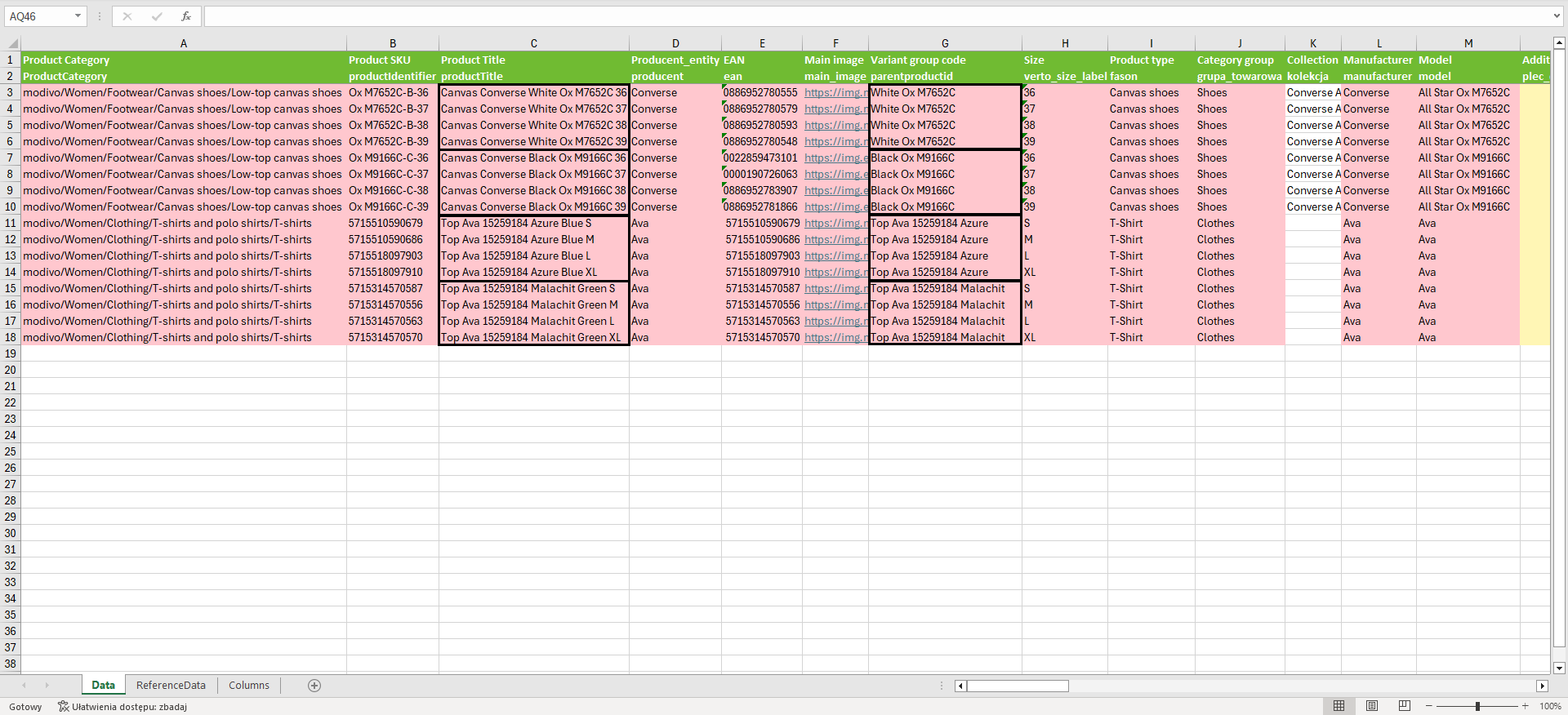
Open the downloaded file and begin filling it out starting with the category. Required parameters will be highlighted in red, recommended in yellow, and optional will remain white. Gray fields do not apply to the selected category.
Note!
If you are using Google Sheets, parameter fields will not be highlighted. Refer to the manual product adding instructions to check all required parameters for your products.
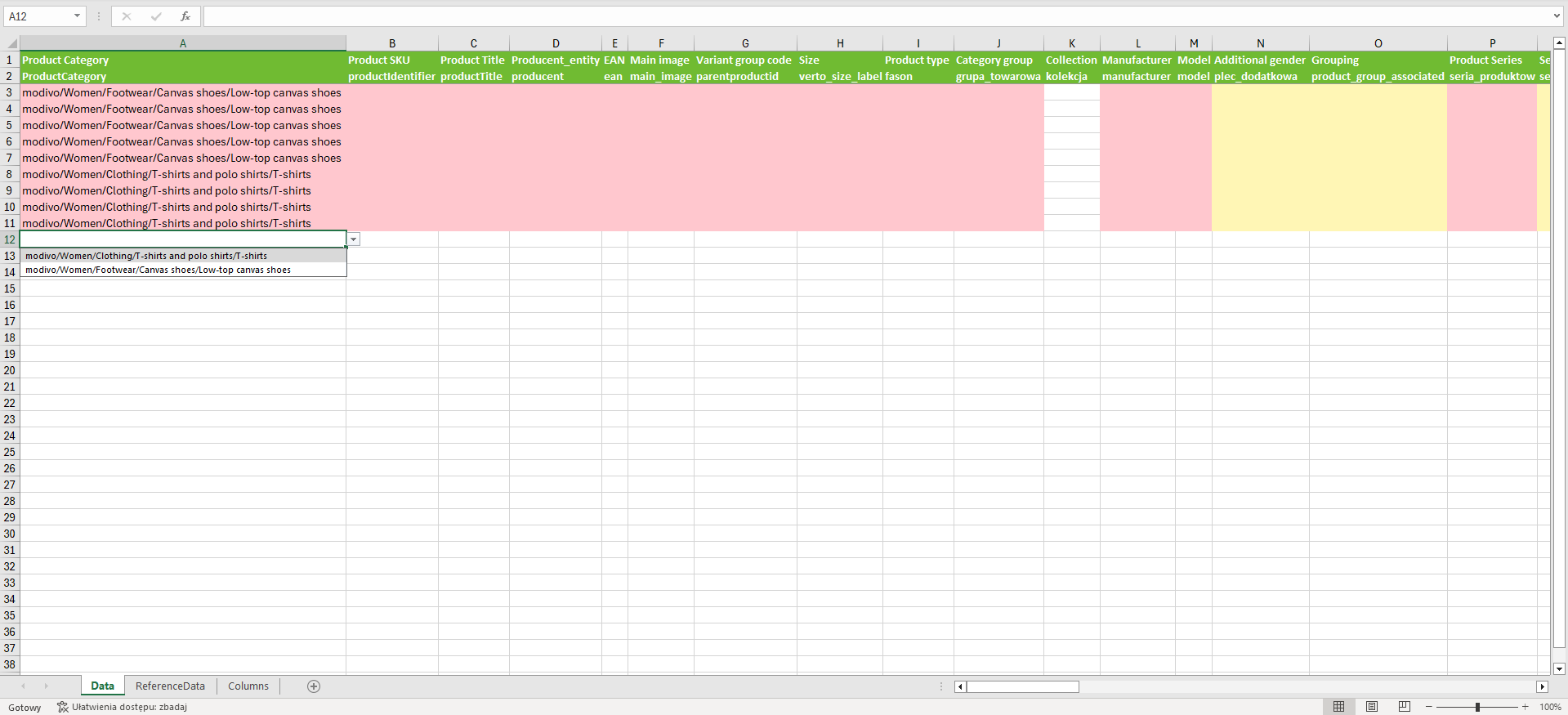
Fill in each product size as a separate row and connect them with the "variant group identifier" parameter by entering a unique value for that group.
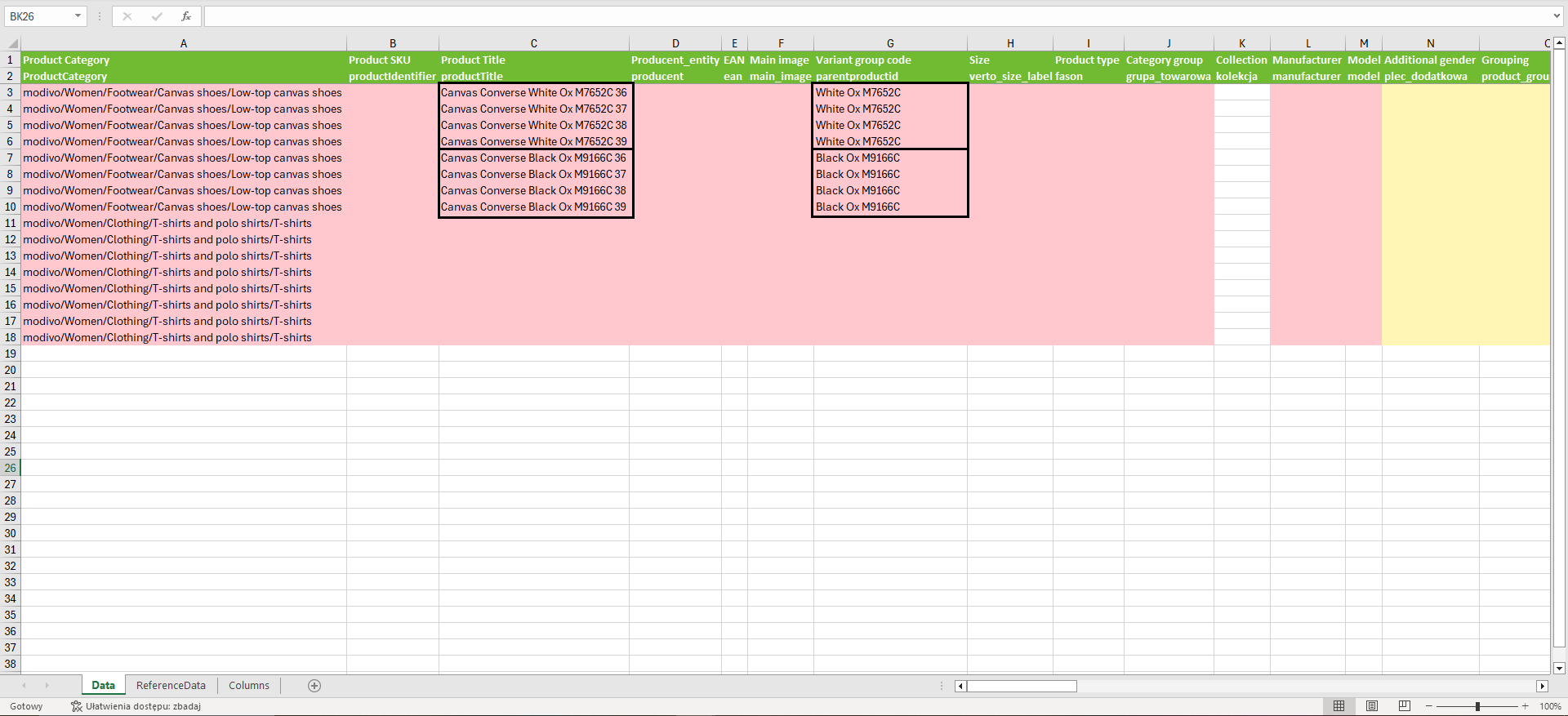
Remember that each size group must have a unique number, regardless of the category in which the products are located.
Attention!
Products that are not connected or connected incorrectly will need to be deleted and added again.
Continue filling in the remaining fields. Remember that product defining parameters (e.g., cut, color, fit, or composition) should be completed with values available in the system.
You will find each available value to add in the
ReferenceDatatab.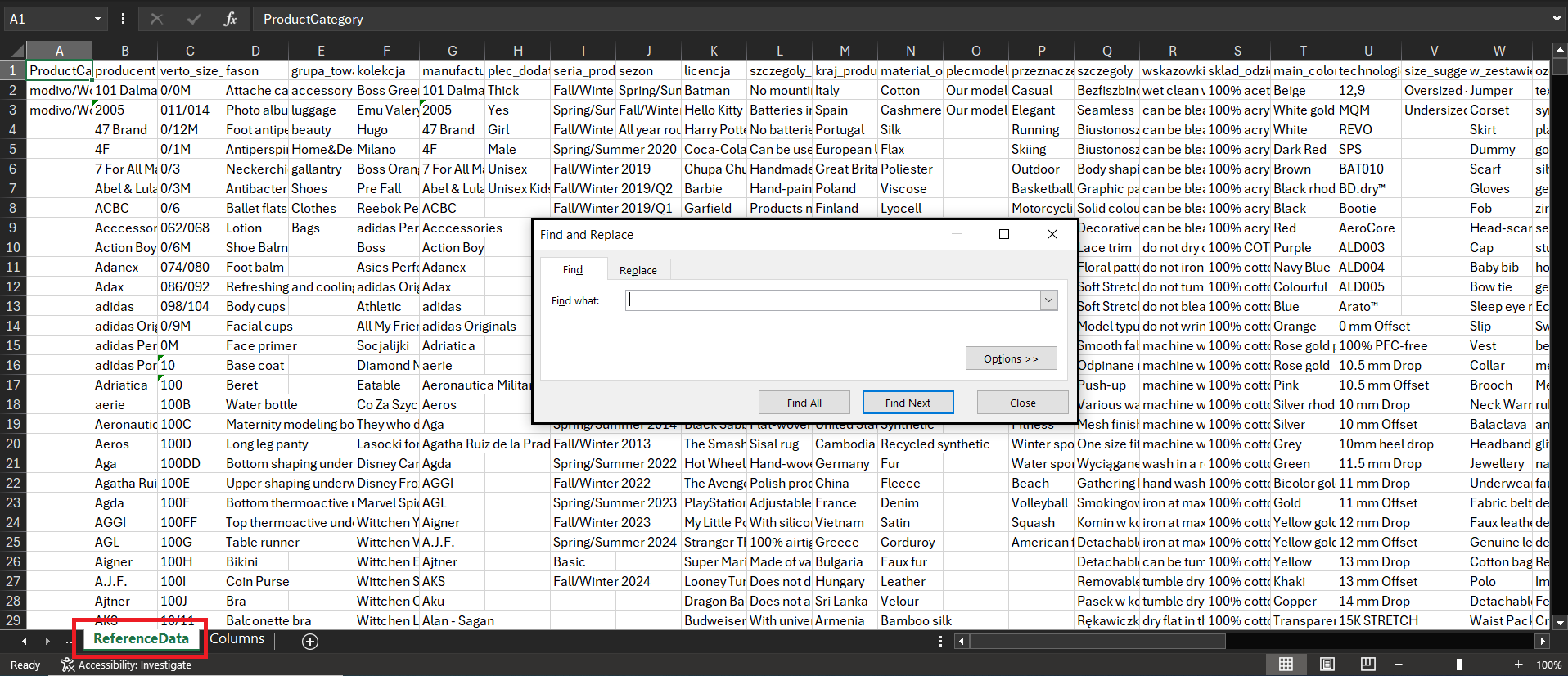
Attributes in the `ReferenceData` tab can be searched by their code. You will find each attribute code in the main `Data` tab, in the second row under the parameter you are interested in.
If the
ReferenceDatatab does not contain the parameter you are looking for, it means it is not predefined by the system and needs to be filled in with your own text. Examples of such attributes includeProduct Name,EAN, orProduct Description.If you have more than one value you want to add to a parameter, copy them from the
ReferenceDatatab and then enter them into the row, separating them with a semicolon;without spaces.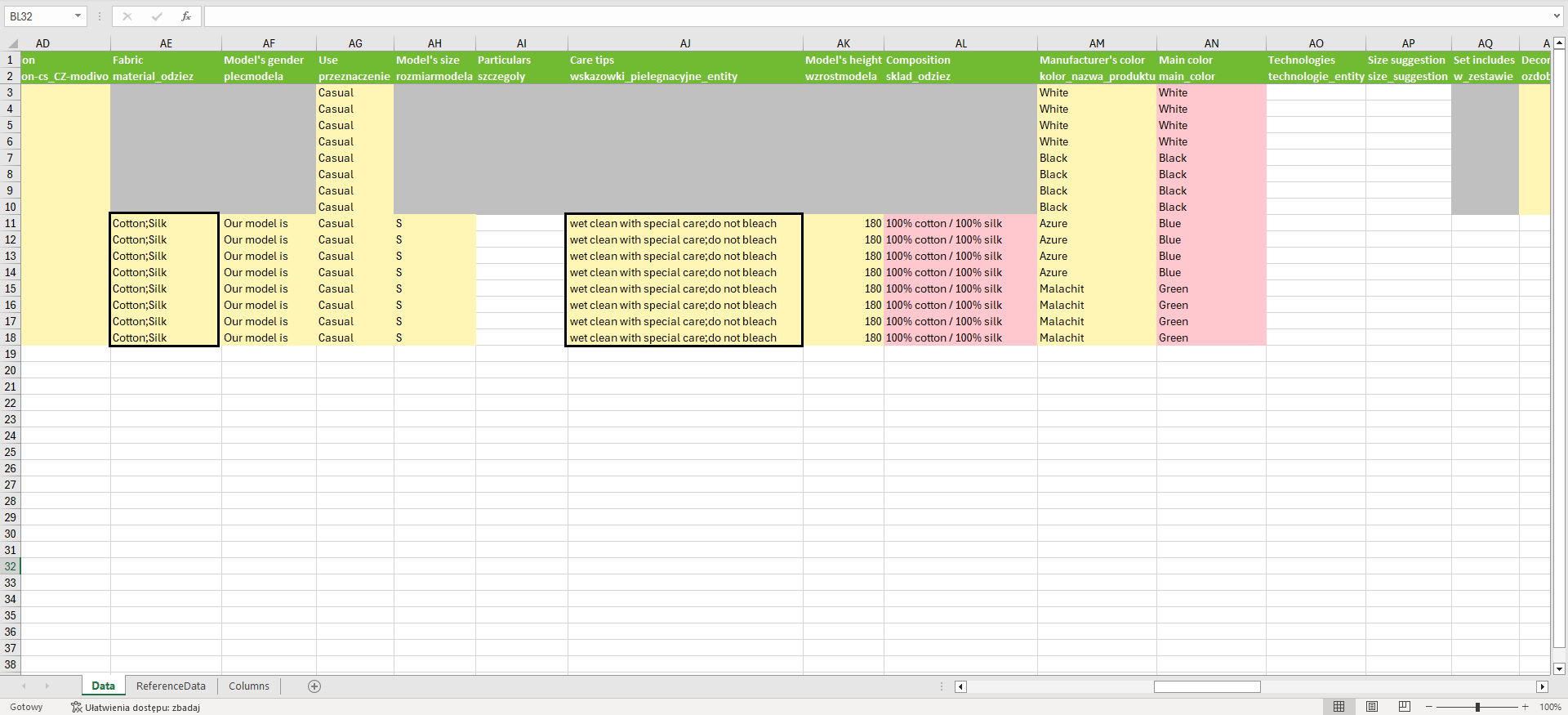
If the file is missing values that correspond to your data, refer to the section: How can I add missing values?
See also how to fill in product parameters
Note! SKU (Stock Keeping Unit) and EAN must have a unique number. This means that one SKU or EAN cannot be assigned to more than one product. If the file has the same SKU assigned to more than one product, only one of those products will be added.
Adding offers
Open the previously downloaded offer template or slide the slider in the product-offer template to the right. The offer part is located on the right side of the product-offer template and is marked in blue.
Fill in the offer details for each product size.
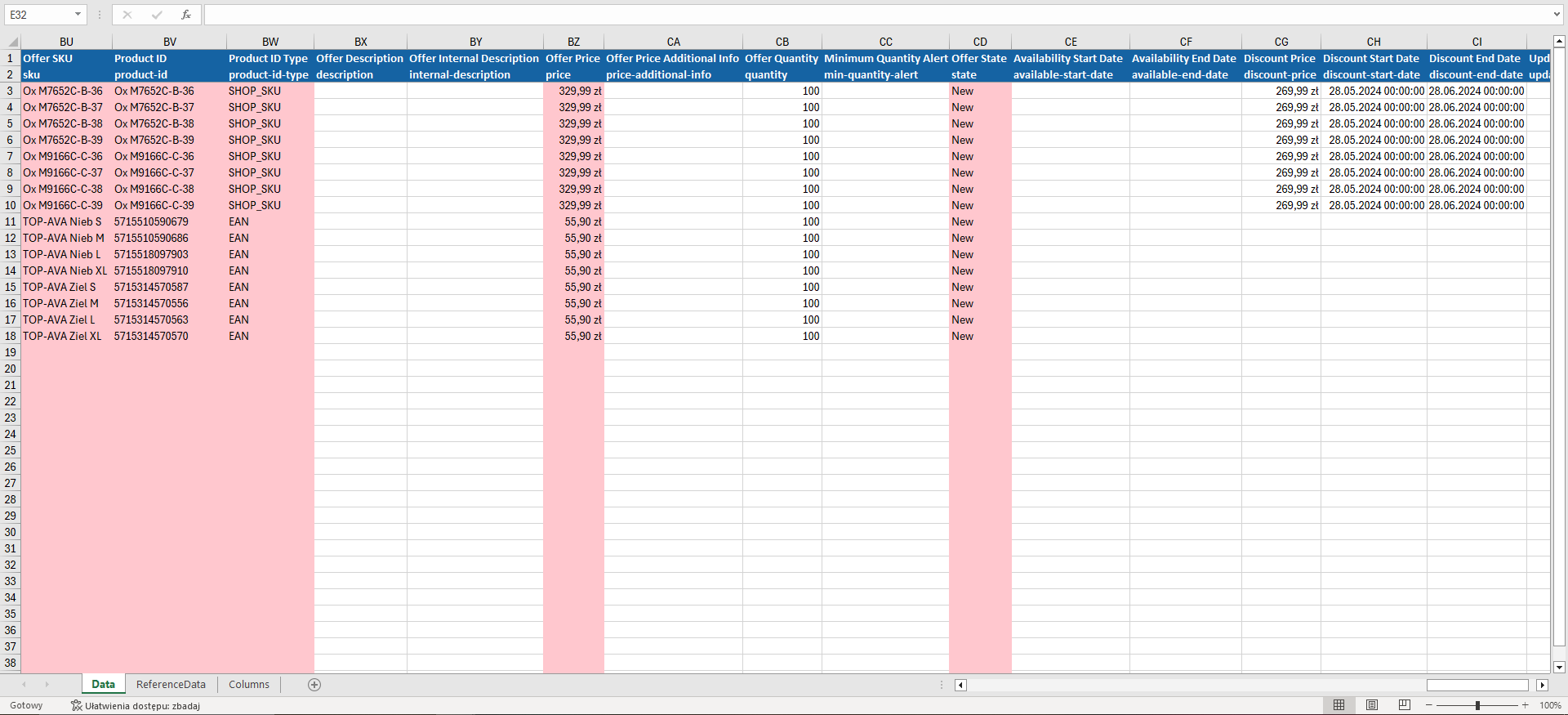
Explanation of fields:
Offer SKU – Offer SKU, can be the same number as the SKU for the product.
Product ID – Identifier through which the product in the system can be found, to which you want to add the offer. Enter one of the numbers marked in the
Product Identifier Typeparameter in this field.Product Identifier Type – Type of number entered in the Product ID column, it can be
EAN,SHOP_SKU, orSKU(assigned by our system).Offer Description; Internal Offer Description; Additional information about the offer price – Unused and invisible fields on the product card.
Attention!
SKU productandEANmust have a unique number. This means that oneSKUorEANcannot be assigned to more than one product. If the file has the same SKU assigned to more than one product, only one of those products will be added.